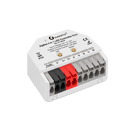








Wiring & switching Shelly troubleshooting
Shelly turns on by itself after a power cut
The power comes back and so does the light, even though you'd turned it off. It's usually the power-on setting, and it takes a minute to change.
- Gen4
- Gen3
- Gen2
Start here
What are you seeing?
Pick the closest match and we'll point you to the fix most likely to sort it.
Why it happens
When the power comes back, a Shelly relay doesn't remember on its own what you wanted. It does what its power-on setting tells it to: turn on, turn off, go back to the state it was in before the cut, or follow a flip switch on the wall.
If that setting doesn't match how you use the light, it'll come on, or stay off, after every blackout. A timer or a script that runs on startup can do the same thing, a few seconds or minutes later.
Before you start
Every fix here is a setting in the Shelly app or the device's web page. Don't open the wall plate. If the device is warm, buzzing or clicking on its own, turn it off at the switchboard and call a licensed electrician.
Quick checks first
Run these checks before moving on to the fixes.
Checklist 0 of 2 checked
Look at the wall switch
If the light is wired to a flip switch, note whether it's up or down. If it's in the on position, the device may be following it.
Check the Timers tab
Open the device in the app and look at its Timer tab. An Auto on timer turns it back on a set time after it turns off.
Fixes, most likely first
Work down the list and stop when it's fixed.
- Most likely for you
The power-on setting is wrong for you
How to tell. It does the same thing after every power cut: always on, or always off, whatever state it was in before.- Open the power-on setting on its web page
Open the device's IP address in a browser, open the output's settings and go to Input/output settings. Find Action on power on.
- Pick the behaviour you want
Choose Turn OFF to keep it off after a blackout, or Restore last known state of output/relay to put it back how it was before the power went. Then click Save.
- Or change it in the app
In the Shelly app, open the device's Settings, then Input/output setting, and change Set relay power on default.
Did this fix it? - Open the power-on setting on its web page
- Most likely for you
It's set to follow the wall switch
How to tell. It's wired to a flip switch, and after a cut it always matches the switch position, not what you last set in the app.- Check the power-on option
In Action on power on, the option Current state of the switch (shown as Match input in some app versions) makes the output follow the wall switch when the power returns.
- Choose another option
Pick Restore last known state of output/relay if you want it back how you left it, or Turn OFF if you'd rather it stays off until someone turns it on.
Did this fix it? - Check the power-on option
- Most likely for you
An Auto on timer is switching it back on
How to tell. It's off when the power returns, then comes on by itself a set time later, and does the same after you turn it off normally.- Turn off Auto on
On the device's web page, open the output's settings and go to Timers. Under Auto ON, untick Enable and click Save. In the app it's the Timer tab. Leave Auto off alone if you use it.
Did this fix it? - Turn off Auto on
- Most likely for you
A script runs when it starts
How to tell. The device runs scripts, and the output changes a few seconds after it boots up.- Check which scripts run on startup
Open the device's web page and go to Scripts. The toggle beside each script runs it on startup. Turn it off for any script that switches the output and shouldn't run after a blackout.
Did this fix it? - Check which scripts run on startup
- Most likely for you
A schedule fell inside the blackout
How to tell. You have a schedule that should have switched it while the power was out, and the next scheduled time works normally.- Know what Shelly does after a cut
When the power returns, the relay follows its power-on setting. A scheduled event that fell inside the cut doesn't run afterwards, and the next one runs as normal.
- Set the power-on setting to suit the schedule
If you'd rather it's off after any blackout, whatever the schedule says, set Action on power on to Turn OFF.
- Make sure it can get the time
Schedules need a working internet connection so the device can sync its clock. If the router takes longer than the device to come back after a cut, the device can't check the time until the internet is back.
Did this fix it? - Know what Shelly does after a cut
Frequently asked questions
Related problems
Still need a hand?
We answer most messages within one business day. If your question is about an existing order, have your order number ready. It speeds things up.
Contact us