

















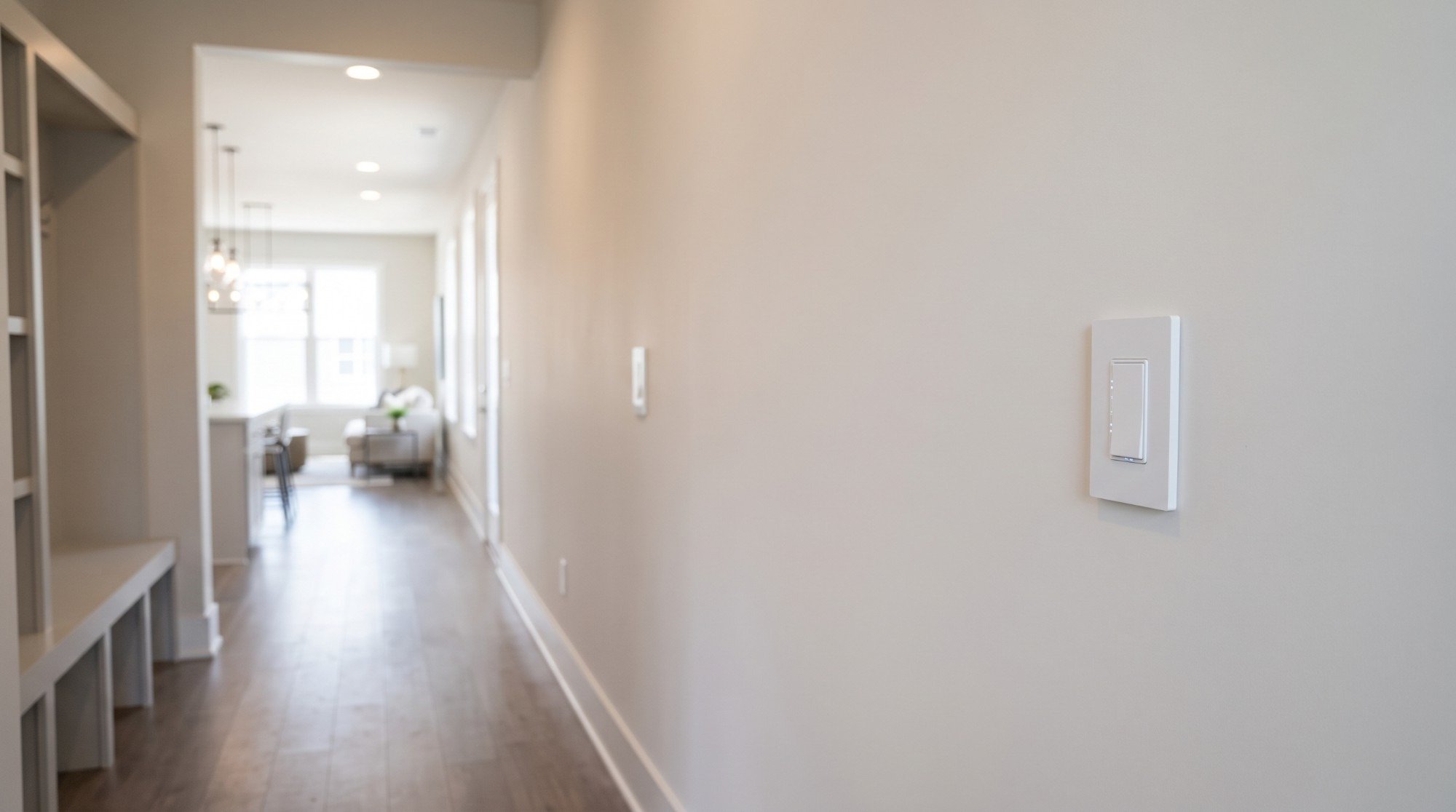
How it works
A Shelly i4 Gen3 sits behind the second switch. It doesn't switch anything itself: it reads the switch and, each time you flip it, sends a toggle command over your Wi-Fi to the Shelly that runs the light.
That's a Shelly 1 Gen4 behind the light's existing switch. The existing switch keeps working through the relay's own input, so both switches change the light, whichever was used last.
A Shelly i4 Gen3 sits behind the second switch and joins Home Assistant over your Wi-Fi through the Shelly integration. Each time you flip the switch, an automation toggles the light.
The light can be anything Home Assistant controls: a Shelly relay behind its existing switch, or smart bulbs such as Philips Hue on a circuit that stays on.
-
01
Your second switch
Flip the switch and the i4 behind it sends the light a command over Wi-Fi.
-
02
Your phone
Set up the two switches once, in the app.
-
03
Your light
Changes from either switch, every time.
What it looks like on your phone
-
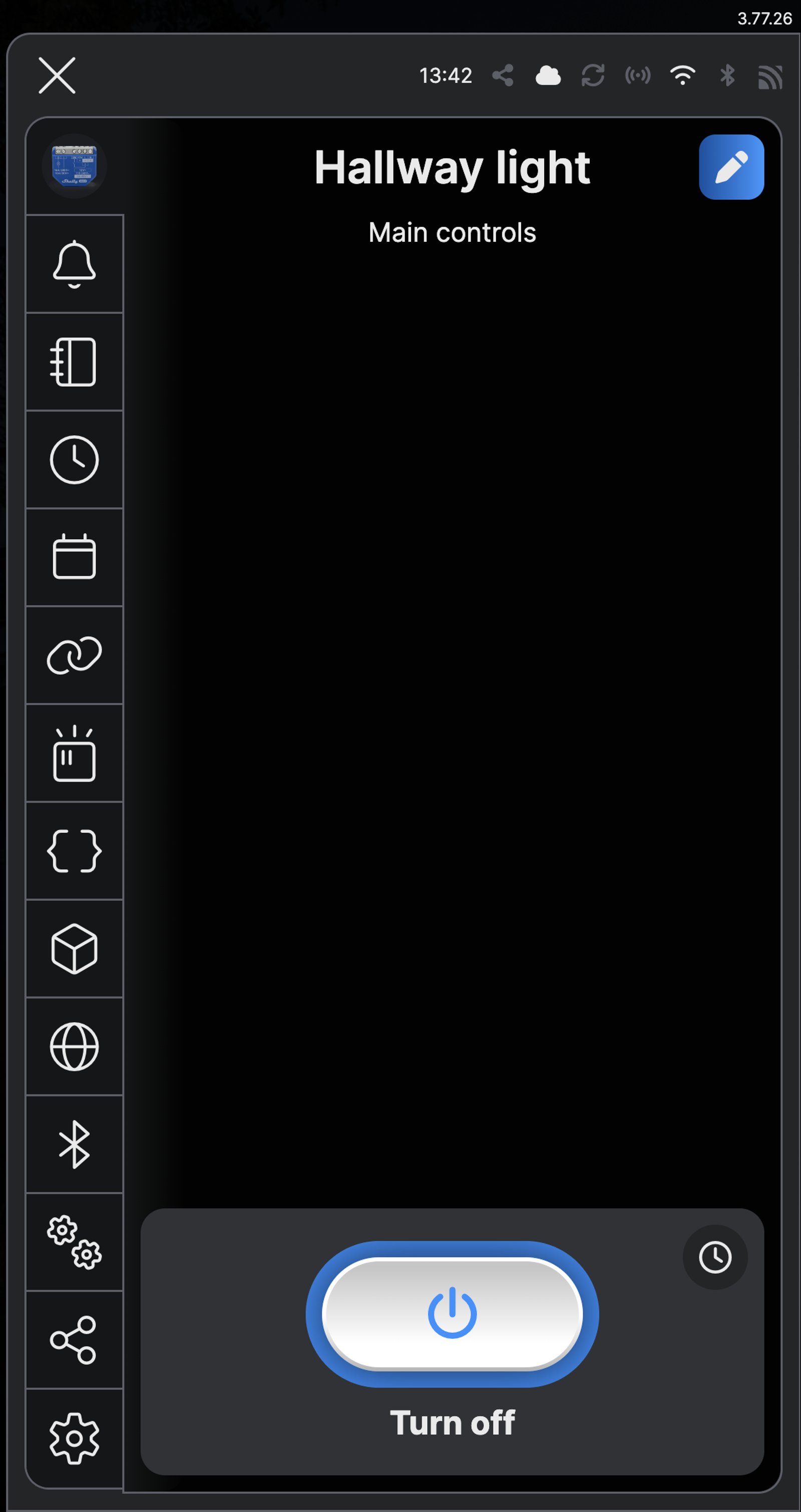
Main controls. The light shows on or off here, whichever switch you used last.
-
Activity log. Every time the light changes, it's listed with the time.
-
The second switch. Two actions on the i4 change the light each time it's flipped, on or off.
-
Activity. Each time the light changes from the second switch, Home Assistant lists it with the automation that did it.
-
Automations. Second switch toggles the hallway light, with the last time it ran.
Step by step
How you'll set it up
Add the device to Wi-Fi from your phone, or straight from a browser.



Every Shelly has its own built-in web interface, so there's nothing to install. Once it's on your Wi-Fi, type its IP address into a browser on the same network. Before it joins your Wi-Fi, connect your computer to the Shelly's own hotspot and open `192.168.33.1`.
-
Fit the i4 behind the second switch
Live goes to L and neutral to N. The switch takes live on one side and connects to SW1 on the other.
Wire map i4 Gen3- Active (supply) L
- Neutral N
- Second switch SW1
Circuit overview1Second switchActive (supply)Neutral / 0 VSwitch signal / dry contactIn Australia, fixed 230 V wiring is licensed-electrician work. Use these diagrams to plan the job and brief your electrician.
Showing the whole circuitThere's no wiring diagram for the here yet. Its installation guide has the manufacturer's wiring diagram. Wire it from the diagram in its manual.
-
Fit the Shelly behind the light's switch
Mains goes to L and N, a short bridge from L feeds I, and O carries the switched active to the light. The light's existing switch lands on SW, so it keeps working.
Wire map 1 Gen4- Active (supply) L
- Neutral N
- Bridge from L I
- Light or appliance O
- Wall switch SW
Wire map 1 Mini Gen4- Active (supply) L
- Neutral N
- Bridge from L I
- Light or appliance O
- Wall switch SW
Wire map 1 Gen3- Active (supply) L
- Neutral N
- Bridge from L I
- Light or appliance O
- Wall switch SW
Wire map 1 Mini Gen3- Active (supply) L
- Neutral N
- Bridge from L I
- Light or appliance O
- Wall switch SW
Wire map 1PM Gen4- Active (supply) L
- Neutral N
- Light or appliance O
- Wall switch SW
Circuit overview1Light / appliance2Wall switchActive (supply)Neutral / 0 VSwitched loadSwitch signal / dry contactIn Australia, fixed 230 V wiring is licensed-electrician work. Use these diagrams to plan the job and brief your electrician.
Showing the whole circuitCircuit overview1Light / appliance2Wall switchActive (supply)Neutral / 0 VSwitched loadSwitch signal / dry contactIn Australia, fixed 230 V wiring is licensed-electrician work. Use these diagrams to plan the job and brief your electrician.
Showing the whole circuitCircuit overview1Light / appliance2Wall switchActive (supply)Neutral / 0 VSwitched loadSwitch signal / dry contactIn Australia, fixed 230 V wiring is licensed-electrician work. Use these diagrams to plan the job and brief your electrician.
Showing the whole circuitCircuit overview1Light / appliance2Wall switchActive (supply)Neutral / 0 VSwitched loadSwitch signal / dry contactIn Australia, fixed 230 V wiring is licensed-electrician work. Use these diagrams to plan the job and brief your electrician.
Showing the whole circuitCircuit overview1Light / appliance2Wall switchActive (supply)Neutral / 0 VSwitched loadSwitch signal / dry contactIn Australia, fixed 230 V wiring is licensed-electrician work. Use these diagrams to plan the job and brief your electrician.
Showing the whole circuitThere's no wiring diagram for the here yet. Its installation guide has the manufacturer's wiring diagram. Wire it from the diagram in its manual.
-
Add both to the Shelly app
Add the i4 and the relay in the Shelly app and put them in the same room. Name the relay after the light (Hallway light) and the i4 after where it is (Hallway second switch).
-
Set the relay's switch to Edge
Open the relay, then Settings (the cog at the foot of the menu) and Input/output settings. Under Set relay type, choose Set Shelly device to be "Edge" switch. Under Set relay power on default, choose Restore the last mode it was in, then tap Save. Edge makes every flip of the light's own switch change the light, so it never falls out of step with the second switch. In the web interface, open the relay's output, then Input/Output settings. Click Edge and Restore last known state of output/relay, then click Save.
-
Toggle the light when the switch turns on
Open the i4, then Actions, and tap Add action. Name it Switch turned on and tap Next twice. Under When, tap Input on, then tap Next. Tap Add action from another device, pick the relay and tap Next, choose Toggle Output and tap Save, then Save again. In the web interface, open Actions and click Create action. Name it, set Event to Input toggled on, and under Then do click Add URL and enter `http://` followed by the relay's IP address and `/rpc/switch.toggle?id=0`. Then click Save.
-
Toggle the light when the switch turns off
Add a second action the same way, named Switch turned off. Under When, tap Input off, then tap Next, and give it the same Toggle Output to the relay. In the web interface, create it with the Event Input toggled off and the same URL under Then do, then click Save.
-
Check both actions
Actions now lists Switch turned on and Switch turned off, both switched on. Flip the second switch and the light changes. The web interface's Actions page shows the same two.
-
Fit the i4 behind the second switch
Live goes to L and neutral to N. The switch takes live on one side and connects to SW1 on the other.
Wire map i4 Gen3- Active (supply) L
- Neutral N
- Second switch SW1
Circuit overview1Second switchActive (supply)Neutral / 0 VSwitch signal / dry contactIn Australia, fixed 230 V wiring is licensed-electrician work. Use these diagrams to plan the job and brief your electrician.
Showing the whole circuitThere's no wiring diagram for the here yet. Its installation guide has the manufacturer's wiring diagram. Wire it from the diagram in its manual.
-
Fit a Shelly at the light if it isn't smart
Mains goes to L and N, a short bridge from L feeds I, and O carries the switched active to the light. The light's existing switch lands on SW, so it keeps working.
Wire map 1 Gen4- Active (supply) L
- Neutral N
- Bridge from L I
- Light or appliance O
- Wall switch SW
Wire map 1 Mini Gen4- Active (supply) L
- Neutral N
- Bridge from L I
- Light or appliance O
- Wall switch SW
Wire map 1 Gen3- Active (supply) L
- Neutral N
- Bridge from L I
- Light or appliance O
- Wall switch SW
Wire map 1 Mini Gen3- Active (supply) L
- Neutral N
- Bridge from L I
- Light or appliance O
- Wall switch SW
Wire map 1PM Gen4- Active (supply) L
- Neutral N
- Light or appliance O
- Wall switch SW
Circuit overview1Light / appliance2Wall switchActive (supply)Neutral / 0 VSwitched loadSwitch signal / dry contactIn Australia, fixed 230 V wiring is licensed-electrician work. Use these diagrams to plan the job and brief your electrician.
Showing the whole circuitCircuit overview1Light / appliance2Wall switchActive (supply)Neutral / 0 VSwitched loadSwitch signal / dry contactIn Australia, fixed 230 V wiring is licensed-electrician work. Use these diagrams to plan the job and brief your electrician.
Showing the whole circuitCircuit overview1Light / appliance2Wall switchActive (supply)Neutral / 0 VSwitched loadSwitch signal / dry contactIn Australia, fixed 230 V wiring is licensed-electrician work. Use these diagrams to plan the job and brief your electrician.
Showing the whole circuitCircuit overview1Light / appliance2Wall switchActive (supply)Neutral / 0 VSwitched loadSwitch signal / dry contactIn Australia, fixed 230 V wiring is licensed-electrician work. Use these diagrams to plan the job and brief your electrician.
Showing the whole circuitCircuit overview1Light / appliance2Wall switchActive (supply)Neutral / 0 VSwitched loadSwitch signal / dry contactIn Australia, fixed 230 V wiring is licensed-electrician work. Use these diagrams to plan the job and brief your electrician.
Showing the whole circuitThere's no wiring diagram for the here yet. Its installation guide has the manufacturer's wiring diagram. Wire it from the diagram in its manual.
-
Add it to Home Assistant
In Home Assistant, go to Settings, then Devices & services, select Add integration and choose Shelly. Enter the i4's IP address, which your router lists, and select Submit. Name it Hallway second switch. Its first input shows as Hallway switch, a sensor that turns on and off with the switch. Add the relay the same way if it isn't in Home Assistant yet.
-
Set the relay's switch to Edge
If the light is on a Shelly relay, do this once in the Shelly app: open the relay, then Settings (the cog at the foot of the menu) and Input/output settings. Under Set relay type, choose Set Shelly device to be "Edge" switch. Under Set relay power on default, choose Restore the last mode it was in, then tap Save. Edge makes every flip of the light's own switch change the light, so it never falls out of step with the second switch.
-
Toggle the light on every flip
Go to Settings, then Automations & scenes, and select Create automation. Select Add trigger, choose a State trigger and pick Hallway switch, leaving the To state empty so it reads State changed to any state. Select Add action, choose Toggle for a switch, and pick Hallway light. Check them, select Save and name it Second switch toggles the hallway light.
-
Check it's there
Automations & scenes now lists Second switch toggles the hallway light. It's on as soon as you save it, so the next flip of the second switch changes the light.
Frequently asked questions
Should I use the Shelly app or Home Assistant?
If the light is on a Shelly and you don't run Home Assistant, use the Shelly app: the i4 sends the command straight to the relay, with no hub. If Home Assistant already runs your home, or the light is something else, such as Hue bulbs, use Home Assistant.
Does the switch box need a neutral?
Yes. The i4 is powered from live and neutral, so the box for the second switch needs both.
Does the light's original switch still work?
Yes. It stays wired to the relay's SW input, and with the input set to Edge every flip changes the light. Neither switch has an on or off position any more: each one just changes the light.
What happens if the internet drops out?
The second switch keeps working. The i4 sends its command straight to the relay over your home Wi-Fi, so it doesn't go through Shelly's cloud. It does need the Wi-Fi itself: if your home network is down, only the light's own switch works.
Can I use a push button instead of a rocker?
Yes. Set the i4's input to Button, and use one action on Button is pushed that toggles the light.
What about a third switch?
Fit another i4 at the third spot and give it the same two actions. Each i4 talks to the light on its own.
Does it work while Home Assistant is down?
No. The automation runs in Home Assistant, so the second switch does nothing until it's back. The light's own switch keeps working. If you'd rather the two switches didn't depend on it, link them in the Shelly app instead.
More Shelly solutions
Lights that come on as you walk in, softer late at night
A sensor turns the bedroom or hallway light on as you walk in, at full brightness in the evening and a low glow at 2am. Fit Philips Hue bulbs and a motion sensor, or keep your lights and add a Shelly dimmer and presence sensor. Control with any of


Lights that dim on a schedule each evening
The lights fade down to a low glow after dinner instead of snapping between full and off. Do it with a Shelly dimmer behind the wall plate or Philips Hue bulbs, in their app or Home Assistant. Control with any of 
Outdoor lights on at sunset, off at midnight
Porch, path and garden lights follow the sun through the year without you touching a switch. Run the lights you have from a Shelly relay, or fit Philips Hue outdoor lights, and set it up in their app or Home Assistant. Control with any of More Home Assistant solutions
Lights that come on as you walk in, softer late at night
A sensor turns the bedroom or hallway light on as you walk in, at full brightness in the evening and a low glow at 2am. Fit Philips Hue bulbs and a motion sensor, or keep your lights and add a Shelly dimmer and presence sensor. Control with any of Lights that dim on a schedule each evening
The lights fade down to a low glow after dinner instead of snapping between full and off. Do it with a Shelly dimmer behind the wall plate or Philips Hue bulbs, in their app or Home Assistant. Control with any of Outdoor lights on at sunset, off at midnight
Porch, path and garden lights follow the sun through the year without you touching a switch. Run the lights you have from a Shelly relay, or fit Philips Hue outdoor lights, and set it up in their app or Home Assistant. Control with any of Still need a hand?
We answer most messages within one business day. If your question is about an existing order, have your order number ready. It speeds things up.
Contact usThe kit
Choose your relay at the light
Each of these does the job. The steps on this page are written for the recommended one.