


















How it works
A Shelly BLU Door/Window ZB goes on the door or window with its magnet on the frame beside it, and reports open or closed. It runs on a coin battery and talks Bluetooth, not Wi-Fi, so on its own it can't reach the Shelly app. It needs a Shelly on your Wi-Fi nearby to pass its readings on, called its Bluetooth gateway.
That's the only reason the Shelly 1 Gen4 is in the kit. Any Plus, Pro, Gen3 or Gen4 Shelly within about 10 metres can do the job, so if you already have one near the door, you only need the sensor.
A scene in the Shelly app then watches the sensor. When it has been open for five minutes, your phone gets a notification, once. Close the door and it's ready for next time.
The Shelly BLU Door/Window ZB works with Home Assistant through its BTHome integration. It talks Bluetooth, so it reaches Home Assistant through a Shelly 1 Gen4 set up as a Bluetooth proxy. Any Gen2 or newer Shelly that isn't battery powered, within about 10 metres of the door, can be the proxy.
An automation watches the sensor. When the door has been open for five minutes, your phone gets a notification through the Home Assistant app. Close the door and it's ready for next time.
-
01
Your phone
Gets one notification when the door has been open for five minutes.
-
02
Shelly sensor
Reports open or closed, on a coin battery.
-
03
Your door or window
Close it and the alert is ready for next time.
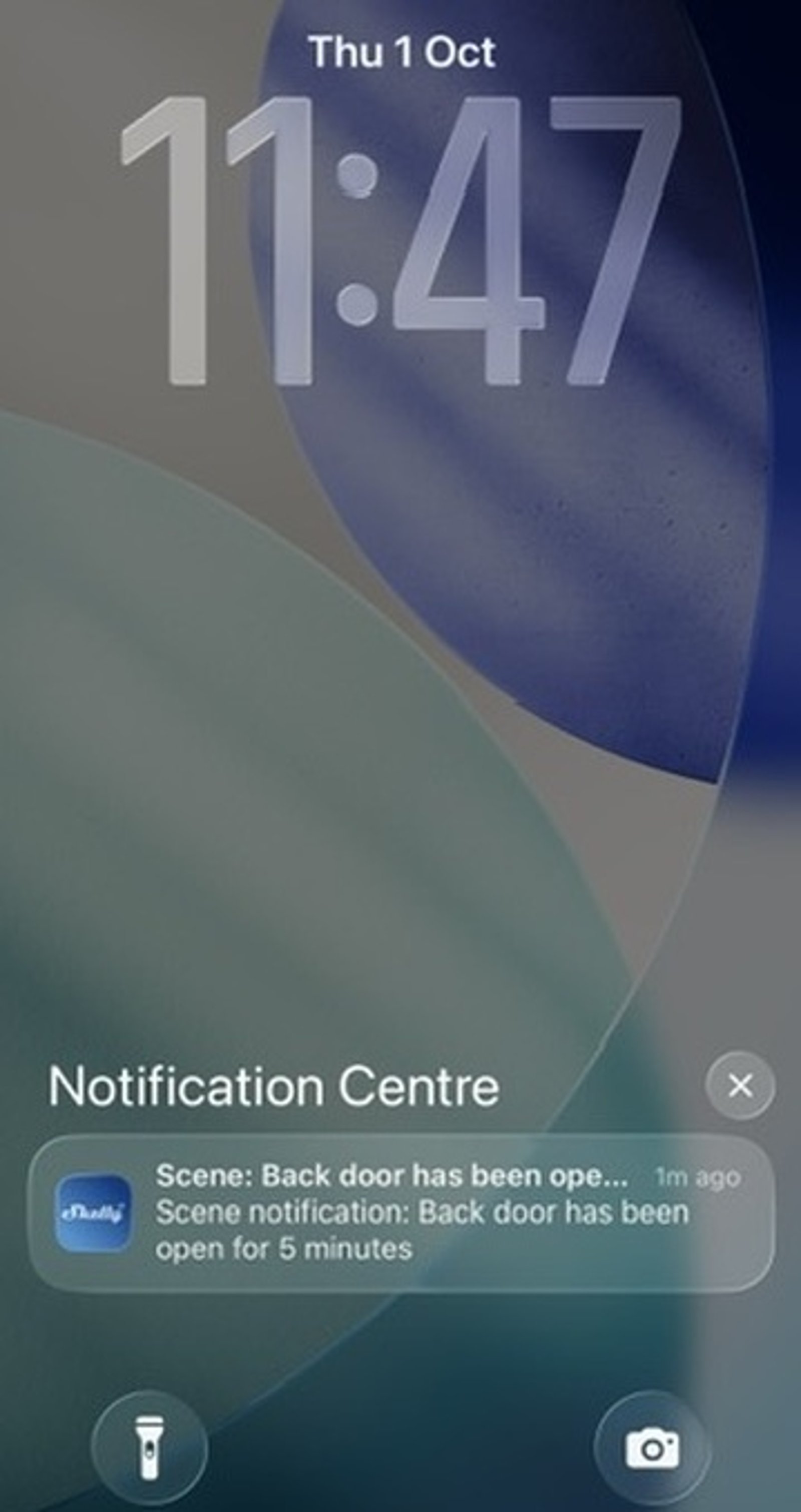
What it looks like on your phone
-
Straight to your phone. Five minutes after the back door opens, the message you wrote arrives as a notification.
-
Open or shut, at a glance. The sensor's screen shows the door's state the moment it changes, passed on by the hallway light's Shelly.
-
The rule on one card. Back door open for 5 minutes sets the scene off, once.
-
Then two things happen. Your phone gets the message you wrote, and the hallway light comes on for two minutes.
-
Watching the back door. One automation sends your phone a message when it has been open for five minutes.
Step by step
How you'll set it up
Add the device to Wi-Fi from your phone, or straight from a browser.



You can set up the Shelly relay on its own built-in web interface: once it's on your Wi-Fi, type its IP address into a browser on the same network, or before that, join the Shelly's own hotspot and open `192.168.33.1`. The scene and the phone notification in steps 5 to 7 only run in the Shelly app, so you'll need the app for those either way.
-
Check there's a Shelly near the door
The sensor needs a Plus, Pro, Gen3 or Gen4 Shelly on your Wi-Fi within about 10 metres, less through brick. If you don't have one there, fit the 1 Gen4 behind the nearest light switch.
-
Add it to the Shelly app
If it's new, add it in the Shelly Smart Control app and name it after what it switches, such as Hallway light.
-
Fit the sensor and its magnet
Fix the sensor to the door or window and the magnet to the frame, lined up beside each other when it's shut. Do the same for each door or window you want to watch.
-
Add the sensor and tick its gateway
In the app, tap the plus sign and choose Add via Bluetooth. Press the sensor's button once when asked, name it Back door, and tick the Shelly near the door, Hallway light here, as its Bluetooth gateway.
-
Watch the back door
Open the room, go to Scenes and tap +. Tap Add condition, then Create condition, choose Device based and pick Back door. Choose Door State, then Open, and tap Next.
-
Trigger it once, after five minutes
Choose Trigger, turn on Trigger custom settings, pick Once and set Condition is valid to 5 minutes, then tap Save.
-
Send it to your phone
Tap Next, then Add action, Create action and Notify action. Choose Phone notification and type a message under Notification settings, such as Back door has been open for 5 minutes, then tap Next and Save. On More options, turn off Execute the scene on save or edit, so saving doesn't send a test alert. Name the scene Back door left open and tap Save.
-
Test it
Open the back door and leave it. Five minutes later your phone shows Back door has been open for 5 minutes.
-
Check there's a Shelly near the door
The sensor needs a Gen2 or newer Shelly that isn't battery powered, on your Wi-Fi within about 10 metres, less through brick. If you don't have one there, fit the 1 Gen4 behind the nearest light switch.
-
Make the Shelly a Bluetooth proxy
Add the Shelly to Home Assistant's Shelly integration if it isn't there yet. In the integration's options, set Bluetooth scanner mode to Auto, which Home Assistant recommends.
-
Fit the sensor and its magnet
Fix the sensor to the door or window and the magnet to the frame, lined up beside each other when it's shut. Do the same for each door or window you want to watch.
-
Add the sensor
Open or close the door once so the sensor broadcasts. BTHome finds it on its own: go to Settings, then Devices & services, and add it from Discovered. Name it Back door.
-
Tell your phone when it's left open
Go to Settings, then Automations & scenes, and select Create automation. Select Add trigger, search for State and pick it. Choose Back door, set To to Open and For to 5 minutes. Select Add action and search for your phone: the action is called Send a notification via mobile_app_ followed by the phone's name. Type the message, such as Back door has been open for 5 minutes. Check the trigger and the action, select Save and name it Back door left open.
-
Check it and test it
Automations & scenes now lists Back door left open. Open the back door and leave it: five minutes later your phone shows the message.
Optional: turn the hallway light on too
A notification is easy to miss when you're home. If the gateway Shelly switches a light near the door, the same scene can turn it on for a couple of minutes, so whoever is nearby sees it.
-
Add a second action
Open the scene, tap the pencil, then Next to reach Do. Tap Add action, Create action, then Device action, and pick Hallway light.
-
Turn it on for two minutes
Choose turn on Shelly device, turn on Timer custom settings, pick Minutes and set it to 2. Tap Next, then Save. The light comes on with the notification and goes back to how it was two minutes later.
-
On for two minutes, then back. Timer custom settings returns the light to how it was.
Optional: turn the hallway light on too
A notification is easy to miss when you're home. If the proxy Shelly switches a light near the door, the same automation can turn it on for a couple of minutes, so whoever is nearby sees it.
-
Add a second action
Open Back door left open, select Add action and turn on Hallway light.
-
Turn it off after two minutes
Add a Delay of 2 minutes, then an action that turns off Hallway light, and select Save.
Frequently asked questions
Should I use the Shelly app or Home Assistant?
If you don't run Home Assistant, use the Shelly app: the Shelly near the door is the only hub you need. If Home Assistant already runs your home, put the sensor there, so it can sit alongside your other automations.
Will it work on a sliding door or window?
Yes, as long as the magnet sits beside the sensor when it's shut. It reads open the moment the two move apart.
Do I need the Shelly 1 Gen4?
Only if you don't already have a Shelly near the door. The sensor talks Bluetooth, so it needs a Plus, Pro, Gen3 or Gen4 Shelly within about 10 metres to reach the app. Any of those will do.
How far can the sensor be from the Shelly?
Up to about 10 metres indoors, according to Shelly, less through brick or metal. For a door further away, add a Shelly nearer it and tick it as a second gateway.
Can I watch more than one door or window?
Yes. Add a sensor to each one and give each its own scene with its own message, such as Front window has been open for 5 minutes, so you know which one was left open.
Can it tell a window left open on vent?
Yes. The sensor also reads how far a tilting window is tipped. In the scene, choose Tilt instead of Door State.
What if the internet drops out?
The phone alert comes through the Shelly app, so it needs the internet. The light switch keeps working as normal.
How long does the battery last?
Shelly rates it at five years on the included CR2032 coin battery. The app shows the battery level on the sensor's screen.
Does it need the internet?
The automation runs in Home Assistant at home, but the notification reaches your phone through Apple's or Google's push service, so that part needs the internet.
Do I need the Shelly app as well?
No. Home Assistant talks to the Shelly and the sensor directly, so you can set both up there.
More Shelly solutions
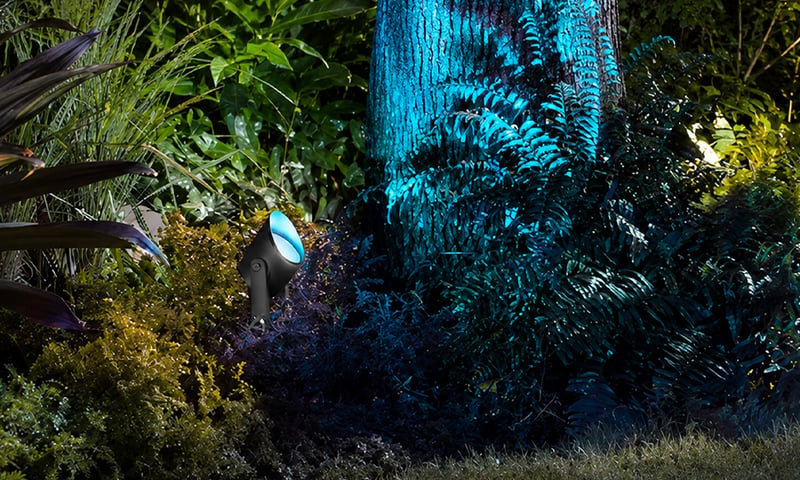
Outdoor lights on at sunset, off at midnight
Porch, path and garden lights follow the sun through the year without you touching a switch. Run the lights you have from a Shelly relay, or fit Philips Hue outdoor lights, and set it up in their app or Home Assistant. Control with any of


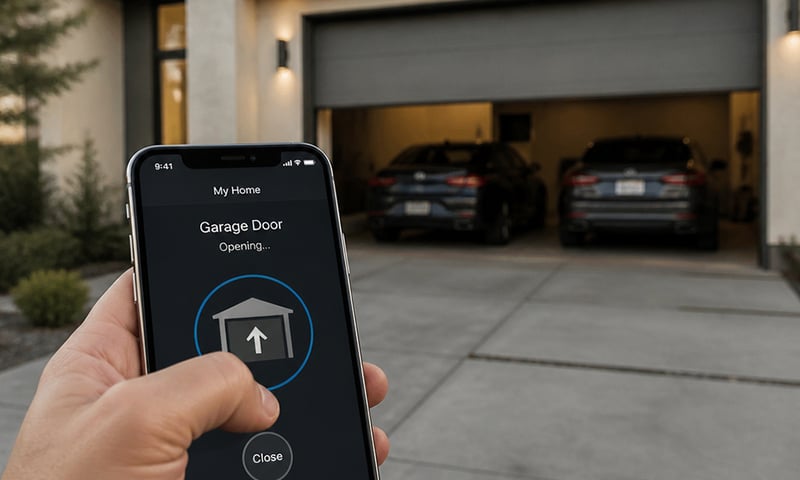
Open the garage door or gate from your phone
Wire the relay across the opener's button terminals and the roller door, swing gate or door release answers your phone as well as the wall button. Pair it with a contact sensor and you'll also know whether the door is actually shut. Control with any of 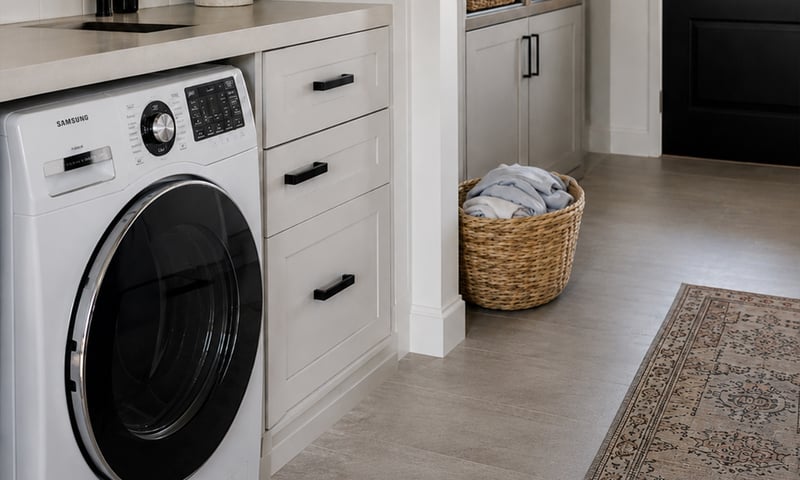
Switch off an appliance left running
A metering relay on the heater's supply switches it off after the time you set, and can message you when it has been drawing power too long. The same alert can tell you the washing has finished. Control with any of More Home Assistant solutions
Outdoor lights on at sunset, off at midnight
Porch, path and garden lights follow the sun through the year without you touching a switch. Run the lights you have from a Shelly relay, or fit Philips Hue outdoor lights, and set it up in their app or Home Assistant. Control with any of Open the garage door or gate from your phone
Wire the relay across the opener's button terminals and the roller door, swing gate or door release answers your phone as well as the wall button. Pair it with a contact sensor and you'll also know whether the door is actually shut. Control with any of Switch off an appliance left running
A metering relay on the heater's supply switches it off after the time you set, and can message you when it has been drawing power too long. The same alert can tell you the washing has finished. Control with any of Still need a hand?
We answer most messages within one business day. If your question is about an existing order, have your order number ready. It speeds things up.
Contact usThe kit
Choose your Bluetooth gateway
Each of these does the job. The steps on this page are written for the recommended one.