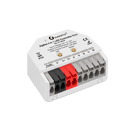
A Shelly relay has two sides: the input, wired to your wall switch, and the
output, which drives the light. Settings on the device decide how one drives
the other, and a few of them can cut the link altogether.
The device's web page shows the input changing as you flick the switch. If it
changes, the problem is a setting and you can fix it from a browser. If it
never changes, the switch or its wiring is the suspect, and that's a job for an
electrician.
Before you start
These fixes are all settings, done from a browser on your home Wi-Fi. Don't open the wall plate. If the switch itself or its wiring is the problem, that's a job for a licensed electrician.
Quick checks first
Run these checks before moving on to the fixes.
Checklist0 of 2 checked
Watch the input while you flick the switch
Open the device's web page and have someone flick the wall switch. If Input (0) changes between on and off, the switch and its wiring are working, and the problem is a setting.
Check the app still works
If the light turns on and off from the app, the device and the light are fine. Only the link from the switch is broken.
Fixes, most likely first
Work down the list and stop when it's fixed.
1
Most likely for you
The input is set to Detached
How to tell. The input changes on the web page when you flick the switch, but the light doesn't follow. Shelly says a detached input doesn't affect the output at all.
Open Input/Output settings
On the web page, go to Settings and click the output under Component settings, then Input/Output settings.
Pick a mode that drives the light
Under Set output type, pick Toggle for a rocker switch, or Momentary for a push button, and click Save.
Did this fix it?
2
Most likely for you
The input is turned off
How to tell. Input (0) never changes, whichever way the switch goes. Shelly says a disabled input reports nothing and sends no events.
Turn the input back on
Go to Settings and click Input (0) under Component settings. Turn on Enable.
If it's already on
With the input enabled and set to Switch, an input that never changes points to the switch or its wiring. Shelly says not to use switches with a built-in LED or neon light. Ask a licensed electrician to check it.
Did this fix it?
3
Most likely for you
Lock inputs is on
How to tell. Nothing you do at the wall changes the light, in any mode. Shelly says Lock inputs ignores every change to the physical input.
Turn off Lock inputs
Go to Settings and click the output under Component settings. Turn off Lock inputs.
Did this fix it?
4
Most likely for you
The input mode doesn't match the switch
How to tell. You have a push button on the wall and the input is set to Switch, or a rocker switch and it's set to Button.
Set the input mode
In Input/Output settings, under Select input mode, pick Switch for a rocker switch that stays up or down, or Button for one that springs back.
Then pick a matching output type
Toggle and Edge only work with Switch. Momentary only works with Button. Click Save.
Did this fix it?
5
Most likely for you
Toggle keeps the light matched to the switch
How to tell. It works, except the first flick after the light was turned on or off from the app. In Toggle mode the light copies the switch position, so a flick to where the light already is changes nothing.
Switch to Edge
In Input/Output settings, under Set output type, pick Edge and click Save. Shelly says Edge changes the light on every flick, whatever position the switch is in.
Did this fix it?
6
Most likely for you
The input is set to Activation
How to tell. The switch turns the light on but never off. Shelly built Activation for motion sensors: any input turns the light on.
Pick Toggle or Edge
In Input/Output settings, under Set output type, pick Toggle or Edge and click Save.
Did this fix it?
7
Most likely for you
The input is inverted
How to tell. The switch works, but the wrong way round. On the web page, Input (0) shows on when the switch is off.
Turn off Invert
Go to Settings and click Input (0). Turn off Invert.
Flick the switch once
Shelly says a change to Invert only takes effect after the switch has been flicked once, so the first flick afterwards may do nothing.
Did this fix it?
8
Most likely for you
An action or timer is changing it back
How to tell. The light changes when you flick the switch, then changes straight back, or does something you didn't ask for.
Check the actions and schedules
Go to Settings and click the output. Look under Automations for Actions and Schedules you didn't set up, and check Scripts in the main menu.
Check the timers
On the same page, click Timers. A short Auto OFF turns the light off again a moment after the switch turns it on.
Did this fix it?
On your device
Shelly Dimmer Gen4The dimmer has two inputs and its own modes
Check both inputs
The Dimmer Gen4 has two inputs, Input (0) and Input (1). Its output types include Single input dimming control and Dual input dimming control, both for push buttons, and it has no Momentary option.
The first press on a new dimmer
Shelly says a new or reset Dimmer Gen4 runs its calibration on the first press of the switch. It takes up to 2 minutes, then the light comes on for 10 seconds and goes off.
Only if Factory reset is turned on in the input's settings. Then flicking the switch 5 times in the first 60 seconds after power-up resets it.
Shelly says not to use switches or buttons with a built-in LED or neon light on its inputs.
Toggle keeps the light matched to the switch position. Edge changes the light every time the switch moves, which suits a light you also control from the app.