







On this page
Setup Ecosystems
How to add Shelly devices to Home Assistant
Home Assistant has a Shelly integration built in. Get the device on your Wi-Fi, then add it by discovery or by IP address. It runs locally, with no cloud.
Home Assistant ships with a Shelly integration, so a Shelly relay, dimmer or plug goes in without installing anything. The integration talks to each device directly on your network, with no Shelly cloud in between, and state changes arrive the moment they happen. It supports every generation from Gen1 to Gen4. Gen1 devices and battery-powered ones each need one extra setting, covered below.
Before you start
- The Shelly is on your Wi-Fi. Home Assistant doesn't do this part. Use the Shelly app, as in our guide to adding a device to the Shelly app, or the device's own web page.
- It's on the same network as Home Assistant. Discovery doesn't cross from one network or VLAN to another.
- Its firmware is up to date. Older firmware can show fewer entities than it should.
- It has a name. Set a device name, and a channel name for each output, on the device first. Home Assistant builds its device and entity names from them, so a device named Kitchen downlights arrives as Kitchen downlights rather than its model and ID.
Add your Shelly to Home Assistant
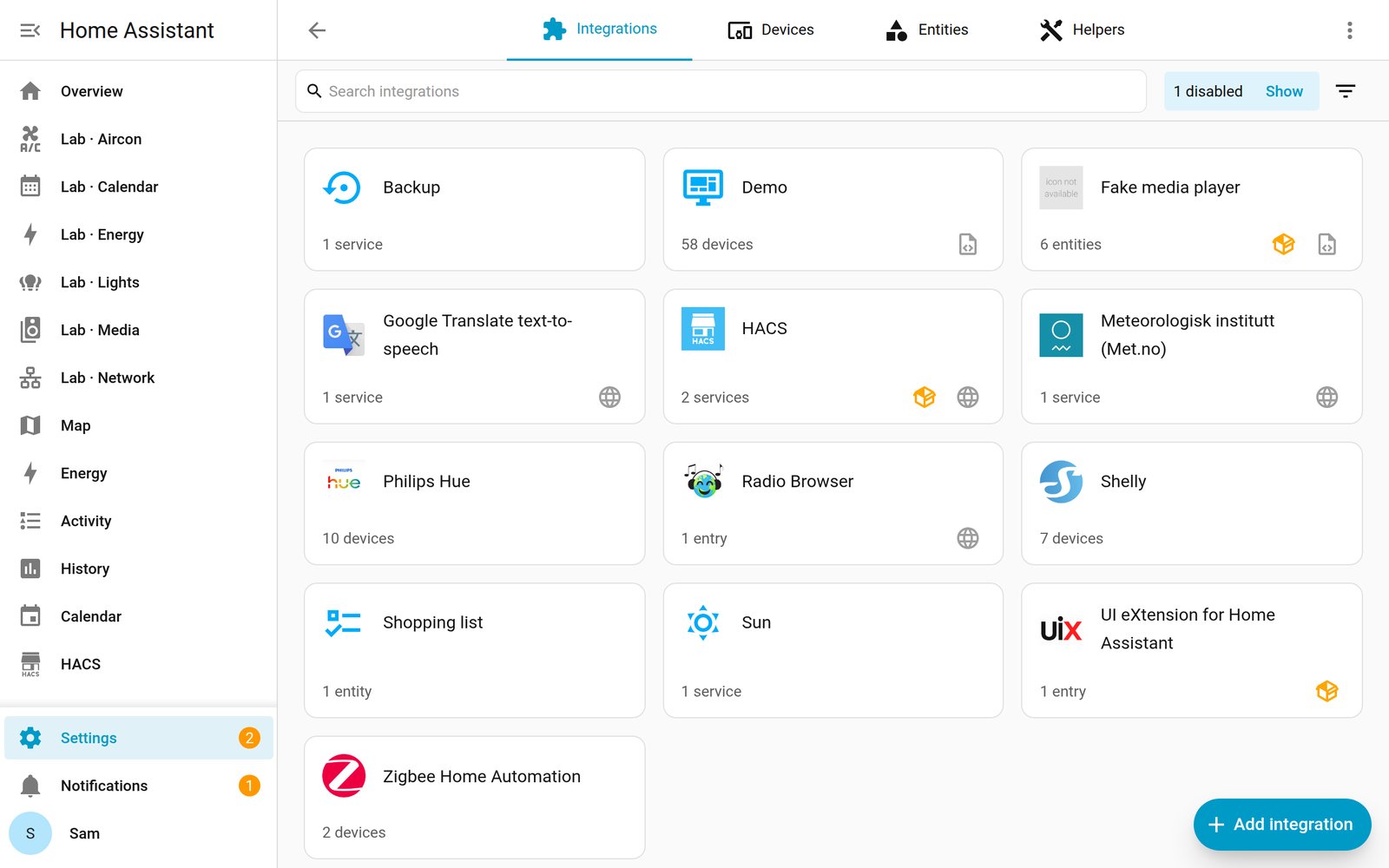
- Open Devices & services
In Home Assistant, go to Settings, then Devices & services. A Shelly on the same network usually appears under Discovered within a few minutes of joining your Wi-Fi.
- Select Configure on the discovered device
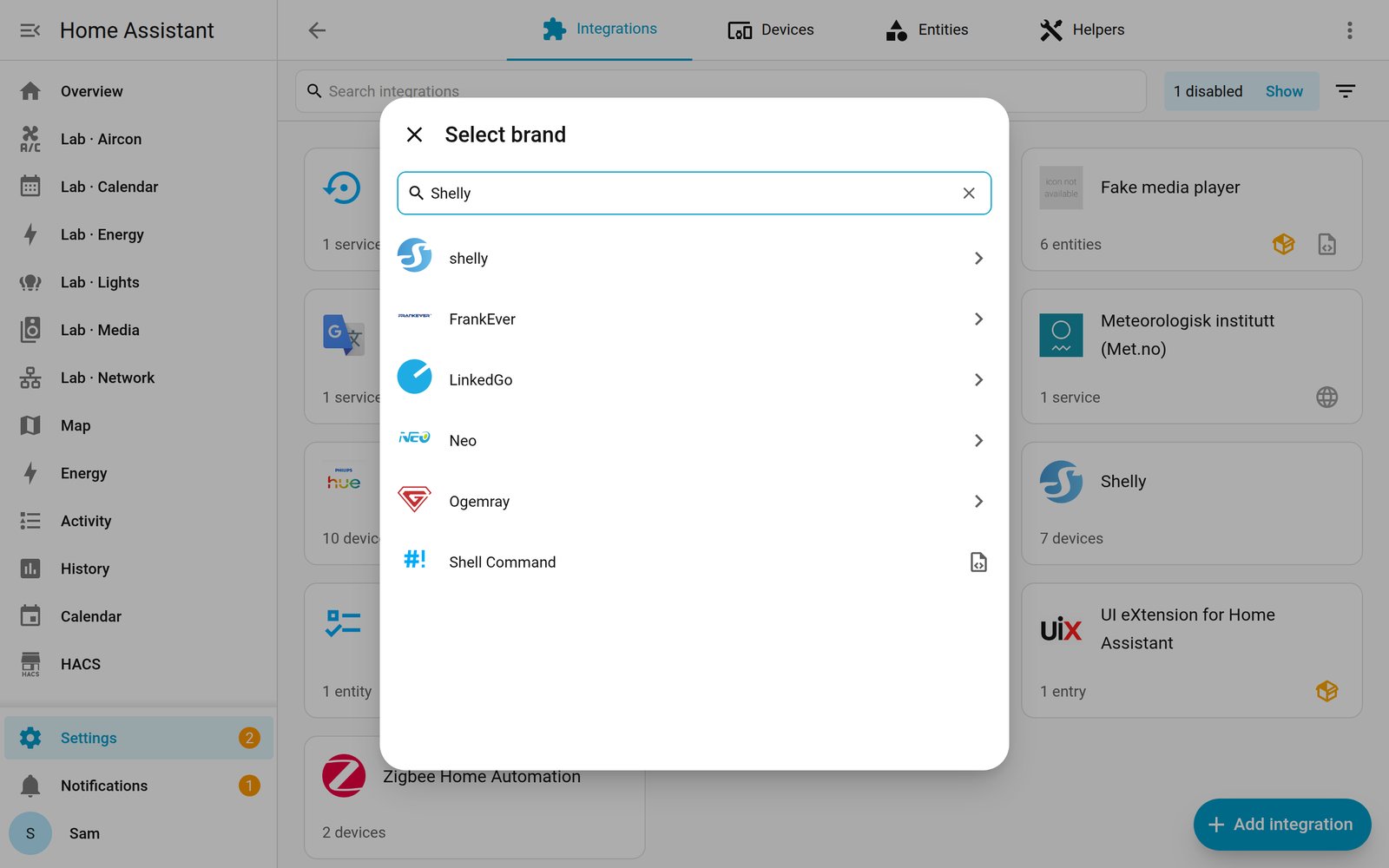
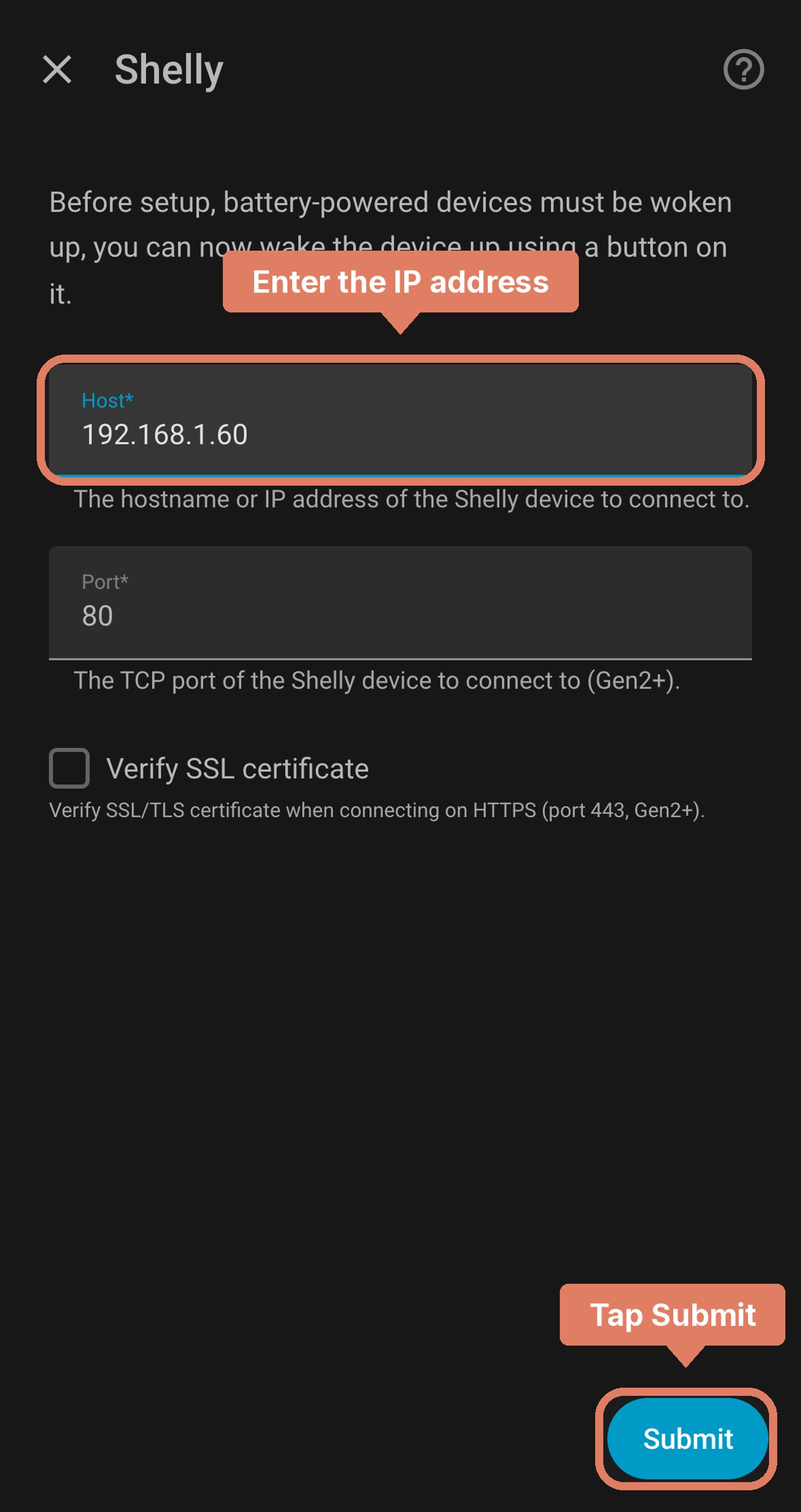
If it's listed, select Configure and confirm. If it isn't, select Add integration, search for Shelly, enter the device's IP address as the Host and select Submit. Your router lists the address, and so does the device's settings page in the Shelly app.
- Leave Port and Verify SSL as they are
Port only changes for a device that connects through a Shelly acting as a Range Extender. Leave Verify SSL off unless you've given the device a certificate Home Assistant trusts.
- Enter its password, if it has one
If you turned on a password under Settings, then Authentication on the device's web page, Home Assistant asks for it here.
- Pick an area and finish
Choose the room it's in and select Finish. The device and its entities appear straight away, and the Shelly app keeps working alongside it.
Reserving each Shelly's IP address in your router is worth the minute it takes. If you use a Shelly as a Range Extender, that Shelly needs a fixed or reserved address for the devices behind it to work.
What you get once it's added
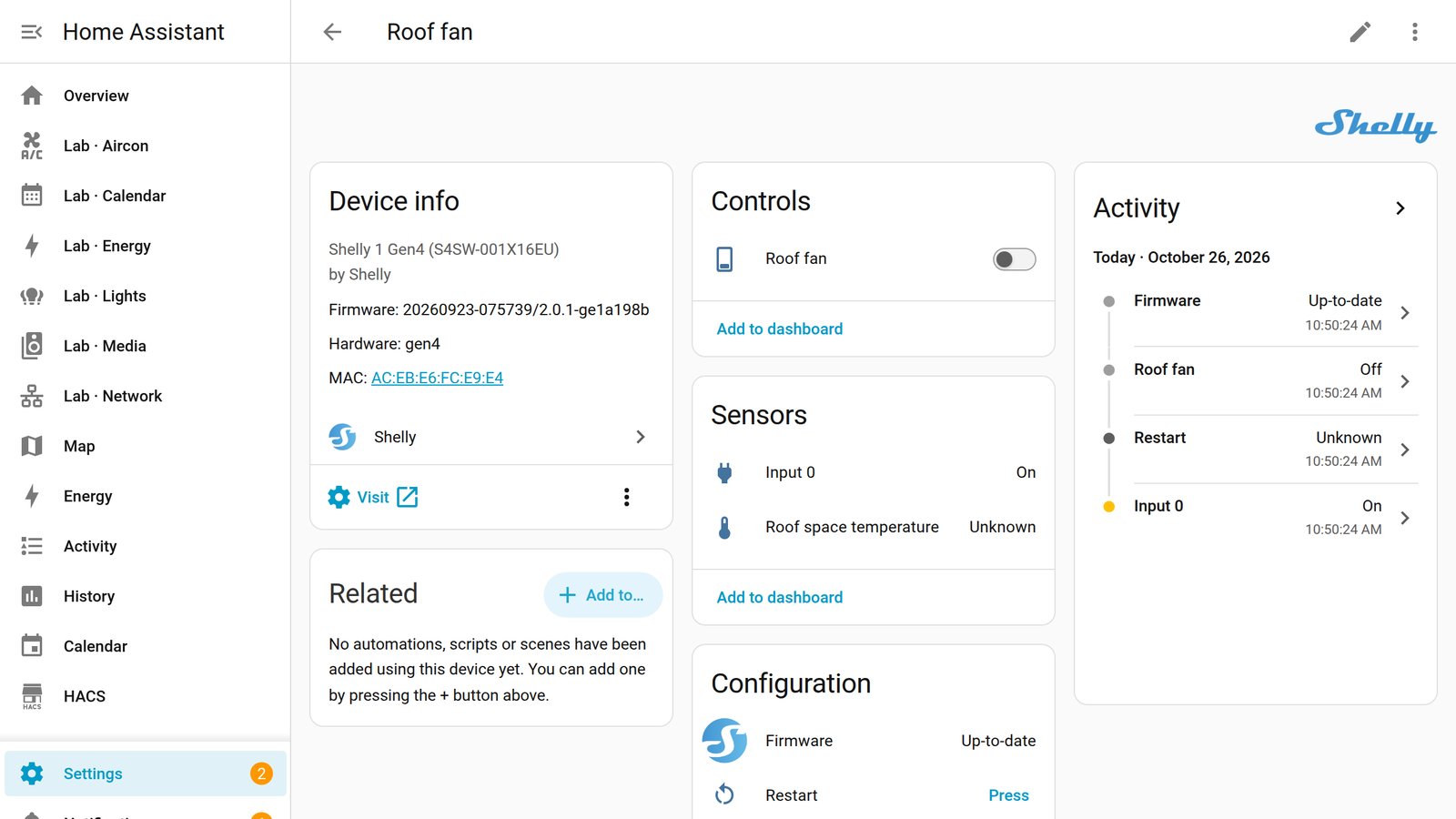
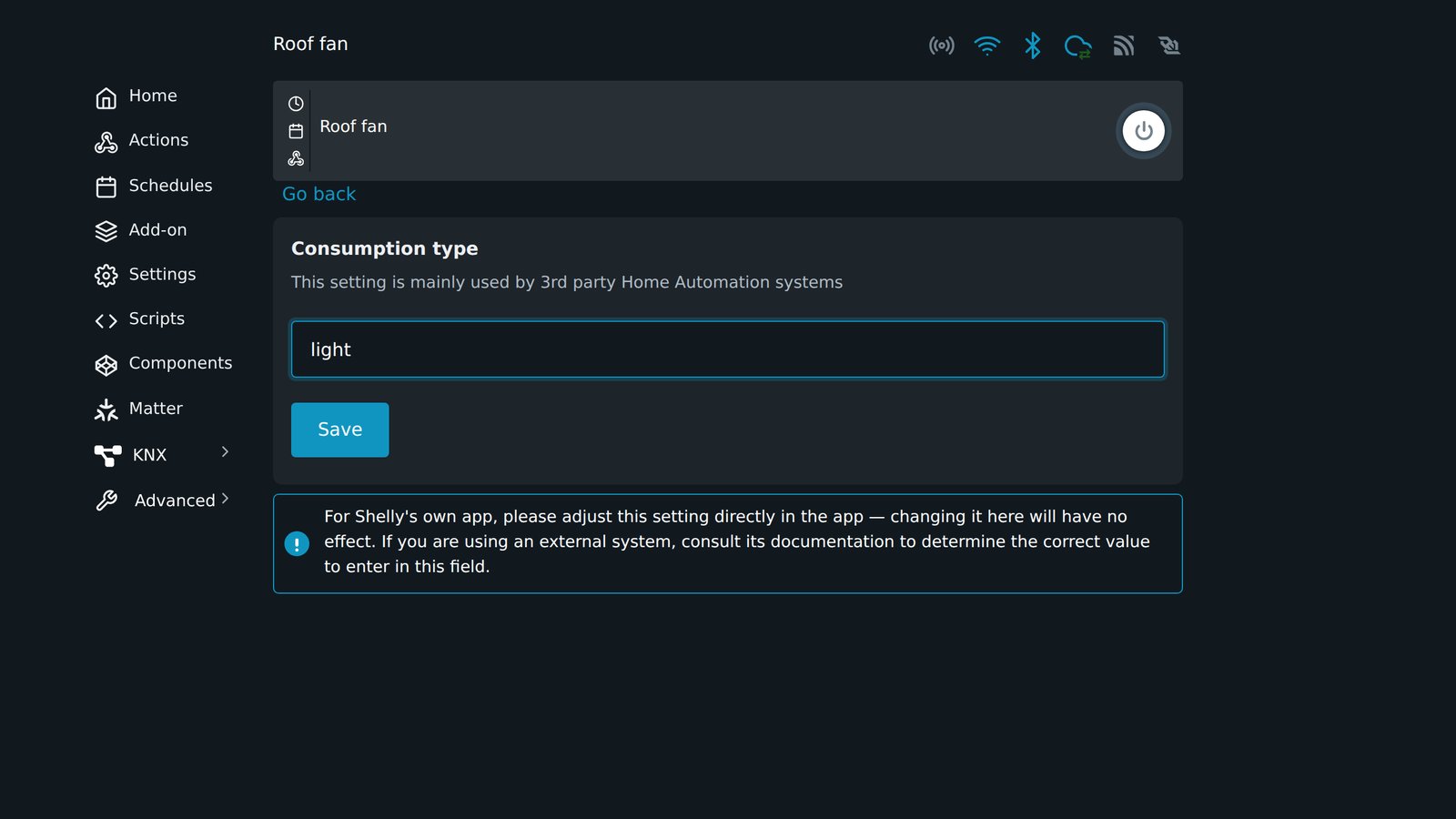
A relay arrives as a switch. If it runs a light, open the device's web page, go to Settings, select the output under Component settings, then Consumption type. Type light and select Save, and it arrives in Home Assistant as a light instead. On Gen1 the setting is called Appliance type. Power, energy and voltage readings come through as sensors on models that measure them, and they feed Home Assistant's energy dashboard.
How a wall switch wired to the input shows up depends on its input mode. On Plus and newer, Switch mode gives you a sensor that's on or off with the switch. Button mode gives you an event entity, and each press, double press or long press triggers automations through the shelly.click event. On Gen1, the Button type setting does the same job, and Momentary or Detached switch gives you the events. Our guide to Shelly switch modes explains which mode suits which switch.
Some entities are off by default. On Plus and newer they're Wi-Fi signal strength, uptime, the device's temperature, and a switch for each script on the device. Turn on the ones you want in the device's entity list. Virtual components you create on the device come through too, as switches, buttons, numbers, text, dropdowns or read-only sensors.
Firmware updates appear in Home Assistant as update entities, so you can update your mains-powered Shellys from one place. Battery-powered devices only show that an update is waiting.
Gen1 devices need CoIoT
Plus, Pro, Gen3 and Gen4 devices need nothing set on the device. Gen1 devices, such as the original Shelly 1, Shelly 2.5 and Dimmer 2, report their state over a protocol called CoIoT, and until it's on their entities don't update by themselves. Shelly's generations explains how to tell which you have.
- Open the device's web page
Type its IP address into a browser on the same network.
- Turn on CoIoT
Go to Internet & Security, then Advanced - Developer Settings, and tick Enable CoIoT.
- Point it at Home Assistant
Home Assistant recommends this on every Gen1 device. In CoIoT peer, enter your Home Assistant server's IP address followed by :5683, for example 192.168.1.100:5683. Select Save.
- Restart the device
The new peer only takes effect after a restart.
The CoIoT peer is required on battery-powered Gen1 devices, even when they're on USB power. If Home Assistant runs somewhere other than Home Assistant OS, UDP port 5683 also needs to be open to it.
Battery-powered devices
Wake a battery-powered Shelly by pressing its button just before you add it, or Home Assistant can't reach it. Discovery often misses them, so adding one by its IP address while it's awake is usually quicker.
Plus and newer battery-powered devices send their readings to Home Assistant over a connection they open themselves, and Home Assistant normally sets that up when you add them. If readings never arrive, or the device was set up with a different Home Assistant before, tell it where Home Assistant is by hand. In the device's web page, go to Settings and, under Connectivity settings, select Outbound websocket. Tick Enable, enter this as the Server with your own Home Assistant address and port, and select Save. If your Home Assistant runs on HTTPS, start it with wss:// instead.
ws://192.168.1.100:8123/api/shelly/ws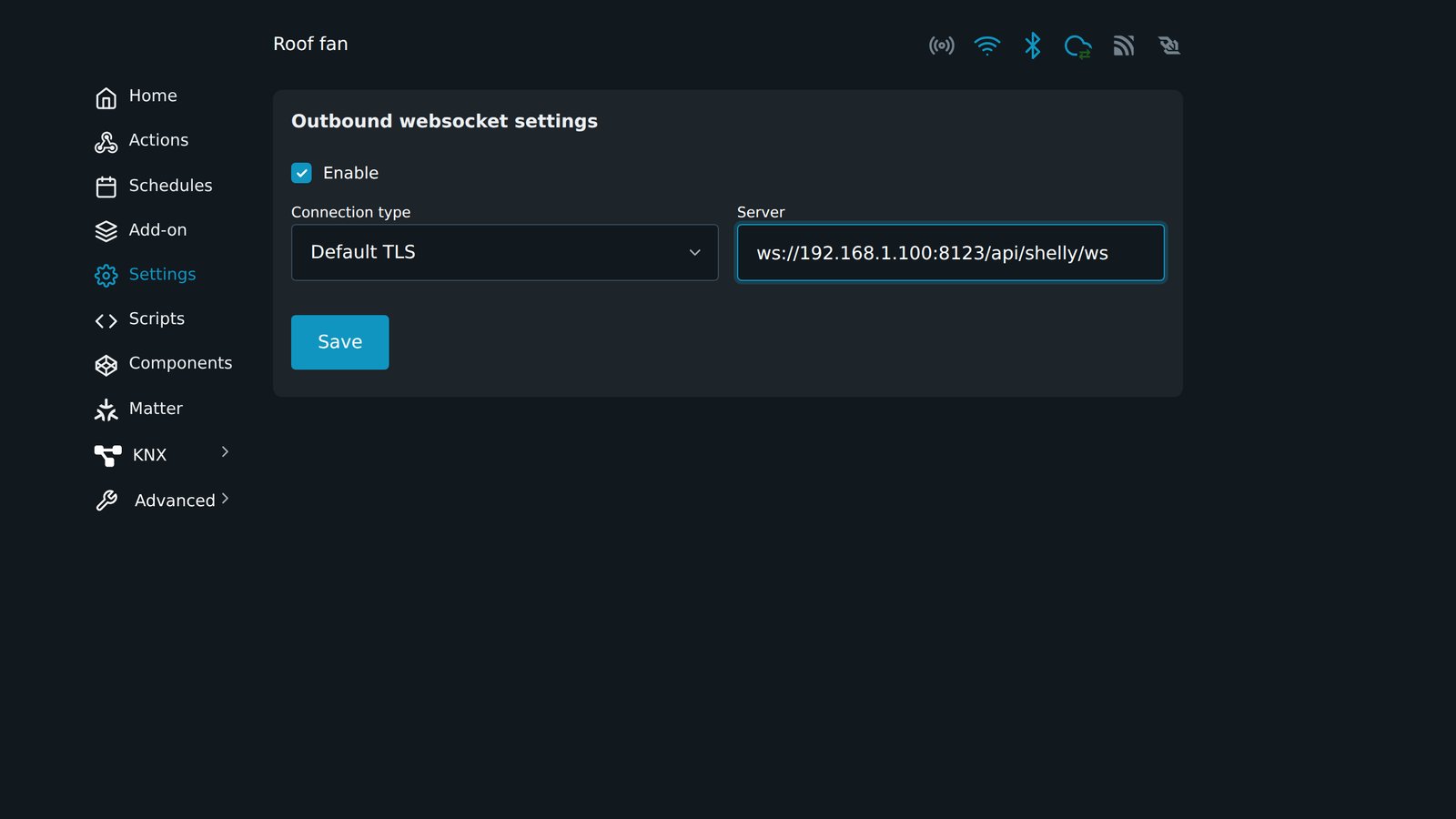
Shelly BLU sensors join through BTHome
Shelly BLU sensors, such as the BLU H&T, BLU Door/Window and BLU Motion, run on Bluetooth rather than Wi-Fi, and the Shelly integration doesn't support them. Add them through Home Assistant's BTHome integration instead. The BLU TRV is the exception: the Shelly integration supports it through a Shelly BLU Gateway Gen3, or another Shelly with built-in BLU TRV support.
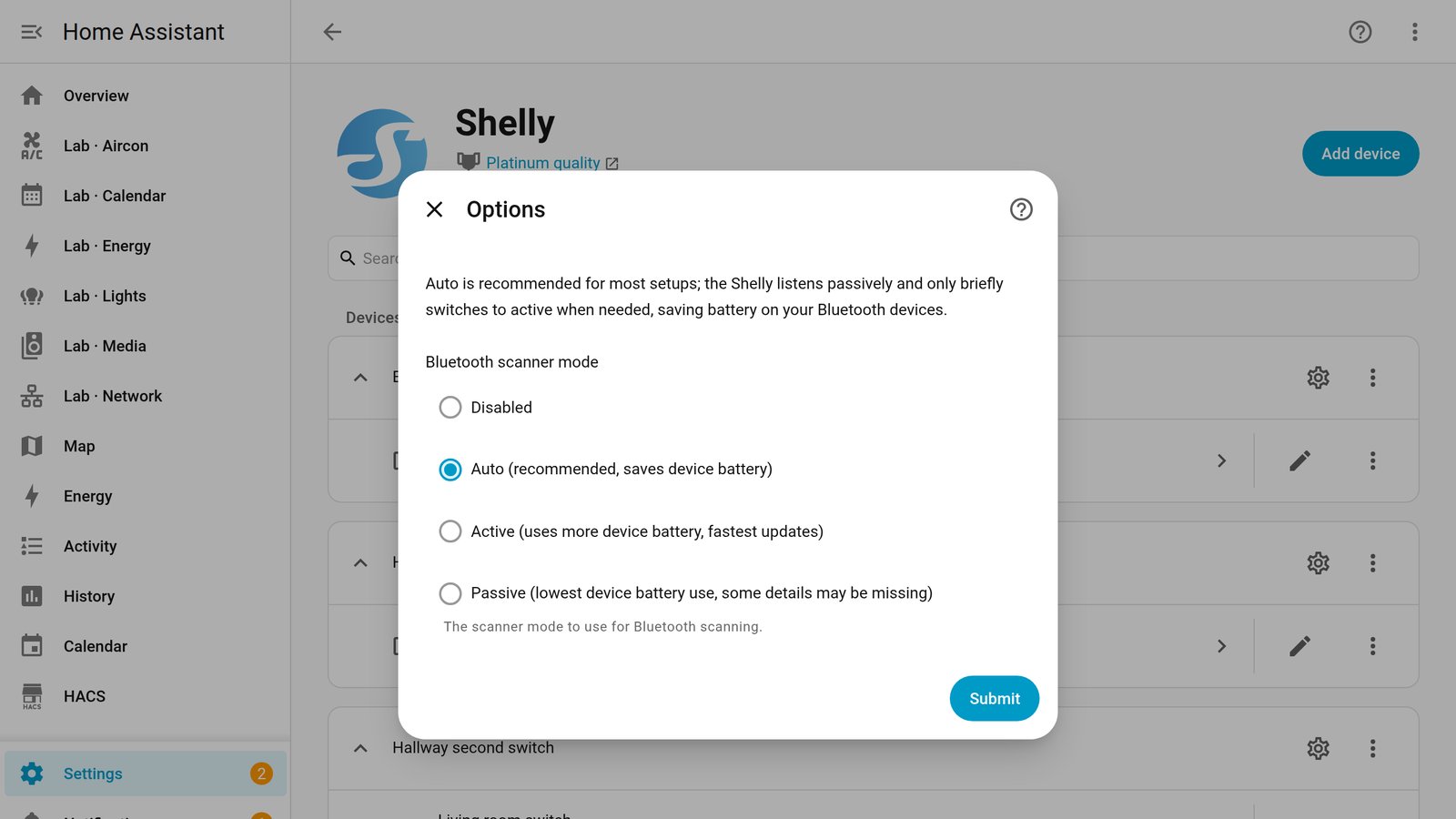
BTHome needs something to hear the sensors. That can be Bluetooth on the Home Assistant machine, but a Shelly already on your network does the job too. Any Gen2 or newer Shelly that isn't battery powered can act as a Bluetooth proxy. Turn it on in the Shelly integration's options for that device and leave the scanner mode on Auto, which finds sensors quickly and saves the sensors' batteries. A relay in a room is usually closer to a sensor than the Home Assistant box is.
Firmware 2.0 and HTTPS
Firmware 2.0 added Enhanced Security to Gen2 and newer devices, which lets a device use HTTPS when it has a certificate. Home Assistant detects HTTPS and uses it by itself. A device shipped with firmware 2.0 or later has Shelly's own certificate already. One updated to 2.0 from older firmware stays on plain HTTP until you turn on Enhanced Security and upload your own certificate. So two of the same model can connect differently. Either way, leave Verify SSL off unless the certificate is one your Home Assistant trusts.
Do you need MQTT?
Probably not. The Shelly integration finds devices on its own and covers the controls and readings above. MQTT suits a home that already runs a broker, usually for Zigbee2MQTT, and wants every device on it. Ignore older guides that tell you to install ShellyForHASS. That custom component has been discontinued, and its features were folded into the Shelly integration.
If it doesn't show up
Most of the time it's the network, a device in Zigbee mode, or a password. Our guide to a Shelly not showing up in Home Assistant works through each one.
Frequently asked questions
Do Shelly devices work with Home Assistant?
Yes. Home Assistant has a Shelly integration built in that supports all four generations, from Gen1 to Gen4. It controls each device locally over your network, so it keeps working when the internet is down.
Do I need a Shelly account to use Shelly with Home Assistant?
Home Assistant doesn't need one. It talks to the device directly. You need the device on your Wi-Fi first, which you can do in the Shelly app (that needs an account) or through the device's own web page.
Can I use the Shelly app and Home Assistant at the same time?
Yes. Adding a Shelly to Home Assistant doesn't remove it from the Shelly app, so you can keep the app for scenes you've already built and use Home Assistant for everything else.
Can I connect Shelly to Home Assistant with MQTT?
You can, by turning on MQTT in the device's web page and pointing it at your broker. Most homes don't need to. The Shelly integration finds devices by itself and gets state changes straight away, and MQTT only earns its place if you already run a broker for something else.
Why don't my Shelly BLU sensors show up in the Shelly integration?
The Shelly integration doesn't support BLU devices. Add them through Home Assistant's BTHome integration instead, which needs Bluetooth on the Home Assistant machine or a Shelly set up as a Bluetooth proxy. The BLU TRV is the one exception, through a Shelly BLU Gateway Gen3 or another Shelly with built-in BLU TRV support.
Should I install ShellyForHASS?
No. It's a custom component that older guides and videos still recommend, and it has been discontinued. Use the Shelly integration that comes with Home Assistant.
Still need a hand?
We answer most messages within one business day. If your question is about an existing order, have your order number ready. It speeds things up.
Contact us