


















On this page
Explainer Ecosystems
Shelly virtual components: what they are and how to use them
A virtual component is a switch, slider, dropdown, button or text box you add to a Shelly yourself. Here is what each type does, and how a script uses them.
A script on a Shelly can do almost anything, but changing how it behaves usually means opening the code and editing a number. Virtual components fix that. They let you add your own switches, sliders, dropdowns, buttons and text boxes to a Shelly, and a script reads and writes them, so the settings live in the app instead of in the code.
What a virtual component is
A virtual component is a control you add to a Shelly that isn't wired to anything. A relay has a real output and an input has real terminals, but a virtual component only holds a value, such as on or off, a number or a line of text, and shows it on the device. It does nothing until a script or an action reads it.
A script can read the value and act on it, write a value back to show you what it's doing, or wait for you to press a virtual button. Think of it as a setting with a control attached: you change it on your phone, and the script picks up the new value straight away.
When you'd use one
You'd add virtual components to:
- Change how a script behaves from your phone, such as the temperature a fan comes on at, without editing the code.
- Give an automation a manual override, such as a button that runs the fan for half an hour, or a switch that pauses it while you're away.
- See what an automation is doing and why, as a line of text on the device.
- Give Home Assistant the same controls, with nothing extra to set up.
If your Shelly only runs the Shelly app's own schedules and scenes, you don't need them. They earn their place once a script is involved.
The six types
| Type | What it holds | How it can look | Example |
|---|---|---|---|
| Boolean | On or off | A toggle, or a label | Holiday mode on or off |
| Number | A number, with a minimum, maximum and unit | A field, a slider, a progress bar or a label | Turn the fan on above 35 °C |
| Text | Up to 255 characters | A field, a label, or an image (the text is the image's address) | Last ran at 2:05 pm for 23 minutes |
| Enum | One choice from a list you set | A dropdown, or a label | Fan mode: Auto, On or Off |
| Button | Nothing; it fires when pressed | A button | Run the fan for 30 minutes now |
| Group | A list of other components | A card on the device's home page | Roof fan: all four controls together |
Every type except Group can be set to Hidden, which keeps it out of view while a script still uses it. A Button can single, double, triple or long press, and a script can treat each press differently.
Which Shelly devices have them
Virtual components came first to Gen3 devices, then reached the Pro range with firmware 1.4.0. Gen4 devices have them too, and Shelly lists them on the Australian Shelly 1, 1PM, 2PM and 1 Mini Gen4.
| Range | Virtual components | Scripts |
|---|---|---|
| Gen4 | Yes | Yes |
| Gen3 | Yes on firmware 1.2.0 or later | Yes |
| Pro | Yes on firmware 1.4.0 or later | Yes |
| Plus | No | Yes |
| Gen1 | No | No |
If you're not sure which range yours is, Shelly generations explained shows how to tell.
Create a virtual component
These steps use the device's own web page. Open a browser on the same Wi-Fi as the Shelly and type in its IP address.
- Open Components
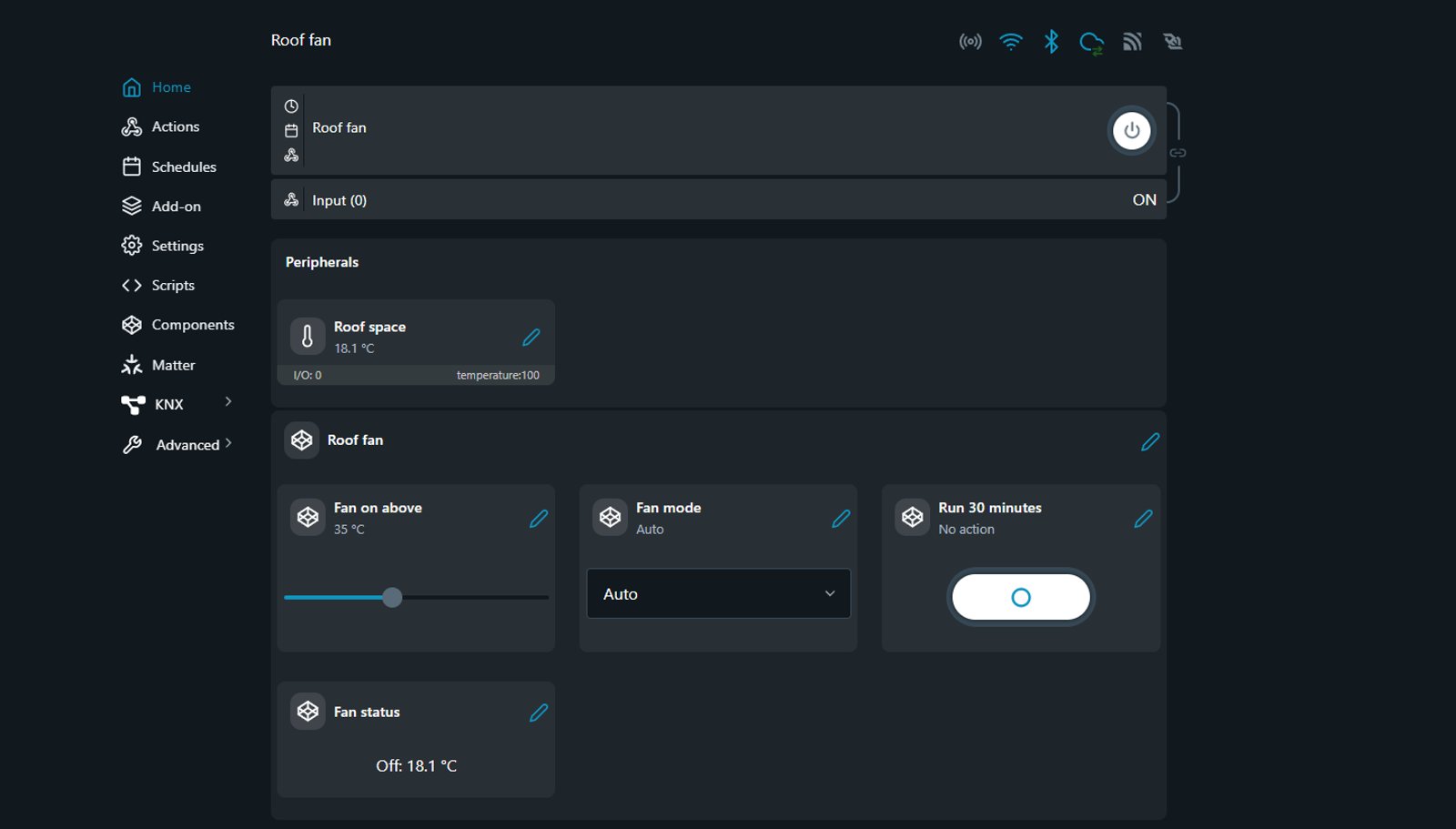
Click Components in the menu on the left. The page lists your groups and components, and counts them against the limit: Groups and components: 0/10.
- Pick a type from Create new
Under User-defined components, open the Create new list and pick boolean, number, text, enum or button. The form for that type opens.
- Name it and choose how it looks
Give it a name you'll recognise on your phone, such as Fan on above, and pick a View. For a Number, set the Min value, Max value, Step, Unit and Default value.
- Decide whether it keeps its value
Set Persisted to Keep current value after reboot for a setting that should survive a power cut. Leave it on Use default value after reboot for a value a script rewrites anyway, such as a status line.
- Put it in a group, then click Create
Under Assign to a group, choose Create new group for the first component and type a name. For the rest, choose Existing group and tick it. Then click Create. To change a group later, open it from the Components page and tick or untick its components.
The group's card sits on the device's home page, below its switches, inputs and Add-on sensors.
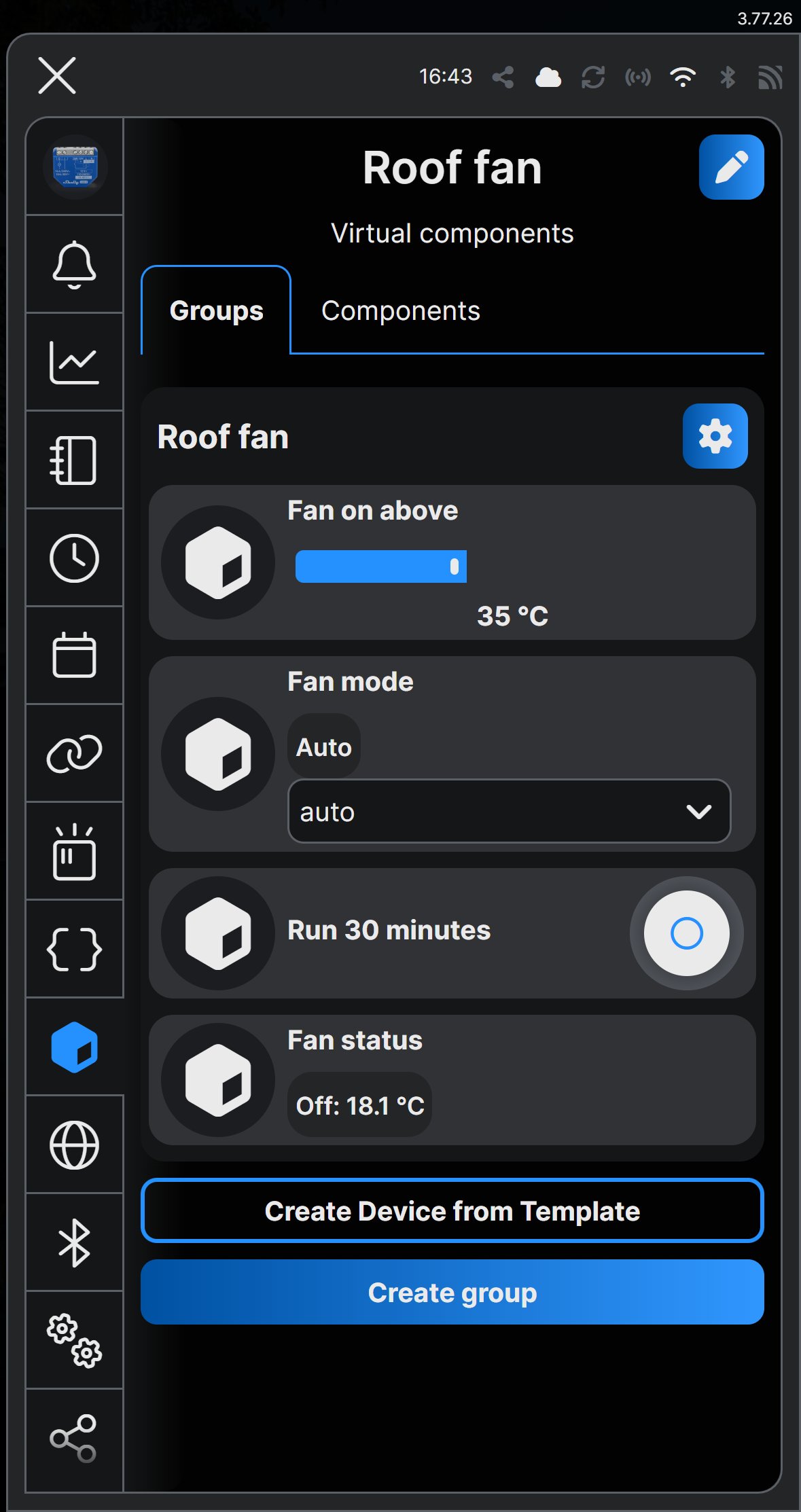
In the Shelly app, open the device and tap the cube icon in the menu down the left. The Virtual components screen has the same card under Groups, and you can create components and groups there too.
Worked example: a roof fan you control from the app
This example runs a roof-space exhaust fan on a Shelly 1 Gen4 with a Plus Add-on and a temperature probe. Without virtual components, the temperature that turns the fan on is a number in the script, and changing it means editing the code. With four virtual components, everything you'd want to change is a control on your phone.
Create these first, with these IDs, and put all four in a group called Roof fan:
| Component | ID | Set it up as |
|---|---|---|
| Fan on above | number:200 | A slider from 25 to 50, step 1, unit °C, kept after a restart |
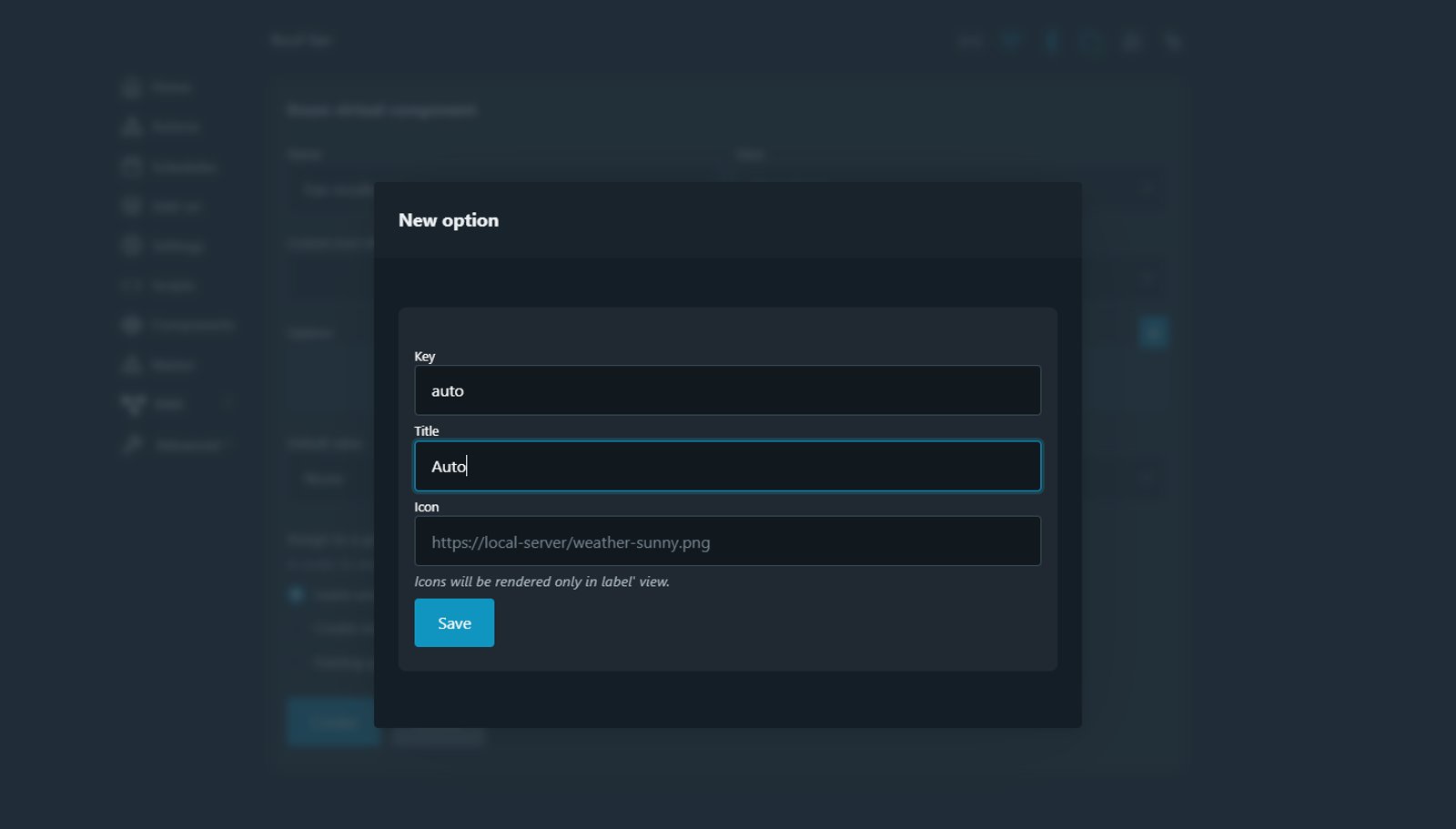
| Fan mode | enum:200 | A dropdown with three options, keys auto, on and off, titled Auto, On and Off, kept after a restart |
| Run 30 minutes | button:200 | A button |
| Fan status | text:200 | A label |
Number
The script reads the slider every time it checks the temperature, and checks straight away when you move it, so a new setting takes effect at once.
// Part of the full script below
let trigger = Virtual.getHandle("number:200");

let limit = trigger.getValue(); // whatever the slider is set to
trigger.on("change", check);    // check again as soon as it moves
Enum
Each Enum option has a key and a title. The script gets the key, and the device's page shows the title. The Shelly app's dropdown lists the keys, so keep them readable.
// Part of the full script below
let mode = Virtual.getHandle("enum:200");

let m = mode.getValue(); // "auto", "on" or "off"
if (m === "off") {
  // ignore the temperature and keep the fan off
}
mode.on("change", check);
Button
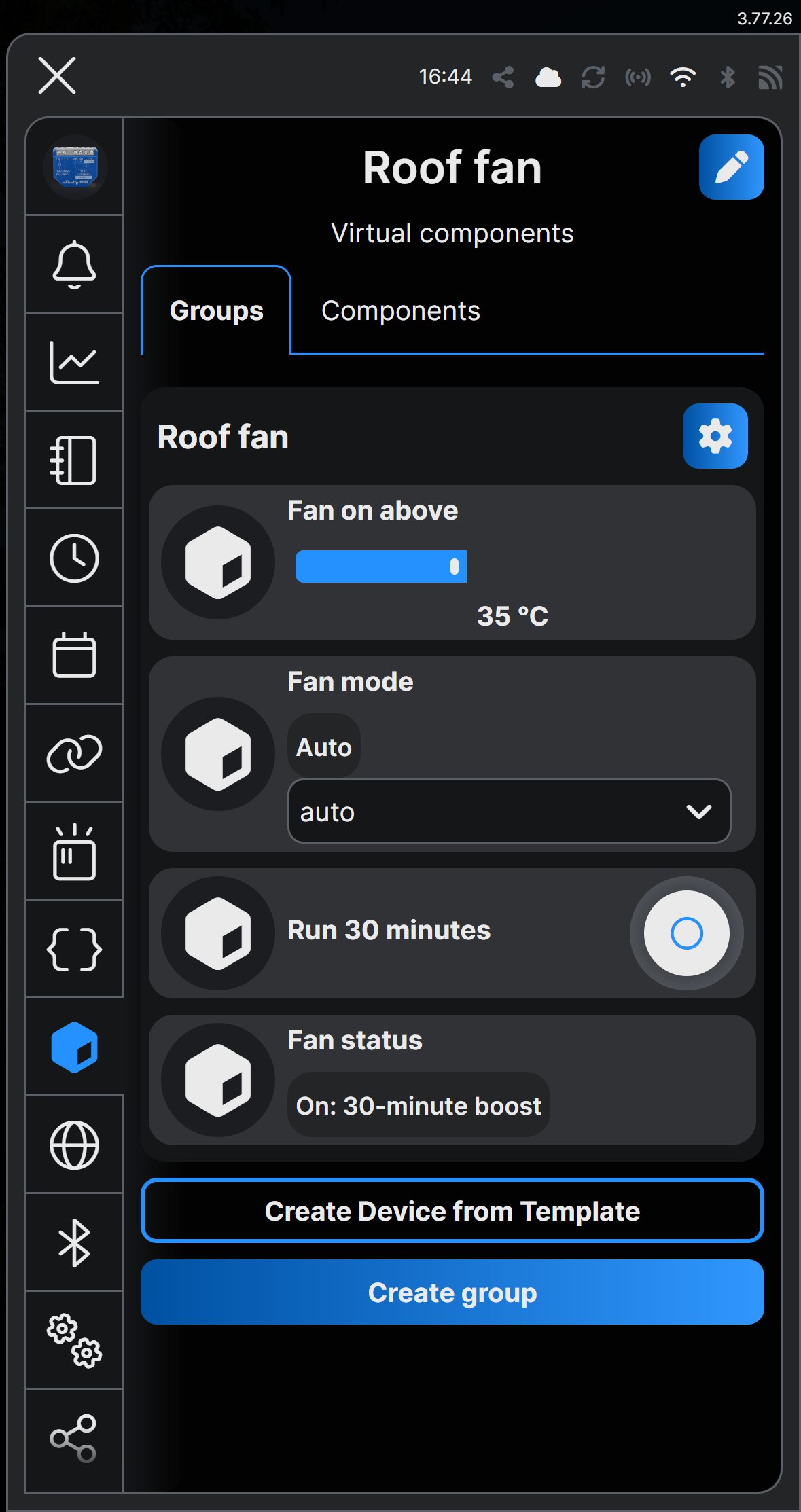
A Button holds no value. The script listens for a press instead, and could do something different on a double or long press.
// Part of the full script below
let boost = Virtual.getHandle("button:200");

boost.on("single_push", function () {
  boostUntil = uptime() + 30 * 60; // half an hour from now
  check();
});
Pressed in the Shelly app, the button starts the boost straight away:
Text
The script writes to the Text component, so the device tells you what it's doing and why.
// Simplified from the full script below
let status = Virtual.getHandle("text:200");

status.setValue("On: 36.5 °C");
Here is the whole script. Install it like any other, then turn on Run on startup.
// Roof fan with app controls. Shelly 1 Gen4 + Plus Add-on + DS18B20 probe.
// Needs number:200, enum:200, button:200 and text:200 (see the table above).

let trigger = Virtual.getHandle("number:200"); // Fan on above (°C)
let mode = Virtual.getHandle("enum:200");      // auto, on or off
let boost = Virtual.getHandle("button:200");   // Run 30 minutes
let status = Virtual.getHandle("text:200");    // Fan status

let GAP = 2;        // turn off this many degrees below the trigger
let boostUntil = 0; // device uptime, in seconds, when a boost ends
let hot = false;    // the temperature's verdict, with the 2 °C gap applied
let lastStatus = "";

function uptime() {
  return Shelly.getComponentStatus("sys").uptime;
}

function setStatus(text) {
  if (text === lastStatus) return; // only write when it changes
  status.setValue(text);
  lastStatus = text;
}

function setFan(on, why) {
  if (Shelly.getComponentStatus("switch", 0).output !== on) {
    Shelly.call("Switch.Set", {id: 0, on: on});
  }
  setStatus((on ? "On: " : "Off: ") + why);
}

function check() {
  let m = mode.getValue();
  if (m === "off") {
    setFan(false, "turned off");
    return;
  }
  if (m === "on") {
    setFan(true, "always on");
    return;
  }
  if (uptime() < boostUntil) {
    setFan(true, "30-minute boost");
    return;
  }

  let probe = Shelly.getComponentStatus("temperature", 100);
  if (!probe || typeof probe.tC !== "number") {
    setStatus("No reading from the probe");
    return;
  }
  let t = Math.round(probe.tC * 10) / 10;
  let limit = trigger.getValue();
  if (t >= limit) hot = true;
  else if (t < limit - GAP) hot = false;
  setFan(hot, t + " °C");
}

if (!trigger || !mode || !boost || !status) {
  print("Create number:200, enum:200, button:200 and text:200 first");
} else {
  boost.on("single_push", function () {
    boostUntil = uptime() + 30 * 60;
    check();
  });
  trigger.on("change", check);
  mode.on("change", check);
  Timer.set(60 * 1000, true, check);
  check();
}
The fan turns off 2 °C below the trigger rather than at it, so it doesn't switch on and off over and over around one temperature. When a boost ends, the fan goes back to following the temperature. Fan mode set to Off overrides the button, and switching back to Auto within the half hour picks the boost up again.
For up to a minute after the Shelly restarts, the status reads No reading from the probe, until the probe sends its first measurement. We ran this script on a Shelly 1 Gen4 on firmware 2.0.1, with the controls driven from the device's page and the Shelly app.
Use them without a script
Each component has its own actions on the device, so the Shelly can call a URL or switch something when a value changes or a button is pressed.
In Home Assistant, the Shelly integration adds each component as an entity, so the controls you build for the app work there too. A toggle becomes a switch, a number field or slider becomes a number, a text field becomes a text entity, a dropdown becomes a select and a button becomes a button. Anything set to Label becomes a sensor, or a binary sensor for a Boolean.
Other systems can also set a value over the network through Shelly's API, with calls such as Number.Set or Boolean.Set.
Limits to know before you build
- Ten per device, groups included. The Components page counts groups and components together, out of 10. The roof fan example uses five.
- Values reset unless you keep them. A component goes back to its default value after a restart unless Persisted is set to Keep current value after reboot.
- Only groups show. A component outside a group works, but you won't see it on the device's home page or in the app's group card.
- Buttons and groups work differently in a script. A script can't use getValue or setValue on either. It listens for presses on a Button, and reads the components inside a Group one by one.
Frequently asked questions
Why can't I see my virtual component on the device's page?
It isn't in a group yet, or its view is set to Hidden. The device's home page only shows groups and the components inside them. Open the component's settings, choose Existing group under Assign to a group, and tick the group. In the Shelly app, groups are on the Virtual components screen (the cube icon on the device page), not on the main controls.
Do virtual components work on a Shelly Plus?
No. They need a Gen4 device, a Gen3 on firmware 1.2.0 or later, or a Pro on firmware 1.4.0 or later. A Plus can still run scripts, but it can't hold virtual components.
Does a virtual component keep its value after a power cut?
Only if you set Persisted to Keep current value after reboot. The default is Use default value after reboot, which puts the value back to its default every time the device restarts.
How many virtual components can a Shelly have?
Ten, and groups count toward it. The Components page shows the tally as Groups and components, out of 10.
Can Home Assistant control Shelly virtual components?
Yes. The Shelly integration adds each one as an entity: a toggle becomes a switch, a number field or slider becomes a number, a text field becomes a text entity, a dropdown becomes a select, and a button becomes a button. Anything set to Label shows as a sensor, or a binary sensor for a Boolean.
Do I need a script to use virtual components?
No, but a script is what makes them useful. Without one, a component holds a value you can set from the app, from Home Assistant or with an API call, and an action on the device can react when it changes.
Still need a hand?
We answer most messages within one business day. If your question is about an existing order, have your order number ready. It speeds things up.
Contact us