

















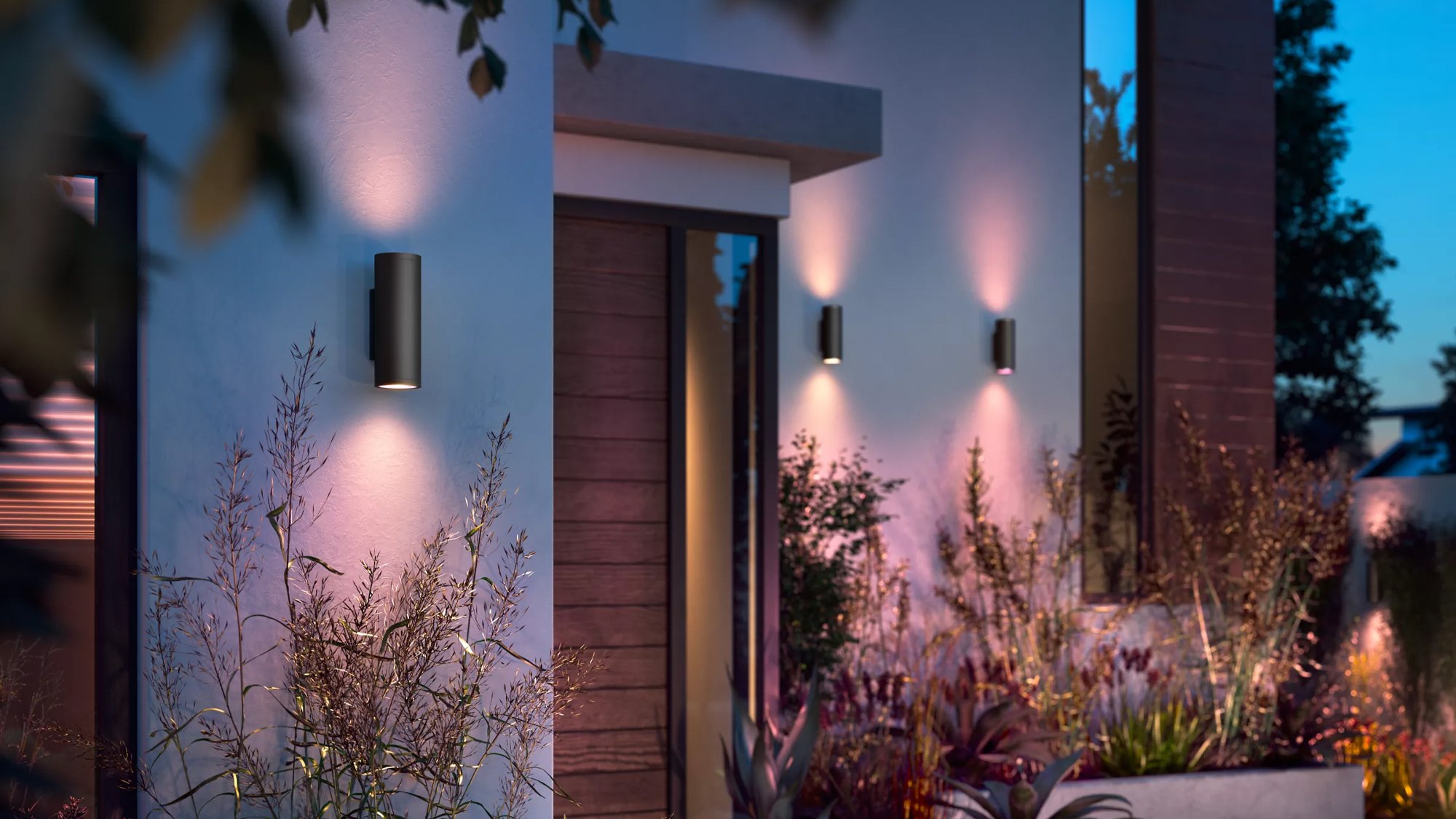
How it works
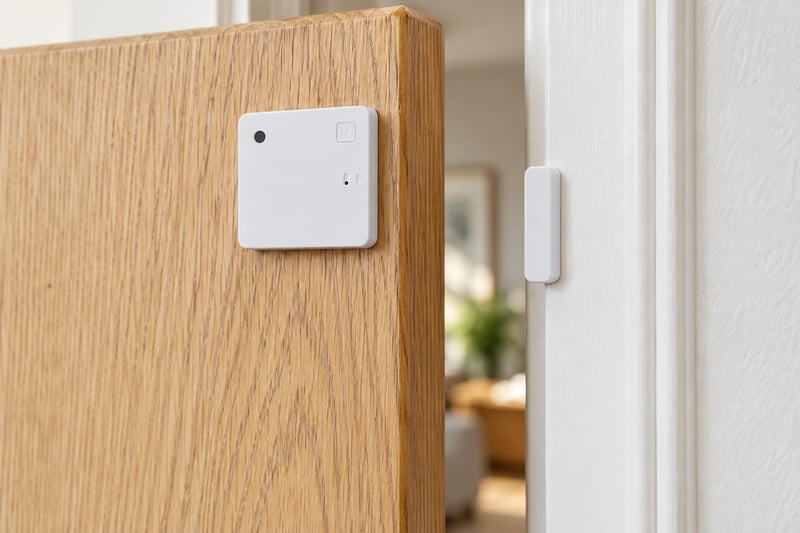
A Shelly BLU Door/Window ZB goes on the front door with its magnet on the frame. Each time the door opens it reports that it's open and how bright it is around it: Dark, Twilight or Bright. It talks Bluetooth, so it needs a Shelly on your Wi-Fi nearby to reach the app. The Shelly 1 Gen4 behind the entry light switch does that job and switches the light as well.
The door opening isn't enough on its own, or the light would come on every time someone pops out to the bins. So the page uses two scenes in the Shelly app. **Welcome home** turns the entry light on when the door opens in the dark, then switches itself off. **Leaving home** is one you tap as you go out, and all it does is switch Welcome home back on. The next time the door opens after dark, the light comes on once and the house waits until you tap Leaving home again.
The same Shelly BLU Door/Window ZB works with Home Assistant through its BTHome integration. It reaches Home Assistant over Bluetooth, through a Shelly 1 Gen4 set up as a Bluetooth proxy, which also switches the entry light. Any Gen2 or newer Shelly that isn't battery powered can be the proxy.
Home Assistant already knows when you've left. With the Home Assistant app on each phone, your Home zone counts the people in it. When it drops to zero, an automation turns on a toggle called Away. When the front door opens with Away on and the sun down, a second automation turns on the light, starts the heating and turns Away off.
The heating can be anything Home Assistant controls. An Actron ducted system with a Neo or Que controller joins through the Actron Air integration, and other ducted and split systems have their own. A hardwired panel heater can go on a Shelly 1PM Gen4.
-
01
Your phone
Tap Leaving home as you go out, or let Home Assistant work out you've left.
-
02
Shelly sensor
Reports when the front door opens, and how dark it is.
-
03
Your entry light
Comes on once when you get home after dark.
What it looks like on your phone
-
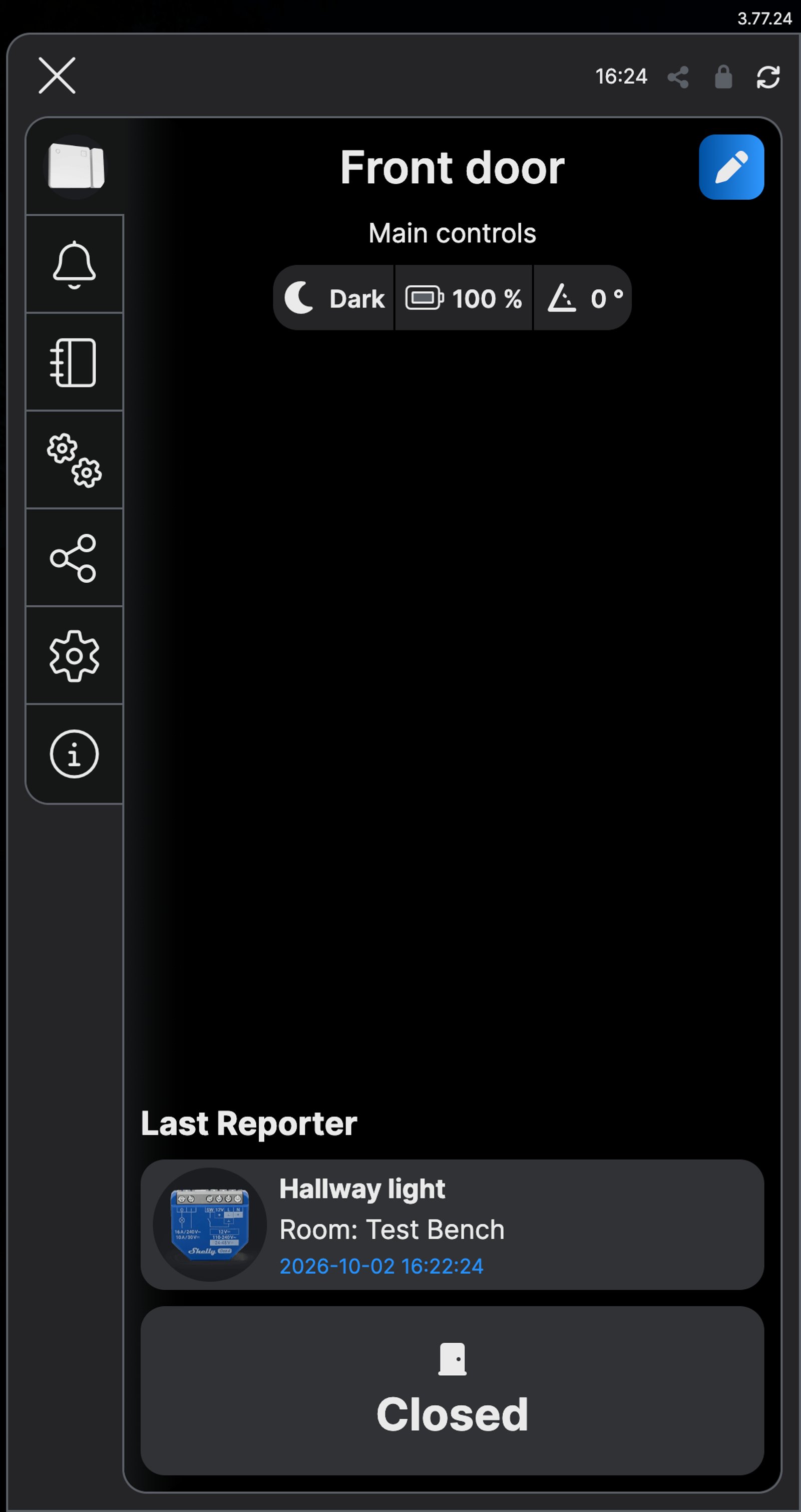
Open or shut, and how dark. The sensor's screen shows the door and the light level, passed on by the hallway light's Shelly.
-
Welcome home. The door opening in the dark turns the hallway light on, then the scene switches itself off.
-
Leaving home. Tap it on the way out and Welcome home is ready for the next time the door opens.
-
Welcome home. The front door opening sets it off, but only while Away is on and the sun is down.
-
Light, heating, reset. The entry light comes on, the heating starts and Away turns off until everyone leaves again.
-
Away when everyone leaves. When nobody is left in your Home zone, Away turns on by itself.
Step by step
-
Fit the Shelly behind the entry light switch
The 1 Gen4 goes behind the switch for the light by the front door. It switches the light and relays the sensor, which needs a Shelly within about 10 metres of the door, less through brick.
-
Add it to the Shelly app
Add it in the Shelly Smart Control app and name it after the light it switches, such as Hallway light.
-
Fit the sensor and add it
Fix the sensor to the front door and the magnet to the frame, lined up beside each other when it's shut. In the app, tap the plus sign and choose Add via Bluetooth. Press the sensor's button once when asked, name it Front door, and tick Hallway light as its Bluetooth gateway.
-
Start the scene when the door opens
Open the room, go to Scenes and tap +. Tap Add condition, then Create condition, choose Device based and pick Front door. Choose Door State, then Open, and tap Next. Leave it as a Trigger and tap Save.
-
Only when it's dark
Tap Add condition inside the same box, so both have to be true. Choose Create condition, Device based, Front door, then Luminosity and Dark, and tap Next. This time choose Condition, not Trigger, and tap Save.
-
Turn the light on
Tap Next, then Add action, Create action and Device action. Pick Hallway light, choose turn on Shelly device, tap Next, then Save.
-
Save it as Welcome home
Tap Next through Active time. On More options, turn off Execute the scene on save or edit, so saving doesn't switch the light on, and tap Next. Pick the room, name the scene Welcome home and tap Save.
-
Make it switch itself off
Open Welcome home, tap the pencil, then Next to reach Do. Tap Add action, Create action, then Scene action, and pick Welcome home. Choose Disable scene, tap Next, then Save, and tap Next through to Save the scene. Now it runs once, then waits.
-
Add a Leaving home scene
Add another scene. Tap Add condition, Create condition, then Manual execution. For the action, choose Scene action, pick Welcome home, choose Enable scene and tap Next. Turn off Execute the scene on save or edit, name it Leaving home and save it.
-
Tap Leaving home as you go out
Run Leaving home from the room's Scenes tab: tap its play button. Welcome home is ready again, and the next time the front door opens after dark, the hallway light comes on.
-
Fit the Shelly and the sensor
The 1 Gen4 goes behind the switch for the light by the front door, within about 10 metres of the door. Fix the sensor to the front door and its magnet to the frame, lined up beside each other when it's shut.
-
Make the Shelly a Bluetooth proxy
Add the 1 Gen4 to Home Assistant's Shelly integration if it isn't there yet. In the integration's options, set Bluetooth scanner mode to Auto, which Home Assistant recommends.
-
Add the sensor
Open or close the door once so the sensor broadcasts. BTHome finds it on its own: go to Settings, then Devices & services, and add it from Discovered. Name it Front door.
-
Make an Away toggle
Go to Settings, then Devices & services, then Helpers, and select Create helper. Choose Toggle, name it Away and select Create.
-
Turn Away on when everyone leaves
Create an automation that triggers when the number of people in your Home zone drops to 0, with an action that turns on Away. Check the trigger and the action, select Save and name it Away when everyone leaves.
-
Welcome home when the door opens
Create a second automation. Trigger it when Front door opens. Add two conditions: Away is on, and the sun is below the horizon. For the actions, turn on the entry light, set your heating to heat at the temperature you like, then turn off Away. Check the conditions and the actions, select Save and name it Welcome home.
-
Check both are there
Automations & scenes now lists Away when everyone leaves and Welcome home. They're on as soon as you save them, so the next time everyone leaves, Away turns on and the door is ready to welcome you back.
Optional: start the heater too
A Shelly 1PM Gen4 on a hardwired panel heater or convector lets Welcome home warm the house as well. Check the heater's rating first: the 1PM Gen4 switches up to 16 A.
-
Add the heater's Shelly
Once the 1PM Gen4 is fitted, add it to the Shelly app and name it Heater.
-
Add it to Welcome home
Open Welcome home, tap the pencil, then Next to reach Do. Tap Add action, Create action, then Device action, pick Heater and choose turn on Shelly device. Tap Next, then Save. To stop it running all night, turn on Timer custom settings and pick how long it stays on.
Frequently asked questions
Should I use the Shelly app or Home Assistant?
If your heating is ducted or a split system, use Home Assistant: the Shelly app can only switch power, which suits lights and hardwired panel heaters. Home Assistant can also tell from your phones when everyone has gone out. If it's just the entry light, or a panel heater, the Shelly app does it with no hub.
What if we come in through the garage?
Put a sensor on the door you use most, or one on each. In the Shelly app, add the second door to Welcome home under or, with its own Open trigger and Dark condition. In Home Assistant, add the second door as another trigger on the arrival automation.
Do I have to tap Leaving home every time?
Yes. The sensor can tell the door opened and that it's dark, but not whether you were out. Leaving home is how you tell it. If you forget, the light just doesn't come on by itself, and the wall switch works as normal.
Will it come on when I take the bins out?
Not unless you tapped Leaving home first. Welcome home runs once, then switches itself off until Leaving home turns it back on.
Can it turn on my ducted or split system?
Not from the Shelly app. A relay can only switch power on and off, which suits a panel heater or convector but not a ducted or split system. Choose Home Assistant above: most ducted and split systems have an integration there, and the same sensor works with it.
What counts as dark?
The sensor measures the light around it each time the door opens, and the app sorts that into Dark, Twilight or Bright. If your entry stays bright at dusk, choose Twilight instead of Dark.
How long does the battery last?
Shelly rates it at five years on the included CR2032 coin battery. The app shows the battery level on the sensor's screen.
What if someone is still home?
Then Away never turns on, because your Home zone isn't empty, and opening the door does nothing. It only reacts to the first person back after everyone has gone out.
Can Home Assistant use something other than the phone app?
Yes. A device tracker can also tell whether a phone is connected to your Wi-Fi router, through your router's integration, and your Home zone counts that the same way. Use whichever Home Assistant already tracks reliably in your house.
Which heating systems work?
Anything with a Home Assistant integration that can set a heating mode. Actron systems with a Neo or Que controller use the Actron Air integration, which can set the temperature and mode for the whole system and for each zone.
Can I use the sensor's light reading instead of sunset?
Yes. Swap the sun condition for one on the sensor's illuminance, if your entry is dark well before sunset in winter or stays lit after it.
Do I need the Shelly app as well?
No. Home Assistant talks to the 1 Gen4 and the sensor directly, so you can set both up there.
More Shelly solutions
Get told when a door or window is left open
A sensor on the door or window and a rule that waits. If it is still open after five minutes, your phone gets told, and a nearby light can come on as well. Control with any of

Lights that come on as you walk in, softer late at night
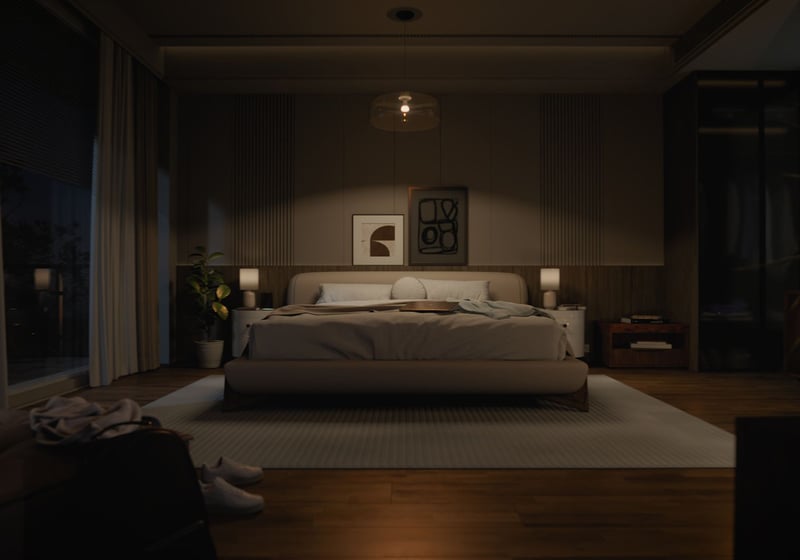
A sensor turns the bedroom or hallway light on as you walk in, at full brightness in the evening and a low glow at 2am. Fit Philips Hue bulbs and a motion sensor, or keep your lights and add a Shelly dimmer and presence sensor. Control with any of
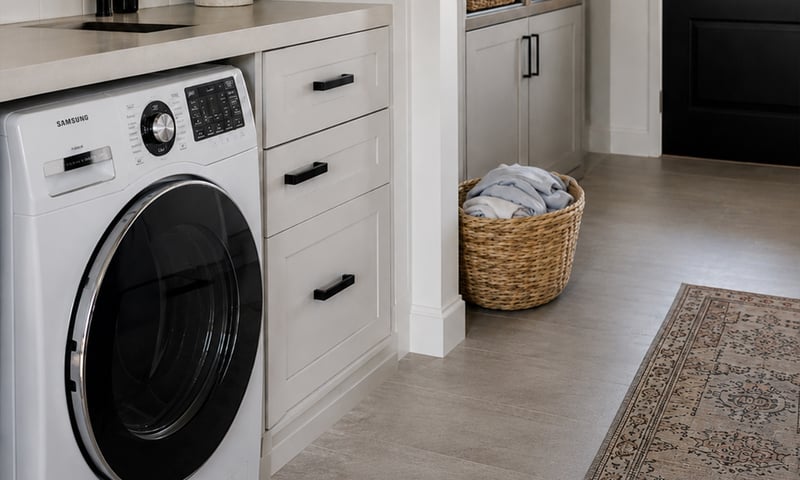
Switch off an appliance left running
A metering relay on the heater's supply switches it off after the time you set, and can message you when it has been drawing power too long. The same alert can tell you the washing has finished. Control with any of More Home Assistant solutions
Get told when a door or window is left open
A sensor on the door or window and a rule that waits. If it is still open after five minutes, your phone gets told, and a nearby light can come on as well. Control with any of Lights that come on as you walk in, softer late at night
A sensor turns the bedroom or hallway light on as you walk in, at full brightness in the evening and a low glow at 2am. Fit Philips Hue bulbs and a motion sensor, or keep your lights and add a Shelly dimmer and presence sensor. Control with any of Switch off an appliance left running
A metering relay on the heater's supply switches it off after the time you set, and can message you when it has been drawing power too long. The same alert can tell you the washing has finished. Control with any of Still need a hand?
We answer most messages within one business day. If your question is about an existing order, have your order number ready. It speeds things up.
Contact usThe kit
Choose your entry light
Each of these does the job. The steps on this page are written for the recommended one.