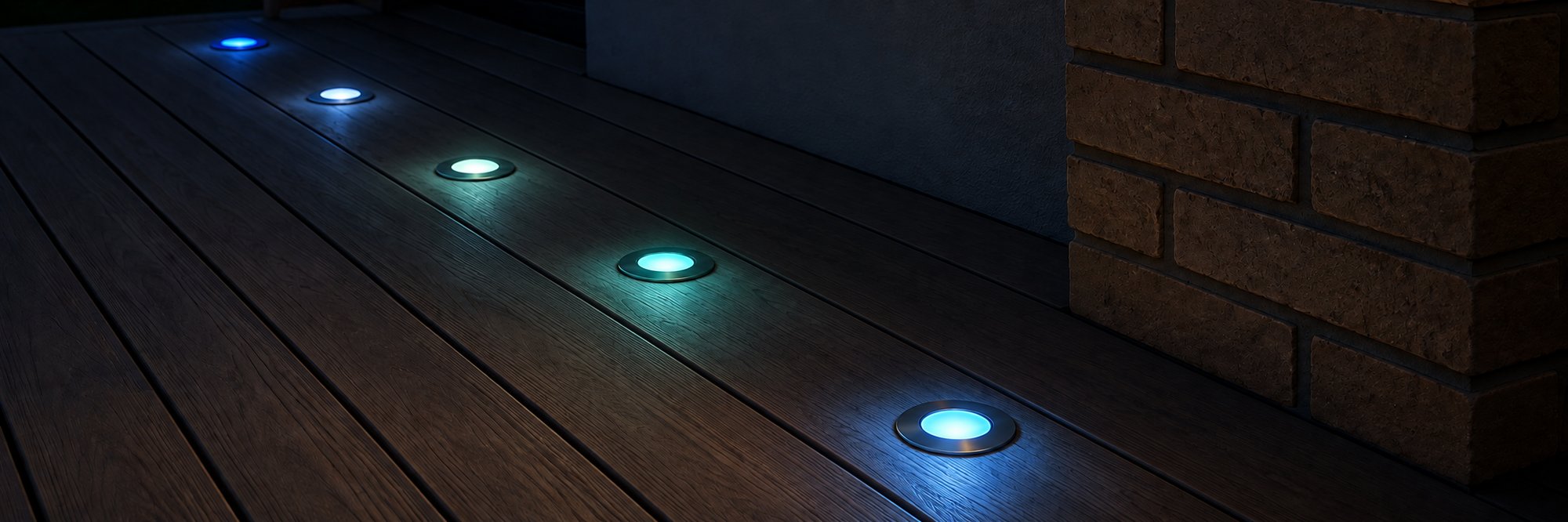
How it works
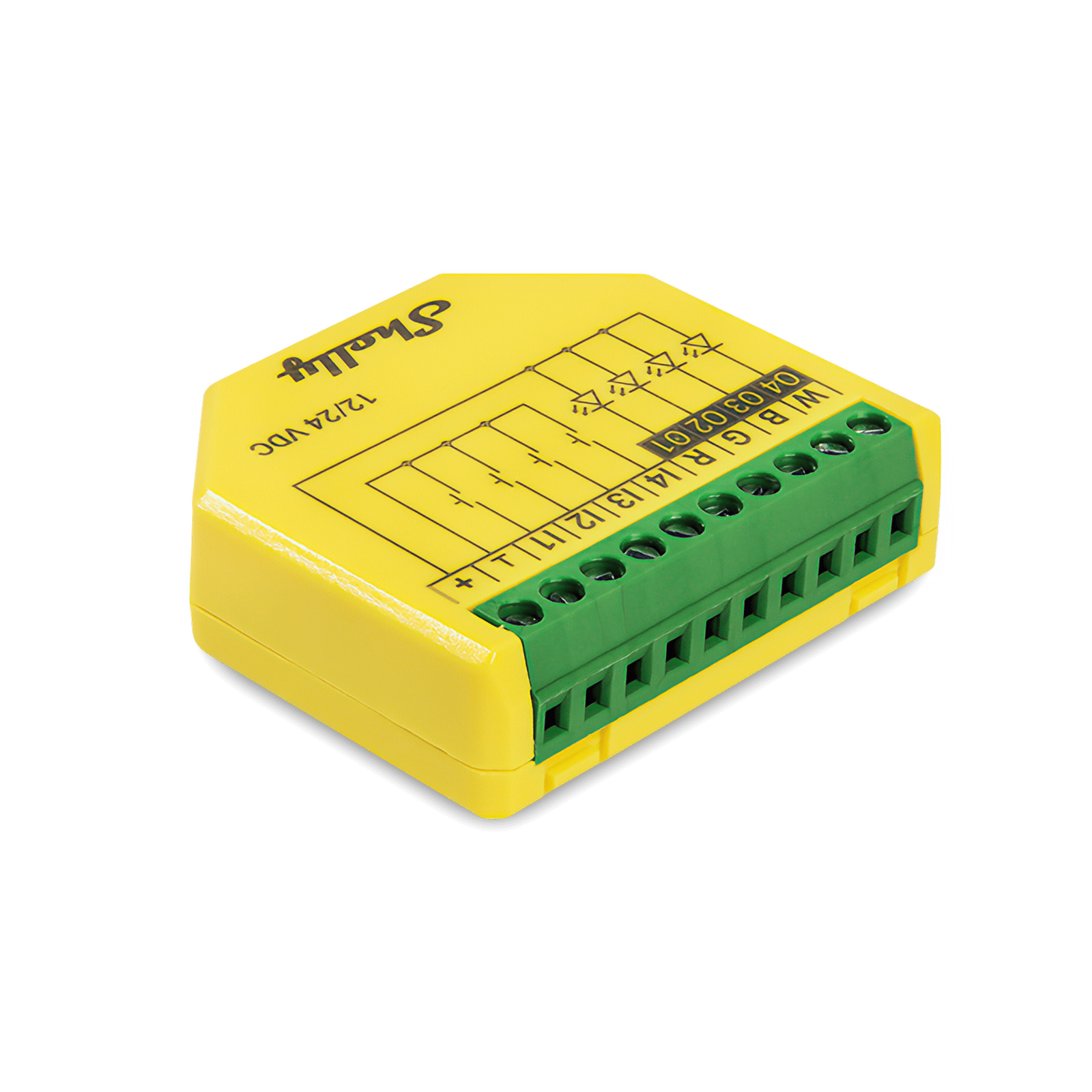
Your deck lights stay as they are. The Shelly Plus RGBW PM sits between the 12 or 24 V power supply and the lights and joins your Wi-Fi, so there's no hub to buy. You run the lights from the free Shelly app, with colour, white, brightness and schedules that follow sunset, and it shows how much power the lights draw.
It works with RGBW deck lights: a cable with five wires, one common V+ and one each for red, green, blue and white. You cut the lead between the lights and the power supply, and the controller goes in that gap.
Your deck lights stay as they are. The Shelly Plus RGBW PM sits between the 12 or 24 V power supply and the lights and joins your Wi-Fi. Home Assistant adds it through its built-in Shelly integration, talking to it directly over your home network, and the lights show up as one colour light you can add to an area, a dashboard, scenes and automations.
It works with RGBW deck lights: a cable with five wires, one common V+ and one each for red, green, blue and white. You cut the lead between the lights and the power supply, and the controller goes in that gap.
Your deck lights stay as they are. The Gledopto Pro+ Mini sits between the 12 or 24 V power supply and the lights, and joins your Hue Bridge over Zigbee. The deck lights then show up in the Hue app as one colour light you can put in an Outside room, dim, change colour and add to scenes and automations.
It works with RGBW deck lights: a cable with five wires, one common V+ and one each for red, green, blue and white. The light fittings and their plugs stay as they are. You cut the lead between the lights and the power supply, and the controller goes in that gap.
Your deck lights stay as they are. The Gledopto Pro+ Mini sits between the 12 or 24 V power supply and the lights, and pairs with Home Assistant's built-in Zigbee integration (ZHA). The lights show up as one colour light you can add to an area, a dashboard, scenes and automations, with no hub other than Home Assistant.
It works with RGBW deck lights: a cable with five wires, one common V+ and one each for red, green, blue and white. You cut the lead between the lights and the power supply, and the controller goes in that gap.
Your deck lights stay as they are. The Gledopto Pro+ Mini sits between the 12 or 24 V power supply and the lights, and joins your Hue Bridge over Zigbee. Home Assistant picks it up from the Bridge through its Philips Hue integration, so the lights are in the Hue app and Home Assistant at once, as one colour light you can add to an area, a dashboard, scenes and automations.
It works with RGBW deck lights: a cable with five wires, one common V+ and one each for red, green, blue and white. You cut the lead between the lights and the power supply, and the controller goes in that gap.
-
01
Your phone
Tap the deck lights in your app, or let a sunset schedule do it.
-
02
Shelly controllerGledopto controller
Sets the colour and brightness on the lights' channels.
-
03
Your deck lights
Run from the 12 or 24 V power supply they already have.
Check your lights first
These controllers run low voltage colour deck lights. The label on the power supply and the cable to the lights tell you which kind you have.
- 12 V DC
- 24 V DC
- RGBW
- RGBCW
In Australia
Lights that run on 240 V won't work with these controllers. If the power supply is hardwired rather than plugged in, connecting it is a job for a licensed electrician.
What it looks like on your phone
-
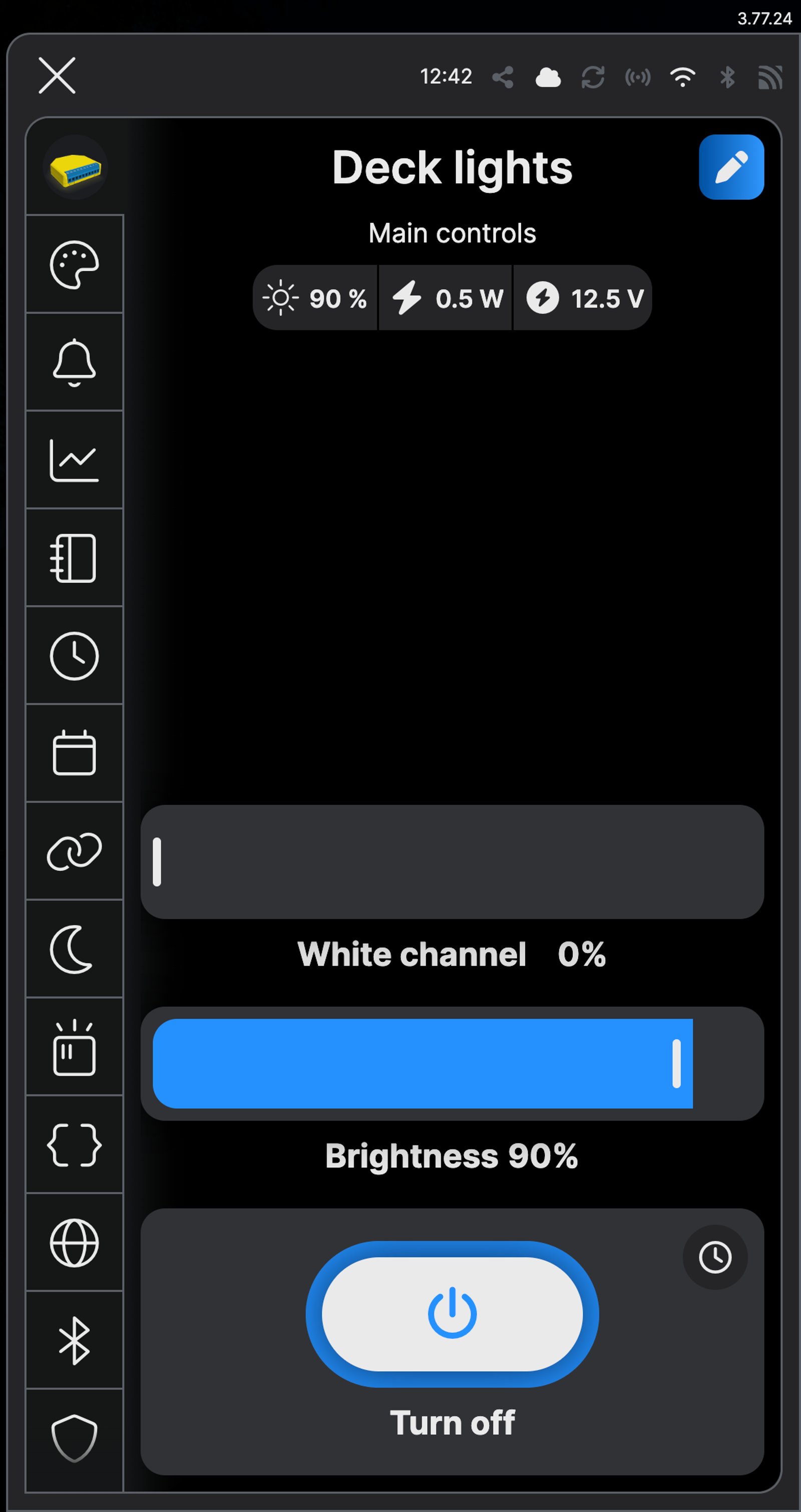
Main controls. Brightness and the white channel for the deck lights, with power use as it runs.
-
Any colour. Pick a colour on the wheel and the deck lights follow.
-
Sunset to 23:00. One schedule turns the lights on at sunset, another turns them off at a set time.
-
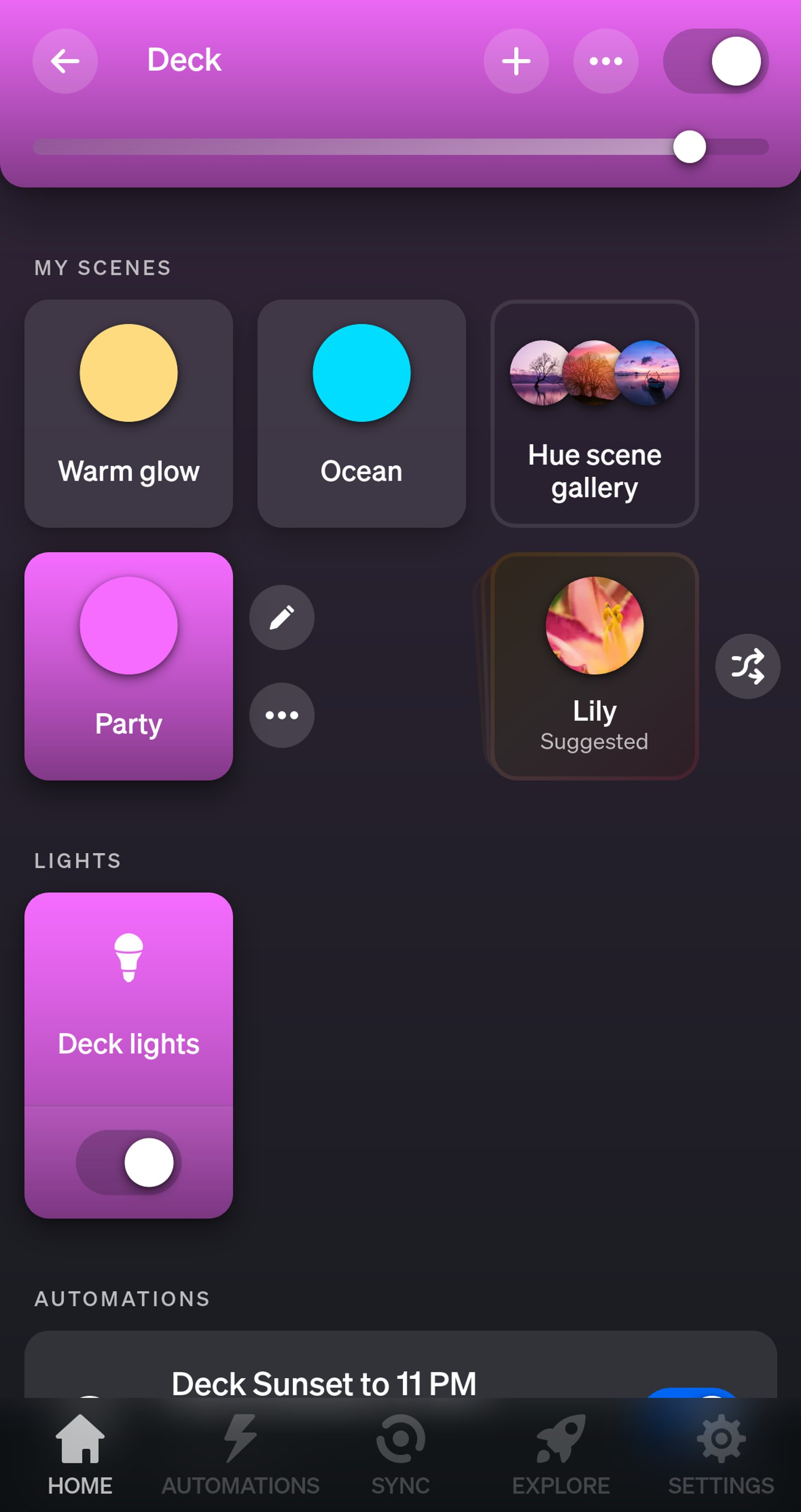
Deck room. Your scenes and the deck lights sit together in one Outside room.
-
Any colour. Pick a colour on the wheel and the deck lights follow.
-
Warm to cool white. A soft warm white for most nights, brighter when you need it.
-
Sunset to 11:00 PM. The schedule follows sunset all year and switches off at a set time.
-
Scenes for outside. The app suggests scenes for outdoor dining and lounging.
-
Deck lights. The controller shows up as one light in your Deck area, with brightness on the slider.
-
Any colour. Pick a colour on the wheel and the deck lights follow.
-
Warm to cool white. Slide from a warm glow to a crisp white.
-
On at sunset. A sun trigger turns the deck lights on as the sun sets, all year.
-
Deck lights. The controller shows up as one light in your Deck area, with brightness on the slider.
-
Any colour. Pick a colour on the wheel and the deck lights follow.
-
Warm to cool white. Slide from a warm glow to a crisp white.
-
On at sunset. A sun trigger turns the deck lights on as the sun sets, all year.
-
Deck lights. The controller shows up as one light in your Deck area, with brightness on the slider.
-
Any colour. Pick a colour on the wheel and the deck lights follow.
-
Warm to cool white. Slide from a warm glow to a crisp white.
-
On at sunset. A sun trigger turns the deck lights on as the sun sets, all year.
Step by step
-
Cut the lead to the power supply
Unplug the power supply. Cut the lead that runs from the deck lights to the driver, on the driver side of any plugs or joiners, so the lights keep their own connectors. Strip the ends of the wires, and use the markings on the lead or the lights' instructions to work out which is V+, R, G, B and W. Brands colour their wires differently, so treat this as a first guess: you'll check the colours once it's set up.
-
Wire the controller
Connect the power supply to + and ⊥. The lights' common positive joins the power supply's positive, and their red, green, blue and white wires go to R, G, B and W. On the Pro RGBWW PM, red, green and blue go to O1, O2 and O3, warm white to O4 and cool white to O5. Fit the controller in its enclosure, then plug the power supply in last.
Wire map Plus RGBW PM- Power supply + +
- Power supply 0 V ⊥
- Lights common V+ +
- Red R
- Green G
- Blue B
- White W
Wire map Pro RGBWW PM- Power supply + +
- Power supply 0 V ⊥
- Lights common V+ +
- Red O1
- Green O2
- Blue O3
- Warm white O4
- Cool white O5
Wire map Pro+ Mini- Power supply + V+ in
- Power supply 0 V V-
- Lights common V+ V+ out
- Red R
- Green G
- Blue B
- White W
Wire map Pro Max- Power supply + V+ in
- Power supply 0 V V- in
- Lights common V+ V+ out
- Red R
- Green G
- Blue B
- White W
Circuit overview+12 or 24 V0 VColour and white channelsEverything on this controller is low voltage from a 12 or 24 V DC power supply. Unplug the supply before you move a wire.
Showing the whole circuitCircuit overview+12 or 24 V0 VColour and white channelsEverything on this controller is low voltage from a 12 or 24 V DC power supply. Unplug the supply before you move a wire.
Showing the whole circuitCircuit overview+12 or 24 V0 VColour and white channelsEverything on this controller is low voltage from a plug-in power supply. Unplug the supply before you move a wire.
Showing the whole circuitCircuit overview+12 or 24 V0 VColour and white channelsEverything on this controller is low voltage from a plug-in power supply. Unplug the supply before you move a wire.
Showing the whole circuitThere's no wiring diagram for the here yet. Its installation guide has the manufacturer's wiring diagram. Wire it from the diagram in its manual.
-
Add it in the Shelly app
Add the controller to the Shelly app and put it in a room for the deck.
-
Set the profile to RGBW
Open the controller in the app and tap the gear at the foot of the side menu for Device settings. Open Device profile, choose rgbw and tap Save. Do this before you add any schedules: changing the profile restarts the controller and clears them. On the Pro RGBWW PM, use the RGB and CCT profile, which is how it comes.
-
Check the colours match
Every brand of deck light colours its wires differently, so check them now. In the Shelly app, open the palette in the side menu and pick red, then green, then blue. Then go back to the main controls and turn up the white channel. If the deck lights show a different colour from the one you picked, unplug the power supply and swap those two wires on the controller, then try again. It's all low voltage after the power supply, so you can safely swap wires until every colour matches.
-
Set it to come on at sunset
Open the calendar in the side menu and tap Add schedule. Set it to turn the lights on at sunset, with the colour and brightness you want, on every day. Add a second schedule that turns them off at a set time, such as 23:00.
-
Cut the lead to the power supply
Unplug the power supply. Cut the lead that runs from the deck lights to the driver, on the driver side of any plugs or joiners, so the lights keep their own connectors. Strip the ends of the wires, and use the markings on the lead or the lights' instructions to work out which is V+, R, G, B and W. Brands colour their wires differently, so treat this as a first guess: you'll check the colours once it's set up.
-
Wire the controller
Connect the power supply to + and ⊥. The lights' common positive joins the power supply's positive, and their red, green, blue and white wires go to R, G, B and W. On the Pro RGBWW PM, red, green and blue go to O1, O2 and O3, warm white to O4 and cool white to O5. Fit the controller in its enclosure, then plug the power supply in last.
Wire map Plus RGBW PM- Power supply + +
- Power supply 0 V ⊥
- Lights common V+ +
- Red R
- Green G
- Blue B
- White W
Wire map Pro RGBWW PM- Power supply + +
- Power supply 0 V ⊥
- Lights common V+ +
- Red O1
- Green O2
- Blue O3
- Warm white O4
- Cool white O5
Wire map Pro+ Mini- Power supply + V+ in
- Power supply 0 V V-
- Lights common V+ V+ out
- Red R
- Green G
- Blue B
- White W
Wire map Pro Max- Power supply + V+ in
- Power supply 0 V V- in
- Lights common V+ V+ out
- Red R
- Green G
- Blue B
- White W
Circuit overview+12 or 24 V0 VColour and white channelsEverything on this controller is low voltage from a 12 or 24 V DC power supply. Unplug the supply before you move a wire.
Showing the whole circuitCircuit overview+12 or 24 V0 VColour and white channelsEverything on this controller is low voltage from a 12 or 24 V DC power supply. Unplug the supply before you move a wire.
Showing the whole circuitCircuit overview+12 or 24 V0 VColour and white channelsEverything on this controller is low voltage from a plug-in power supply. Unplug the supply before you move a wire.
Showing the whole circuitCircuit overview+12 or 24 V0 VColour and white channelsEverything on this controller is low voltage from a plug-in power supply. Unplug the supply before you move a wire.
Showing the whole circuitThere's no wiring diagram for the here yet. Its installation guide has the manufacturer's wiring diagram. Wire it from the diagram in its manual.
-
Add it in the Shelly app
Add the controller to the Shelly app and put it in a room for the deck.
-
Set the profile to RGBW
Open the controller in the app and tap the gear at the foot of the side menu for Device settings. Open Device profile, choose rgbw and tap Save. Do this before you add any schedules: changing the profile restarts the controller and clears them. On the Pro RGBWW PM, use the RGB and CCT profile, which is how it comes.
-
Add it to Home Assistant
In Home Assistant, go to Settings, then Devices & services, select Add integration and choose Shelly. Enter the controller's IP address, which your router lists, and select Submit. Home Assistant talks to the controller directly over your home network. Name it Deck lights and put it in an area, such as Deck.
-
Check the colours match
Every brand of deck light colours its wires differently, so check them now. Open Deck lights in Home Assistant and set it to red, then green, then blue, then white. If the deck lights show a different colour from the one you picked, unplug the power supply and swap those two wires on the controller, then try again. It's all low voltage after the power supply, so you can safely swap wires until every colour matches.
-
Set it to come on at sunset
Go to Settings, then Automations & scenes, and select Create automation. Select Add trigger, choose Sun and set it to sunset, then select Add action and turn on Deck lights at the colour and brightness you want. Check them and select Save. Add a second automation the same way that turns them off at a set time, such as 11:00 PM.
-
Check both are there
Automations & scenes now lists Deck lights on at sunset and Deck lights off at 11 PM. They're on as soon as you save them, so the deck lights up at sunset tonight.
-
Cut the lead to the power supply
Unplug the power supply. Cut the lead that runs from the deck lights to the driver, on the driver side of any plugs or joiners, so the lights keep their own connectors. Strip 8 to 9 mm off each of the five wires, and use the markings on the lead or the lights' instructions to work out which is V+, R, G, B and W. Brands colour their wires differently, so treat this as a first guess: you'll check the colours once it's set up.
-
Wire the controller
The lights' common positive goes to V+, and their red, green, blue and white wires to R, G, B and W. C isn't used. Connect the power supply's positive wire to V+ and its negative wire to V-: on the Pro+ Mini that's the black V- lever and the V+ beside it, and on the Pro Max its separate INPUT terminals. Fit the controller in a weatherproof enclosure, then plug the power supply in last.
Wire map Pro+ Mini- Power supply + V+ in
- Power supply 0 V V-
- Lights common V+ V+ out
- Red R
- Green G
- Blue B
- White W
Wire map Pro Max- Power supply + V+ in
- Power supply 0 V V- in
- Lights common V+ V+ out
- Red R
- Green G
- Blue B
- White W
Wire map Plus RGBW PM- Power supply + +
- Power supply 0 V ⊥
- Lights common V+ +
- Red R
- Green G
- Blue B
- White W
Circuit overview+12 or 24 V0 VColour and white channelsEverything on this controller is low voltage from a plug-in power supply. Unplug the supply before you move a wire.
Showing the whole circuitCircuit overview+12 or 24 V0 VColour and white channelsEverything on this controller is low voltage from a plug-in power supply. Unplug the supply before you move a wire.
Showing the whole circuitCircuit overview+12 or 24 V0 VColour and white channelsEverything on this controller is low voltage from a 12 or 24 V DC power supply. Unplug the supply before you move a wire.
Showing the whole circuitThere's no wiring diagram for the here yet. Its installation guide has the manufacturer's wiring diagram. Wire it from the diagram in its manual.
-
Add it to the Hue app
Follow our Gledopto setup guide to add the controller in the Hue app, in a new room from the Outside group such as Patio. When the guide has you reset the controller, press OPT straight afterwards until its light turns yellow, the RGBW setting: a reset puts it back to colour and white mode. When the app finds it, tap Next and name the light Deck lights.
-
Check the colours match
Every brand of deck light colours its wires differently, so check them now. In the Hue app, set the light to red, then green, then blue, then white. If the deck lights show a different colour from the one you picked, unplug the power supply and swap those two wires on the controller, then try again. It's all low voltage after the power supply, so you can safely swap wires until every colour matches. Once they match, set a colour you like and tap Save to keep it as a scene.
-
Set it to come on at sunset
Open the Automations tab, tap the plus and choose Lighting schedule. Set Start at to Sunset and End at to a specific time, such as 11:00 PM, and leave Repeat on. Tap Next, choose the deck's room and your evening scene, then name the automation and tap Done.
-
Cut the lead to the power supply
Unplug the power supply. Cut the lead that runs from the deck lights to the driver, on the driver side of any plugs or joiners, so the lights keep their own connectors. Strip 8 to 9 mm off each of the five wires, and use the markings on the lead or the lights' instructions to work out which is V+, R, G, B and W. Brands colour their wires differently, so treat this as a first guess: you'll check the colours once it's set up.
-
Wire the controller
The lights' common positive goes to V+, and their red, green, blue and white wires to R, G, B and W. C isn't used. Connect the power supply's positive wire to V+ and its negative wire to V-: on the Pro+ Mini that's the black V- lever and the V+ beside it, and on the Pro Max its separate INPUT terminals. Fit the controller in a weatherproof enclosure, then plug the power supply in last.
Wire map Pro+ Mini- Power supply + V+ in
- Power supply 0 V V-
- Lights common V+ V+ out
- Red R
- Green G
- Blue B
- White W
Wire map Pro Max- Power supply + V+ in
- Power supply 0 V V- in
- Lights common V+ V+ out
- Red R
- Green G
- Blue B
- White W
Wire map Plus RGBW PM- Power supply + +
- Power supply 0 V ⊥
- Lights common V+ +
- Red R
- Green G
- Blue B
- White W
Circuit overview+12 or 24 V0 VColour and white channelsEverything on this controller is low voltage from a plug-in power supply. Unplug the supply before you move a wire.
Showing the whole circuitCircuit overview+12 or 24 V0 VColour and white channelsEverything on this controller is low voltage from a plug-in power supply. Unplug the supply before you move a wire.
Showing the whole circuitCircuit overview+12 or 24 V0 VColour and white channelsEverything on this controller is low voltage from a 12 or 24 V DC power supply. Unplug the supply before you move a wire.
Showing the whole circuitThere's no wiring diagram for the here yet. Its installation guide has the manufacturer's wiring diagram. Wire it from the diagram in its manual.
-
Add it to Home Assistant
Follow our Gledopto setup guide to pair the controller with Home Assistant's Zigbee integration. When the guide has you reset the controller, press OPT straight afterwards until its light turns yellow, the RGBW setting: a reset puts it back to colour and white mode. Name it Deck lights and put it in an area, such as Deck.
-
Check the colours match
Every brand of deck light colours its wires differently, so check them now. Open Deck lights in Home Assistant and set it to red, then green, then blue, then white. If the deck lights show a different colour from the one you picked, unplug the power supply and swap those two wires on the controller, then try again. It's all low voltage after the power supply, so you can safely swap wires until every colour matches.
-
Set it to come on at sunset
Go to Settings, then Automations & scenes, and select Create automation. Select Add trigger, choose Sun and set it to sunset, then select Add action and turn on Deck lights at the colour and brightness you want. Check them and select Save. Add a second automation the same way that turns them off at a set time, such as 11:00 PM.
-
Check both are there
Automations & scenes now lists Deck lights on at sunset and Deck lights off at 11 PM. They're on as soon as you save them, so the deck lights up at sunset tonight.
-
Cut the lead to the power supply
Unplug the power supply. Cut the lead that runs from the deck lights to the driver, on the driver side of any plugs or joiners, so the lights keep their own connectors. Strip 8 to 9 mm off each of the five wires, and use the markings on the lead or the lights' instructions to work out which is V+, R, G, B and W. Brands colour their wires differently, so treat this as a first guess: you'll check the colours once it's set up.
-
Wire the controller
The lights' common positive goes to V+, and their red, green, blue and white wires to R, G, B and W. C isn't used. Connect the power supply's positive wire to V+ and its negative wire to V-: on the Pro+ Mini that's the black V- lever and the V+ beside it, and on the Pro Max its separate INPUT terminals. Fit the controller in a weatherproof enclosure, then plug the power supply in last.
Wire map Pro+ Mini- Power supply + V+ in
- Power supply 0 V V-
- Lights common V+ V+ out
- Red R
- Green G
- Blue B
- White W
Wire map Pro Max- Power supply + V+ in
- Power supply 0 V V- in
- Lights common V+ V+ out
- Red R
- Green G
- Blue B
- White W
Wire map Plus RGBW PM- Power supply + +
- Power supply 0 V ⊥
- Lights common V+ +
- Red R
- Green G
- Blue B
- White W
Circuit overview+12 or 24 V0 VColour and white channelsEverything on this controller is low voltage from a plug-in power supply. Unplug the supply before you move a wire.
Showing the whole circuitCircuit overview+12 or 24 V0 VColour and white channelsEverything on this controller is low voltage from a plug-in power supply. Unplug the supply before you move a wire.
Showing the whole circuitCircuit overview+12 or 24 V0 VColour and white channelsEverything on this controller is low voltage from a 12 or 24 V DC power supply. Unplug the supply before you move a wire.
Showing the whole circuitThere's no wiring diagram for the here yet. Its installation guide has the manufacturer's wiring diagram. Wire it from the diagram in its manual.
-
Add it to the Hue app
Follow our Gledopto setup guide to add the controller in the Hue app, in a new room from the Outside group such as Patio. When the guide has you reset the controller, press OPT straight afterwards until its light turns yellow, the RGBW setting: a reset puts it back to colour and white mode. When the app finds it, tap Next and name the light Deck lights.
-
Add the Bridge to Home Assistant
In Home Assistant, go to Settings, then Devices & services, select Add integration and choose Philips Hue. Pick your Bridge, then press the button on top of it when Home Assistant asks. Deck lights then shows up in Home Assistant with your other Hue lights.
-
Check the colours match
Every brand of deck light colours its wires differently, so check them now. Open Deck lights in Home Assistant and set it to red, then green, then blue, then white. If the deck lights show a different colour from the one you picked, unplug the power supply and swap those two wires on the controller, then try again. It's all low voltage after the power supply, so you can safely swap wires until every colour matches.
-
Set it to come on at sunset
Go to Settings, then Automations & scenes, and select Create automation. Select Add trigger, choose Sun and set it to sunset, then select Add action and turn on Deck lights at the colour and brightness you want. Check them and select Save. Add a second automation the same way that turns them off at a set time, such as 11:00 PM.
-
Check both are there
Automations & scenes now lists Deck lights on at sunset and Deck lights off at 11 PM. They're on as soon as you save them, so the deck lights up at sunset tonight.
Frequently asked questions
Which should I choose: Hue, Home Assistant or Shelly?
Use the app you already have. If you have a Hue Bridge, the Hue app keeps the deck in with the rest of your lights. If you run Zigbee in Home Assistant, pair the controller there directly. If you have neither, the Shelly joins your Wi-Fi and needs no hub.
Will my deck lights work with this?
They need to run on 12 or 24 V DC from a separate power supply, with a cable that has a wire for each colour: five for RGBW, six for RGBCW. Single-colour 12 or 24 V lights work too, with brightness only. Lights that plug straight into 240 V, or run on solar, won't work.
Do I have to cut the cable?
Yes, once, between the lights and the power supply. The controller goes in that gap. Cut on the driver side of any plugs or joiners, so the lights keep their own connectors.
Can I keep the remote that came with my deck lights?
No. A kit with a colour remote has its own controller in the driver, and the smart controller replaces it. Your phone, a voice assistant or a wall button take over from the remote.
Do I need a Hue Bridge?
Yes, for the Hue app. The controller is a Zigbee device and the Bridge is how it reaches the app. If you'd rather not add a bridge, the Shelly option joins your Wi-Fi directly.
Will it work with Home Assistant too?
Yes. Home Assistant's Philips Hue integration picks up lights on the Bridge, deck lights included. To pair the controller to Home Assistant directly instead, pick Home Assistant at the top of this page.
The Hue app can't find the controller. What do I do?
Start the search in the app first, then reset the controller: hold its RESET button for 5 seconds until the lights flash 3 times. A reset puts it back to colour and white mode, so press OPT until it's yellow again before the next search.
Do I need a Zigbee adapter?
Yes. ZHA and Zigbee2MQTT both talk to Zigbee devices through a coordinator plugged into your Home Assistant machine. If you already run Zigbee in Home Assistant, the adapter you have will do.
Can I use Zigbee2MQTT instead of ZHA?
Yes. The Pro+ Mini is supported in Zigbee2MQTT. Permit joining in Zigbee2MQTT, then press OPT until it's yellow (RGBW). Changing the mode clears any old pairing, so it joins fresh in RGBW.
What if I already paired it to a Hue Bridge?
Either keep it there and pick Hue Bridge under Connect through, or reset it. A Zigbee device can only belong to one network, so it has to leave the Bridge before Home Assistant's Zigbee can add it. A reset puts it back to colour and white mode, so press OPT until it's yellow again.
Why go through the Hue Bridge?
If you already have a Hue Bridge, the deck lights sit in the Hue app with your other Hue lights and in Home Assistant as well, with no Zigbee adapter to add. Pairing straight to Home Assistant's Zigbee skips the Bridge, but the lights are then only in Home Assistant.
Will it work with Home Assistant?
Yes. Home Assistant finds Shelly devices on your network through its Shelly integration, and the deck lights show up as a colour light. No Zigbee adapter needed.
Which controller do I need?
Count the wires in your deck lights' cable. Five (V+, R, G, B, W) is RGBW, which suits the Plus RGBW PM. Six, with separate warm and cool white, is RGBCW, which needs the Pro RGBWW PM.
Does it need the internet?
The schedules are stored on the controller, so they don't rely on Shelly's cloud to run. The controller does set its clock over the internet, though, so a long outage or a reset can leave the times out until it reconnects.
More Shelly solutions
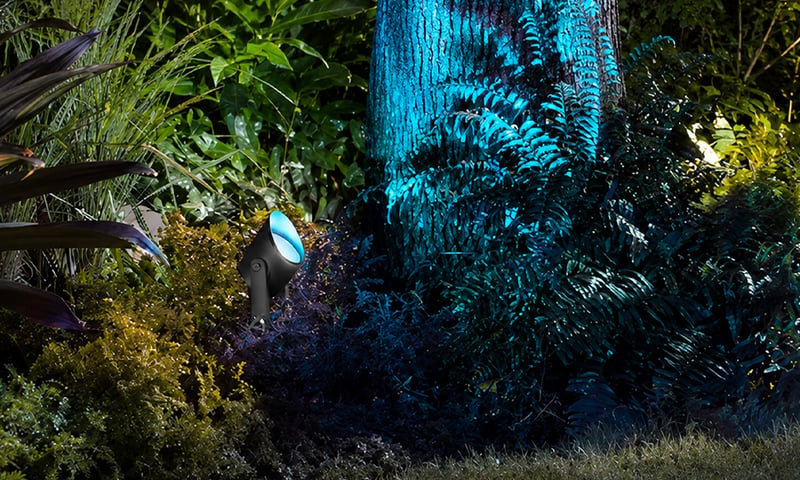
Outdoor lights on at sunset, off at midnight
Porch, path and garden lights follow the sun through the year without you touching a switch. Run the lights you have from a Shelly relay, or fit Philips Hue outdoor lights, and set it up in their app or Home Assistant. Control with any of



A roof-space fan that runs when the roof gets hot
A temperature probe in the roof space switches the exhaust fan on when the air up there gets hot, and off again once it cools. It runs on the relay itself, so it keeps working without the internet. Control with any of 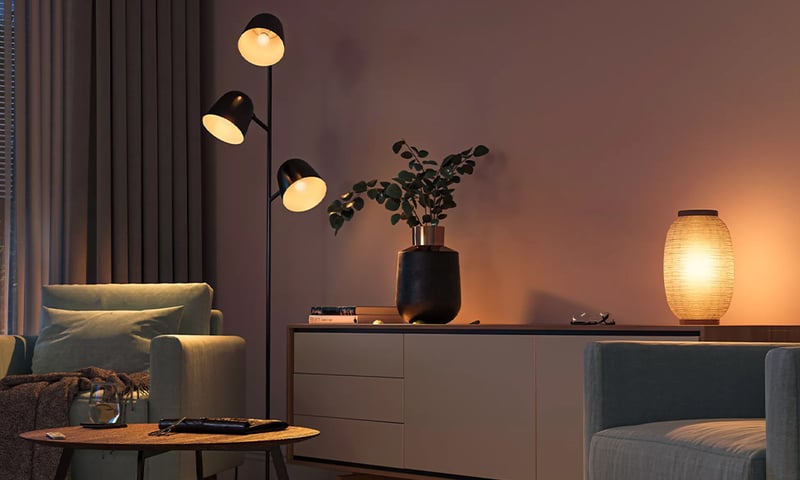
Lights that dim on a schedule each evening
The lights fade down to a low glow after dinner instead of snapping between full and off. Do it with a Shelly dimmer behind the wall plate or Philips Hue bulbs, in their app or Home Assistant. Control with any of More Philips Hue solutions
Outdoor lights on at sunset, off at midnight
Porch, path and garden lights follow the sun through the year without you touching a switch. Run the lights you have from a Shelly relay, or fit Philips Hue outdoor lights, and set it up in their app or Home Assistant. Control with any of 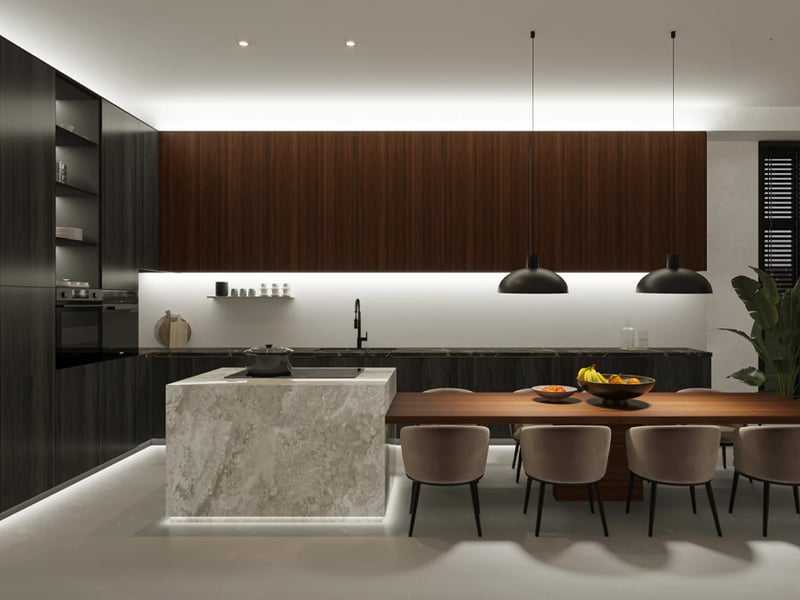
Under-cabinet kitchen lights you run from your phone
A smooth line of light under your kitchen cabinets, bright white for cooking and a warm glow at night. Use a Philips Hue lightstrip, or a dotless strip on a small Gledopto controller that joins the Hue app or Home Assistant. Control with any of Lights that dim on a schedule each evening
The lights fade down to a low glow after dinner instead of snapping between full and off. Do it with a Shelly dimmer behind the wall plate or Philips Hue bulbs, in their app or Home Assistant. Control with any of More Home Assistant solutions
Outdoor lights on at sunset, off at midnight
Porch, path and garden lights follow the sun through the year without you touching a switch. Run the lights you have from a Shelly relay, or fit Philips Hue outdoor lights, and set it up in their app or Home Assistant. Control with any of Under-cabinet kitchen lights you run from your phone
A smooth line of light under your kitchen cabinets, bright white for cooking and a warm glow at night. Use a Philips Hue lightstrip, or a dotless strip on a small Gledopto controller that joins the Hue app or Home Assistant. Control with any of A roof-space fan that runs when the roof gets hot
A temperature probe in the roof space switches the exhaust fan on when the air up there gets hot, and off again once it cools. It runs on the relay itself, so it keeps working without the internet. Control with any of More Home Assistant solutions
Outdoor lights on at sunset, off at midnight
Porch, path and garden lights follow the sun through the year without you touching a switch. Run the lights you have from a Shelly relay, or fit Philips Hue outdoor lights, and set it up in their app or Home Assistant. Control with any of Under-cabinet kitchen lights you run from your phone
A smooth line of light under your kitchen cabinets, bright white for cooking and a warm glow at night. Use a Philips Hue lightstrip, or a dotless strip on a small Gledopto controller that joins the Hue app or Home Assistant. Control with any of A roof-space fan that runs when the roof gets hot
A temperature probe in the roof space switches the exhaust fan on when the air up there gets hot, and off again once it cools. It runs on the relay itself, so it keeps working without the internet. Control with any of More Home Assistant solutions
Outdoor lights on at sunset, off at midnight
Porch, path and garden lights follow the sun through the year without you touching a switch. Run the lights you have from a Shelly relay, or fit Philips Hue outdoor lights, and set it up in their app or Home Assistant. Control with any of Under-cabinet kitchen lights you run from your phone
A smooth line of light under your kitchen cabinets, bright white for cooking and a warm glow at night. Use a Philips Hue lightstrip, or a dotless strip on a small Gledopto controller that joins the Hue app or Home Assistant. Control with any of A roof-space fan that runs when the roof gets hot
A temperature probe in the roof space switches the exhaust fan on when the air up there gets hot, and off again once it cools. It runs on the relay itself, so it keeps working without the internet. Control with any of Still need a hand?
We answer most messages within one business day. If your question is about an existing order, have your order number ready. It speeds things up.
Contact usThe kit
Which should I choose?
Both do the job. The difference is how they connect, and which app you'll run them from.
-
Shelly
Wi-FiWi-Fi. No hub needed, and it runs from the Shelly app.
- You don't have a smart home hub
- Your Wi-Fi reaches the deck
- You want the lights in the Shelly app
-
Gledopto
ZigbeeZigbee. Connects to a hub you already have, like a Hue Bridge or Home Assistant.
- You already have a Hue Bridge or Home Assistant
- You want the deck in the Hue app with your other lights
- You want to keep devices off your Wi-Fi