

















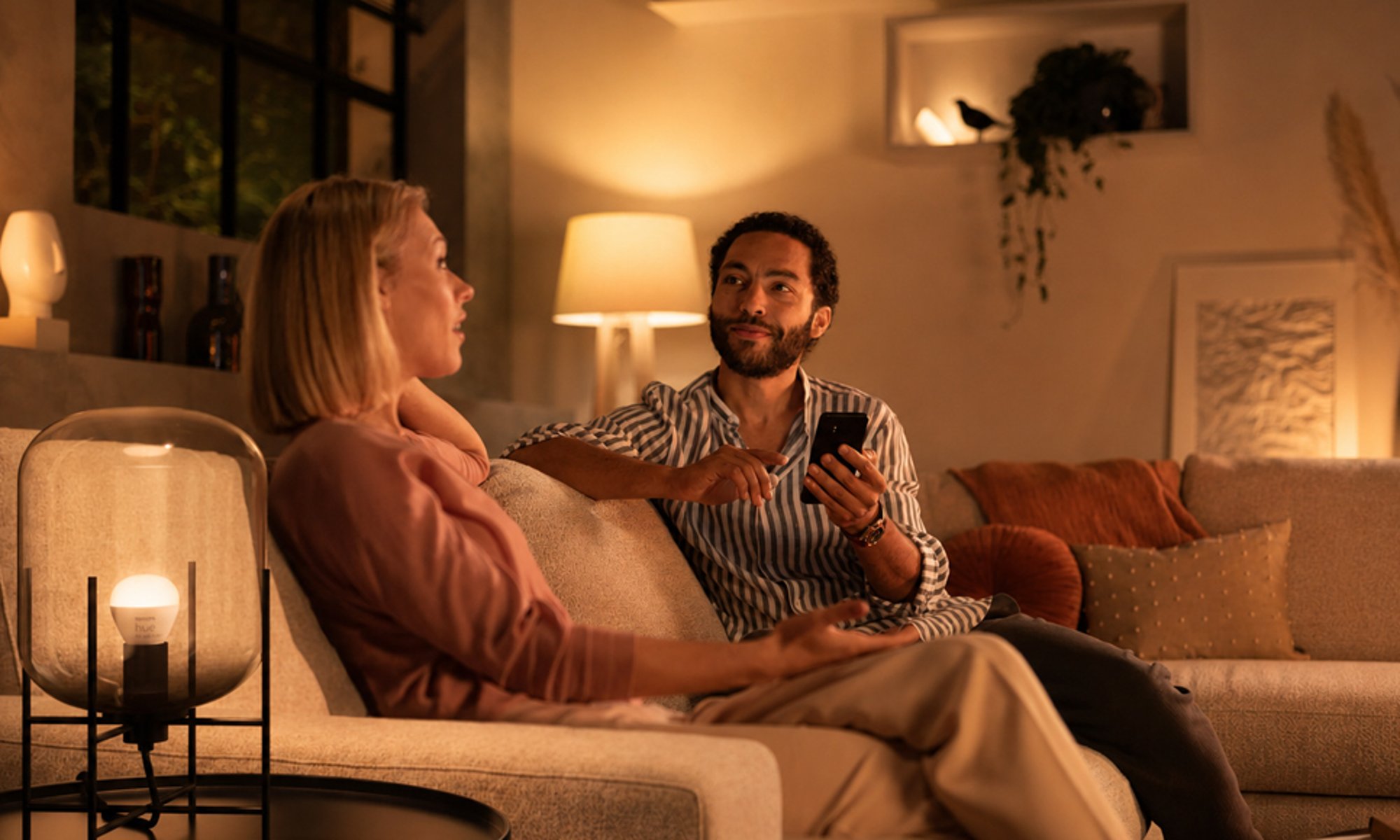
How it works
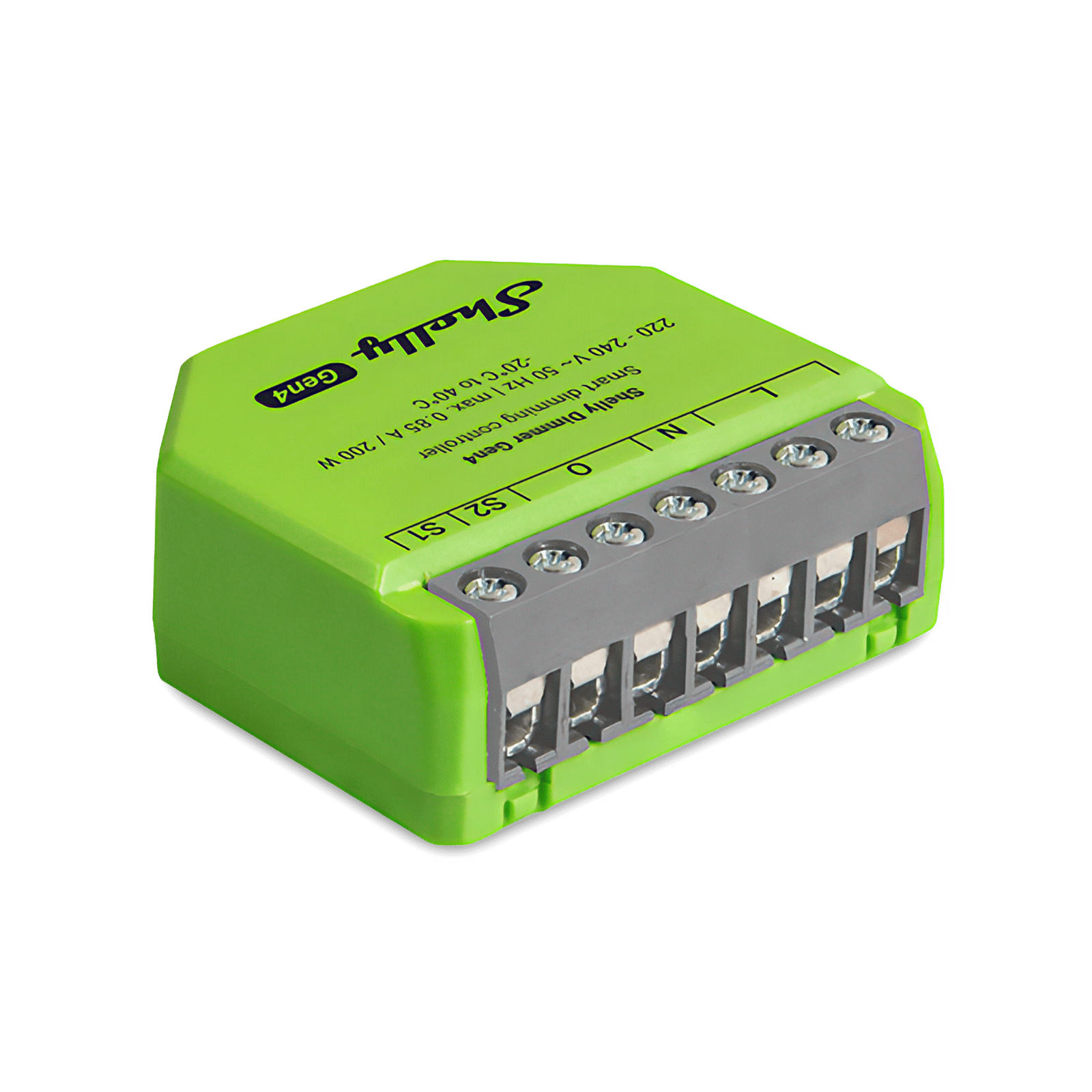
A Shelly Dimmer Gen4 goes behind the wall plate, and the push button already there wires to it. A press switches the lights and holding it dims them, the way a dimmer should. Any dimmable lights work, not just downlights.
The Dimmer Gen4 also has a button preset: a double-press jumps straight to a brightness you choose, 10% here, which is movie-night glow. The setting is stored on the dimmer. From the couch, the brightness slider in the Shelly app or a voice assistant gets you to the same place.
A Shelly Dimmer Gen4 goes behind the wall plate, and the push button already there wires to it: a press switches the lights, holding dims them, and a double-press goes straight to a 10% glow. It joins Home Assistant through the built-in Shelly integration and shows up as a dimmable light. Any dimmable lights work, not just downlights.
In Home Assistant you save a Movie night scene with the living room light at 10%, and put it on a dashboard. One tap in the Home Assistant app on your phone sets the room from the couch.
You save a Movie night scene in the Hue app: the living room's Hue GU10 bulbs at a low, warm glow. From the couch, tap the scene in the app, or ask a voice assistant linked to Hue, and the room goes straight there. Nobody needs to find the wall switch. It doesn't have to be GU10s: any Philips Hue bulb works, so pick the one that fits your lights.
If you'd rather not reach for a phone, add a Hue Tap dial switch for the coffee table. One button sets the scene and the dial fine-tunes it.
You save a Movie night scene for the living room's Hue GU10 bulbs in the Hue app, and Home Assistant picks up the bulbs and the scene from the Hue Bridge through its Philips Hue integration. Put the scene on a Home Assistant dashboard, and one tap in the Home Assistant app sets the room from the couch. It doesn't have to be GU10s: any Philips Hue bulb works, so pick the one that fits your lights.
A Hue Tap dial switch on the coffee table keeps working through the Bridge, and Home Assistant sees its buttons as well.
Hue GU10 bulbs are Zigbee lights, so they can pair straight to Home Assistant's own Zigbee (ZHA), with no Hue Bridge. In Home Assistant you save a Movie night scene with the bulbs at a low warm white, and put it on a dashboard. One tap in the Home Assistant app sets the room from the couch. It doesn't have to be GU10s: any Philips Hue bulb works, so pick the one that fits your lights.
Without a Bridge the bulbs aren't in the Hue app, so Hue's own scenes and the Hue Tap dial switch aren't part of this setup.
-
01
Your phone or voice
Tap the scene or the slider from the couch, or ask a voice assistant.
-
02
The Shelly kitThe Philips Hue kit
Takes the lights straight to a low glow.
-
03
Your living room
Comes back up when it's time to tidy.
What it looks like on your phone
-
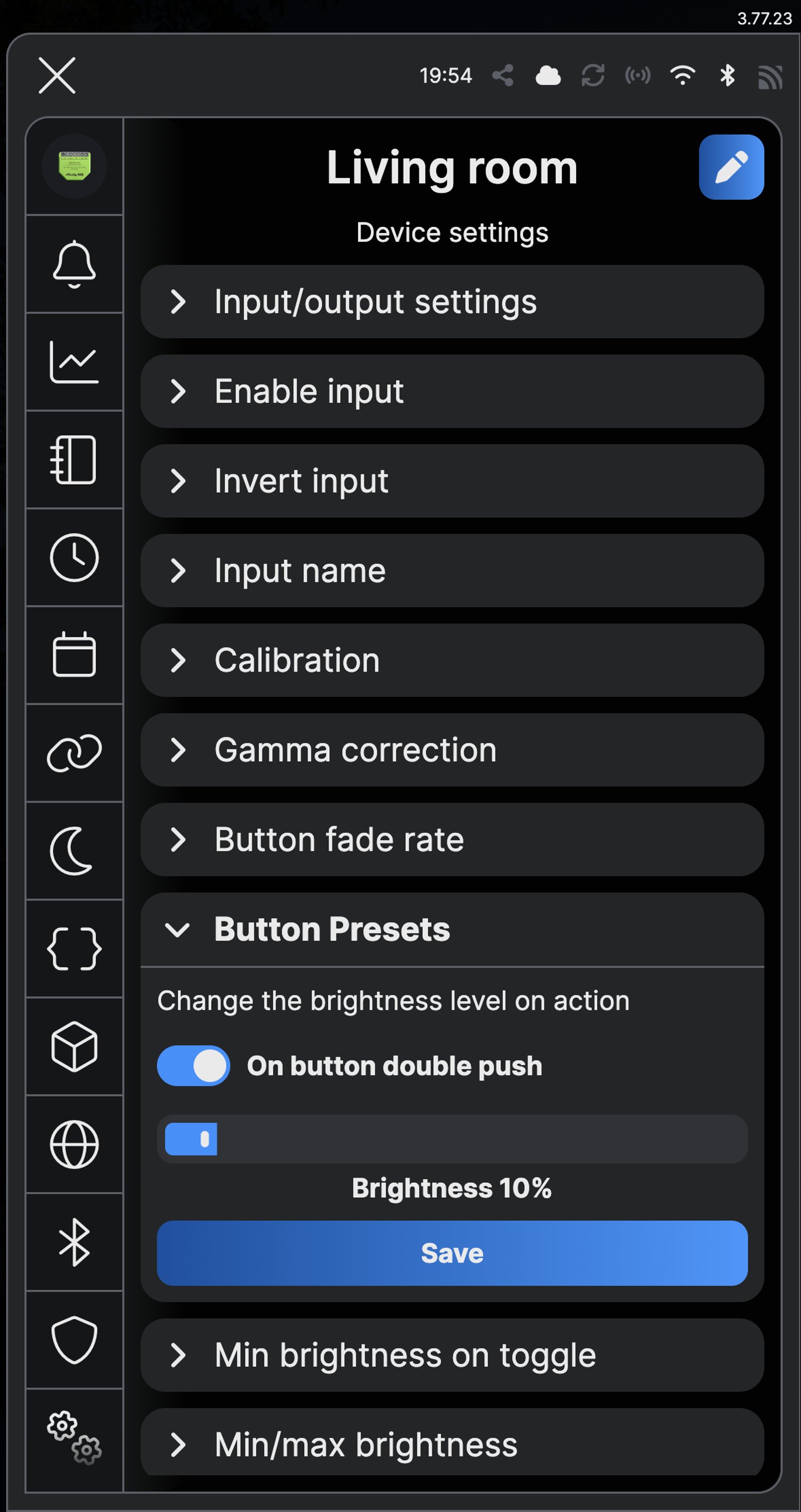
The movie-night preset. A double-press on the wall button takes the room to 10%.
-
One button does it all. Press to switch, hold to dim, double-press for the glow.
-
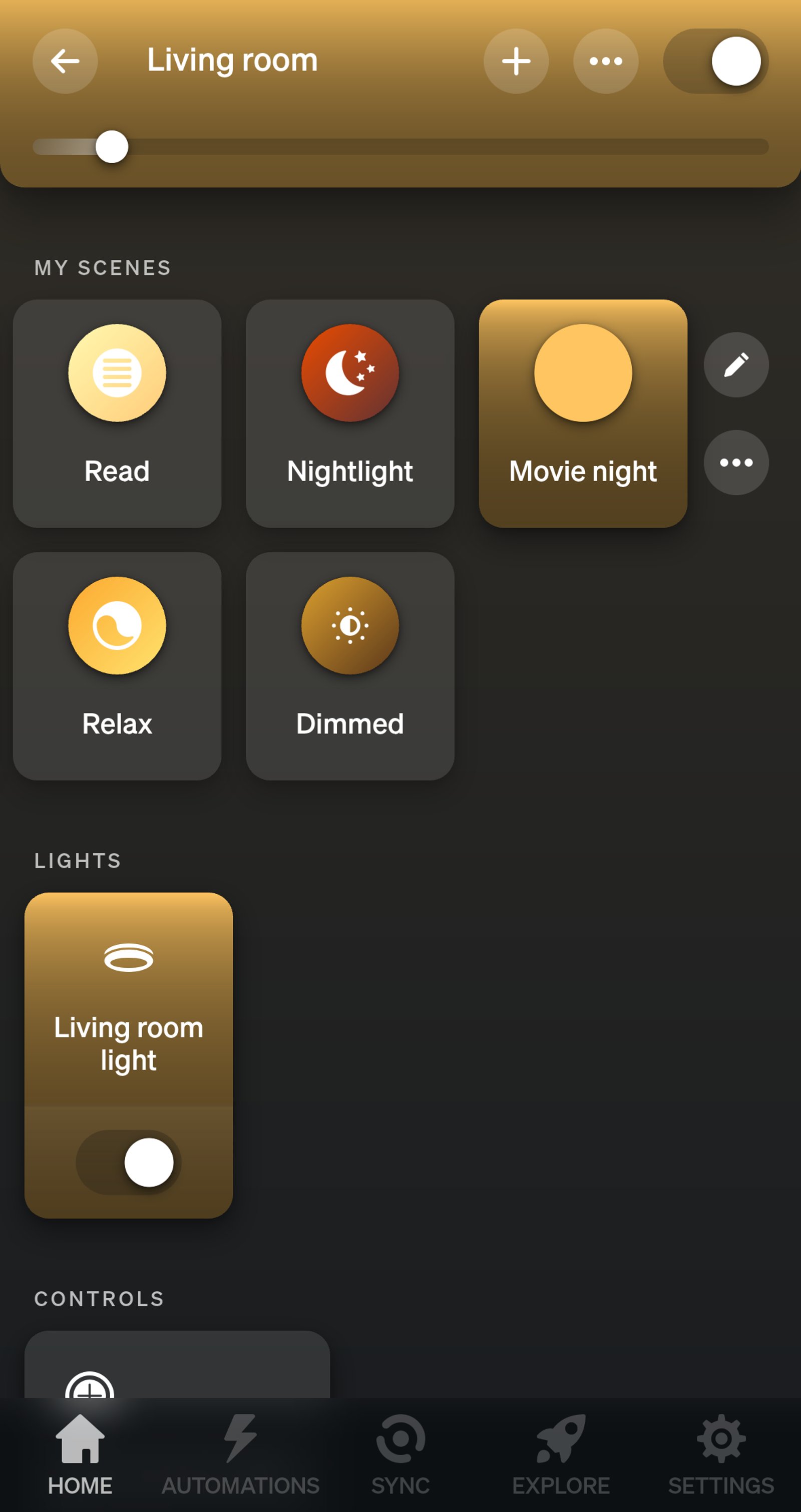
Movie night. The scene sits with the room's other scenes, and one tap takes the room to a glow.
-
Movie night. One tap on the dashboard takes the living room to a 10% glow.
-
Movie night. The Hue scene comes into Home Assistant, and one tap on the dashboard sets it.
-
Movie night. One tap on the dashboard takes the living room to a warm glow.
Step by step
How you'll set it up
Add the device to Wi-Fi from your phone, or straight from a browser.



Every Shelly has its own built-in web interface, so there's nothing to install. Once it's on your Wi-Fi, type its IP address into a browser on the same network. Before it joins your Wi-Fi, connect your computer to the Shelly's own hotspot and open `192.168.33.1`.
-
Fit the dimmer behind the wall plate
Mains goes to L and N. The downlights connect to O and neutral, and the push button goes to S1, so a press switches the lights and holding it dims. Use dimmable lights only.
Wire map Dimmer Gen4- Active (supply) L
- Neutral N
- Dimmable light O
- Push button S1
Wire map Dimmer Gen3- Active (supply) L
- Neutral N
- Dimmable light O
- Push button S1
Wire map Pro Dimmer 1PM- Active (supply) L
- Neutral N
- Dimmable light O
- Push button SW1
Wire map Pro Dimmer 2PM- Active (supply) L
- Neutral N
- Dimmable light O1
- Push button SW1
Circuit overview1Dimmable light2Push buttonActive (supply)Neutral / 0 VSwitched loadSwitch signal / dry contactIn Australia, fixed 230 V wiring is licensed-electrician work. Use these diagrams to plan the job and brief your electrician.
Showing the whole circuitCircuit overview1Dimmable light2Push buttonActive (supply)Neutral / 0 VSwitched loadSwitch signal / dry contactIn Australia, fixed 230 V wiring is licensed-electrician work. Use these diagrams to plan the job and brief your electrician.
Showing the whole circuitCircuit overview1Push button2Dimmable lightActive (supply)Neutral / 0 VSwitched loadSwitch signal / dry contactIn Australia, fixed 230 V wiring is licensed-electrician work. Use these diagrams to plan the job and brief your electrician.
Showing the whole circuitCircuit overview1Push button2Dimmable lightActive (supply)Neutral / 0 VSwitched loadSwitch signal / dry contactIn Australia, fixed 230 V wiring is licensed-electrician work. Use these diagrams to plan the job and brief your electrician.
Showing the whole circuitThere's no wiring diagram for the here yet. Its installation guide has the manufacturer's wiring diagram. Wire it from the diagram in its manual.
-
Add it to the Shelly app and name it
Add the dimmer in the Shelly app and name it for the room, Living room here. The first time it switches on, it calibrates itself to your lights, which takes up to two minutes. The light stays on for 10 seconds when it's done.
-
Check the button is set to dim
Open the dimmer's Device settings and expand Input/output settings. Button should be selected, with One button dimming control as the output type, so a press toggles and a hold dims. In the web interface, it's Input/Output settings: Button, with Single input dimming control; click Save if you change either.
-
Set the double-press to a glow
In Device settings, expand Button Presets and turn on On button double push. Slide the brightness to 10% and tap Save. In the web interface, open Button presets, tick Enable brightness preset, set Brightness to 10% and click Save. Now a double-press on the wall button takes the room straight to a glow.
-
Add it to your home app for voice control
Matter is built in, so scan the QR code on the device label with Apple Home, Google Home or SmartThings. Then ask your voice assistant to set the living room to 10 percent, and to bring it back up when the film's over.
-
Fit the dimmer behind the wall plate
Mains goes to L and N. The downlights connect to O and neutral, and the push button goes to S1, so a press switches the lights and holding it dims. Use dimmable lights only.
Wire map Dimmer Gen4- Active (supply) L
- Neutral N
- Dimmable light O
- Push button S1
Wire map Dimmer Gen3- Active (supply) L
- Neutral N
- Dimmable light O
- Push button S1
Wire map Pro Dimmer 1PM- Active (supply) L
- Neutral N
- Dimmable light O
- Push button SW1
Wire map Pro Dimmer 2PM- Active (supply) L
- Neutral N
- Dimmable light O1
- Push button SW1
Circuit overview1Dimmable light2Push buttonActive (supply)Neutral / 0 VSwitched loadSwitch signal / dry contactIn Australia, fixed 230 V wiring is licensed-electrician work. Use these diagrams to plan the job and brief your electrician.
Showing the whole circuitCircuit overview1Dimmable light2Push buttonActive (supply)Neutral / 0 VSwitched loadSwitch signal / dry contactIn Australia, fixed 230 V wiring is licensed-electrician work. Use these diagrams to plan the job and brief your electrician.
Showing the whole circuitCircuit overview1Push button2Dimmable lightActive (supply)Neutral / 0 VSwitched loadSwitch signal / dry contactIn Australia, fixed 230 V wiring is licensed-electrician work. Use these diagrams to plan the job and brief your electrician.
Showing the whole circuitCircuit overview1Push button2Dimmable lightActive (supply)Neutral / 0 VSwitched loadSwitch signal / dry contactIn Australia, fixed 230 V wiring is licensed-electrician work. Use these diagrams to plan the job and brief your electrician.
Showing the whole circuitThere's no wiring diagram for the here yet. Its installation guide has the manufacturer's wiring diagram. Wire it from the diagram in its manual.
-
Add it to the Shelly app and name it
Add the dimmer in the Shelly app and name it for the room, Living room here. The first time it switches on, it calibrates itself to your lights, which takes up to two minutes. The light stays on for 10 seconds when it's done.
-
Check the button is set to dim
Open the dimmer's Device settings and expand Input/output settings. Button should be selected, with One button dimming control as the output type, so a press toggles and a hold dims. In the web interface, it's Input/Output settings: Button, with Single input dimming control; click Save if you change either.
-
Set the double-press to a glow
In Device settings, expand Button Presets and turn on On button double push. Slide the brightness to 10% and tap Save. In the web interface, open Button presets, tick Enable brightness preset, set Brightness to 10% and click Save. Now a double-press on the wall button takes the room straight to a glow.
-
Add it to Home Assistant
In Home Assistant, go to Settings, then Devices & services, select Add integration and choose Shelly. Enter the dimmer's IP address, which your router lists, and select Submit. Name it Living room light and put it in your Living room area.
-
Save a Movie night scene and put it on your dashboard
Go to Settings, then Automations & scenes, open Scenes and create a scene. Add Living room light at 10% and save it as Movie night. Then edit your dashboard and add a Tile card for Movie night. A tap on it in the Home Assistant app takes the room straight to a glow.
-
Check the tile
Your dashboard now has a Movie night tile. Tap it and the room goes straight to 10%.
-
Set up the Bridge
Open the Hue app and add the Bridge, then follow the on-screen steps. Do this before you add the bulbs.
-
Fit the bulbs and add them to the room
Swap the downlights' bulbs for the Hue bulbs and switch them on at the wall. On the Home tab, tap the three dots, then Add devices, and put them in a Living room room.
-
Save a Movie night scene
Open the room and set the lights to a warm white at about 10%. Tap the plus icon, then Add scene and Save current settings. Name it Movie night and tap Save. From now on, tap Movie night in the room to go straight to a glow, and drag the brightness back up when the film's over.
-
Add it to your voice assistant
Link Hue to Apple Home, Google Home or Amazon Alexa. Then ask your voice assistant to set the living room to 10 percent, and to bring it back up when the film's over.
-
Check the scene is there
Open the living room. Movie night is under My scenes, ready to tap whenever the film starts.
-
Set up the Bridge
Open the Hue app and add the Bridge, then follow the on-screen steps. Do this before you add the bulbs.
-
Fit the bulbs and add them to the room
Swap the downlights' bulbs for the Hue bulbs and switch them on at the wall. On the Home tab, tap the three dots, then Add devices, and put them in a Living room room.
-
Save a Movie night scene
Open the room and set the lights to a warm white at about 10%. Tap the plus icon, then Add scene and Save current settings. Name it Movie night and tap Save. From now on, tap Movie night in the room to go straight to a glow, and drag the brightness back up when the film's over.
-
Add the Bridge to Home Assistant
In Home Assistant, go to Settings, then Devices & services, select Add integration and choose Philips Hue. Pick your Bridge, then press the button on top of it when Home Assistant asks. The bulbs and your Hue scenes, Movie night included, then show up in Home Assistant.
-
Put it on your dashboard
Edit your Home Assistant dashboard and add a Tile card for the living room's Movie night scene. A tap on it in the Home Assistant app takes the room straight to a glow.
-
Check the tile
Your dashboard now has a Movie night tile. Tap it and the room goes straight to 10%.
-
Fit the bulbs
Swap the downlights' bulbs for the Hue bulbs and switch them on at the wall.
-
Reset bulbs that have been on a Bridge
New bulbs are ready to pair. A bulb that's been on a Hue Bridge before has to be factory reset first: removing it from the Bridge isn't enough. Switch it on, hold a Hue dimmer switch within 10 cm of it, and press and hold the on and off buttons together until it blinks, about 10 seconds. Newer bulbs can also be reset over Bluetooth in the Hue app.
-
Pair them in Home Assistant
In Home Assistant, go to Settings, then Devices & services, open Zigbee Home Automation and select Add device. While it shows Searching for Zigbee devices, the bulbs join one by one. Name them and put them in your Living room area.
-
Save a Movie night scene and put it on your dashboard
Go to Settings, then Automations & scenes, open Scenes and create a scene. Add the living room bulbs at 10% and a warm white, and save it as Movie night. Then edit your dashboard and add a Tile card for Movie night. A tap on it in the Home Assistant app takes the room straight to a glow.
-
Check the tile
Your dashboard now has a Movie night tile. Tap it and the room goes straight to 10%.
Optional: a switch by the couch
The app does the job on its own. A Tap dial switch puts the scene on a button for anyone who'd rather not use a phone.
-
Add the Tap dial switch
On the Home tab, tap the three dots, then Add devices, and choose the living room. Scan the QR code on the switch, or tap Alternative method, Set up without QR code and Tap dial switch. Hold the first button (one dot) for three seconds until the light blinks orange, tap LED is blinking, then choose Control lights and the living room.
-
Put the scene on a button
Open the living room and tap the switch under Controls. With First button selected, tap Press, choose Single scene and tap Done. Tap Living room, pick Movie night, tap Done, then Save. A press now takes the room to a glow, holding the button turns the lights off, and the dial dims the room up or down.
-
First button. A press sets the living room to Movie night.
Optional: a switch by the couch
The app does the job on its own. A Tap dial switch puts the scene on a button for anyone who'd rather not use a phone.
-
Add the Tap dial switch
On the Home tab, tap the three dots, then Add devices, and choose the living room. Scan the QR code on the switch, or tap Alternative method, Set up without QR code and Tap dial switch. Hold the first button (one dot) for three seconds until the light blinks orange, tap LED is blinking, then choose Control lights and the living room.
-
Put the scene on a button
Open the living room and tap the switch under Controls. With First button selected, tap Press, choose Single scene and tap Done. Tap Living room, pick Movie night, tap Done, then Save. A press now takes the room to a glow, holding the button turns the lights off, and the dial dims the room up or down.
-
First button. A press sets the living room to Movie night.
Frequently asked questions
Should I use Shelly or Philips Hue?
Use Shelly if you're happy with the dimmable downlights you have: the dimmer fits behind the existing wall plate and the button keeps working for everyone. Use Philips Hue if you'd rather swap the bulbs and run the room from your phone, with a switch on the coffee table if you want one. Hue bulbs need a Hue Bridge. Both work in Home Assistant as well, if you'd rather run the room from there.
Does the wall button still work for everyone else?
Yes. A single press switches the lights on or off and holding it dims them up or down, as before. Only a double-press goes to the preset, so nobody gets the glow by accident.
My wall switch is an ordinary on/off switch. Will it work?
It will switch the lights, with Switch selected in Input/output settings, but hold-to-dim and the double-press preset need a push-button (momentary) mechanism. Most wall plates take one in place of the standard switch.
How do I bring the lights back up?
Hold the wall button to dim back up, or drag the brightness slider in the app. A voice assistant can set any level you ask for. A single press switches the lights off, and they come back on at the brightness they had.
Will my lights work with it?
They need to be dimmable. The Dimmer Gen4 is a trailing-edge dimmer and handles up to 150 W of dimmable LED lamps, or up to 200 W of incandescent or halogen lamps, dimmable electronic transformers or iron-core transformers. If you change the lights later, run the calibration again from the dimmer's main screen in the app.
Do I need a neutral wire?
Not strictly: the Dimmer Gen4 works without one, but then it needs at least 20 W of lights or a Shelly Bypass, and it can't show power readings. Where a neutral is available, use it.
What happens if the internet drops out?
The button, hold-to-dim and the double-press preset are all handled by the dimmer itself, so they keep working. Control from the app or a voice assistant while you're away from home needs the internet.
Do I need a Hue Bridge?
For the Hue app, yes: the kit includes one. The Bridge supports up to 50 lights and 12 accessories, and the Bridge Pro 150 or more lights and 50 or more accessories. In Home Assistant, the bulbs can pair straight to its Zigbee instead.
What if someone switches the lights off at the wall?
The bulbs need power to answer the app, so leave the wall switch on and turn the lights on and off from the app, a voice assistant or a Hue switch. On the Tap dial switch, holding a button turns the room off.
Can I stop the dial turning the lights off?
Yes. Open the living room, tap the switch under Controls and select the dial. In the Behavior section, tap When lights are on and choose Dim to minimum brightness.
Does the Tap dial switch work with Apple Home?
Partly. Apple Home can set what the buttons do, but not the dial, so dimming with the dial is done through the Hue app.
What battery does the switch use?
A CR2032 coin cell. The LED flashes orange when it's getting low and red when it needs replacing soon.
Does the wall button still work?
Yes. The press, the hold-to-dim and the double-press glow are all handled by the dimmer itself, so they work whether Home Assistant is running or not.
Can Home Assistant set other lights in the scene too?
Yes. A Home Assistant scene can hold any lights it controls, so a lamp or a lightstrip on another system can drop to a glow with the downlights.
Why go through the Hue Bridge?
The bulbs and the Movie night scene stay in the Hue app, and the Tap dial switch keeps working through the Bridge. Pairing straight to Home Assistant's Zigbee skips the Bridge, but then the bulbs are only in Home Assistant.
What do I give up without a Hue Bridge?
The Hue app and the Tap dial switch. Paired straight to Home Assistant, the bulbs only run from there, so the scene is a Home Assistant scene rather than a Hue one.
Do I need a Zigbee adapter?
Yes. Home Assistant talks to Zigbee devices through a coordinator plugged into the machine it runs on. If you already run Zigbee in Home Assistant, the adapter you have will do.
More Shelly solutions
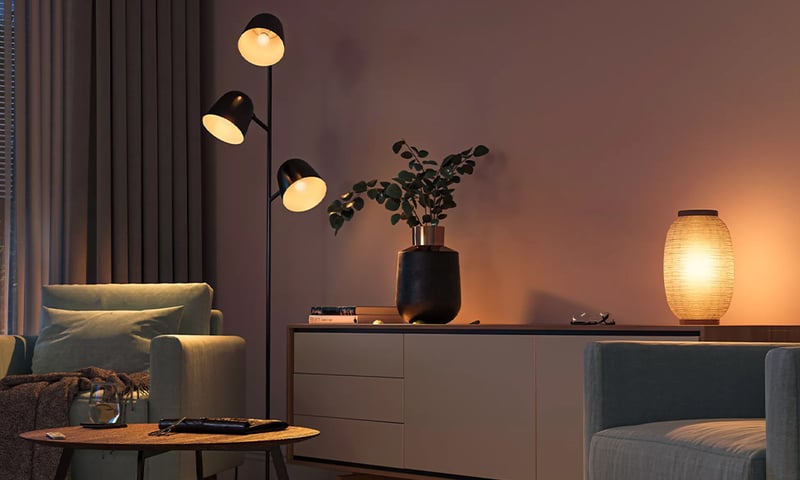
Lights that dim on a schedule each evening
The lights fade down to a low glow after dinner instead of snapping between full and off. Do it with a Shelly dimmer behind the wall plate or Philips Hue bulbs, in their app or Home Assistant. Control with any of


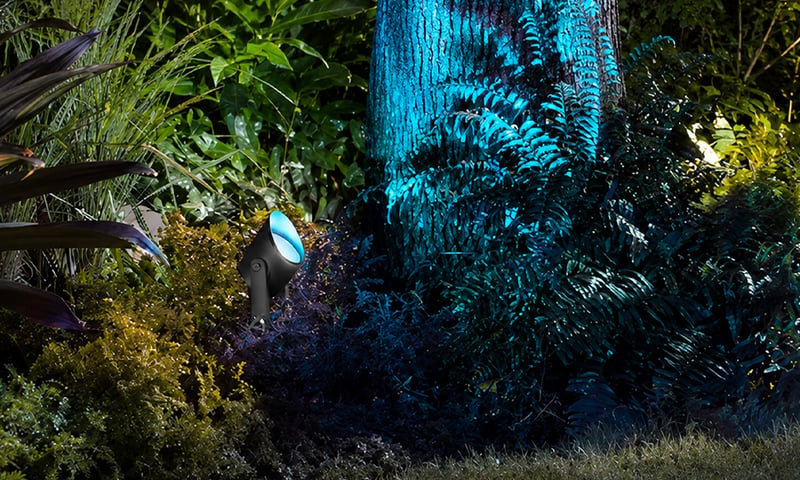
Outdoor lights on at sunset, off at midnight
Porch, path and garden lights follow the sun through the year without you touching a switch. Run the lights you have from a Shelly relay, or fit Philips Hue outdoor lights, and set it up in their app or Home Assistant. Control with any of 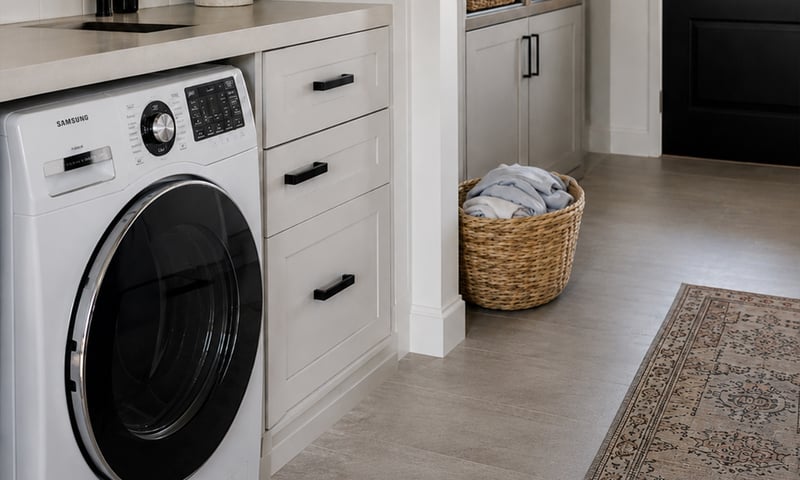
Switch off an appliance left running
A metering relay on the heater's supply switches it off after the time you set, and can message you when it has been drawing power too long. The same alert can tell you the washing has finished. Control with any of More Philips Hue solutions
Lights that dim on a schedule each evening
The lights fade down to a low glow after dinner instead of snapping between full and off. Do it with a Shelly dimmer behind the wall plate or Philips Hue bulbs, in their app or Home Assistant. Control with any of Outdoor lights on at sunset, off at midnight
Porch, path and garden lights follow the sun through the year without you touching a switch. Run the lights you have from a Shelly relay, or fit Philips Hue outdoor lights, and set it up in their app or Home Assistant. Control with any of 
Lights that fade up to wake you in the morning
The bedroom lights come up slowly before your alarm, so you wake to a lit room instead of a dark one. Do it with a Shelly dimmer behind the wall plate or Philips Hue bulbs, in their app or Home Assistant. Control with any of More Home Assistant solutions
Lights that dim on a schedule each evening
The lights fade down to a low glow after dinner instead of snapping between full and off. Do it with a Shelly dimmer behind the wall plate or Philips Hue bulbs, in their app or Home Assistant. Control with any of Outdoor lights on at sunset, off at midnight
Porch, path and garden lights follow the sun through the year without you touching a switch. Run the lights you have from a Shelly relay, or fit Philips Hue outdoor lights, and set it up in their app or Home Assistant. Control with any of Switch off an appliance left running
A metering relay on the heater's supply switches it off after the time you set, and can message you when it has been drawing power too long. The same alert can tell you the washing has finished. Control with any of More Home Assistant solutions
Lights that dim on a schedule each evening
The lights fade down to a low glow after dinner instead of snapping between full and off. Do it with a Shelly dimmer behind the wall plate or Philips Hue bulbs, in their app or Home Assistant. Control with any of Outdoor lights on at sunset, off at midnight
Porch, path and garden lights follow the sun through the year without you touching a switch. Run the lights you have from a Shelly relay, or fit Philips Hue outdoor lights, and set it up in their app or Home Assistant. Control with any of Switch off an appliance left running
A metering relay on the heater's supply switches it off after the time you set, and can message you when it has been drawing power too long. The same alert can tell you the washing has finished. Control with any of More Home Assistant solutions
Lights that dim on a schedule each evening
The lights fade down to a low glow after dinner instead of snapping between full and off. Do it with a Shelly dimmer behind the wall plate or Philips Hue bulbs, in their app or Home Assistant. Control with any of Outdoor lights on at sunset, off at midnight
Porch, path and garden lights follow the sun through the year without you touching a switch. Run the lights you have from a Shelly relay, or fit Philips Hue outdoor lights, and set it up in their app or Home Assistant. Control with any of Switch off an appliance left running
A metering relay on the heater's supply switches it off after the time you set, and can message you when it has been drawing power too long. The same alert can tell you the washing has finished. Control with any of Still need a hand?
We answer most messages within one business day. If your question is about an existing order, have your order number ready. It speeds things up.
Contact usThe kit
Which should I choose?
Both do the job. The difference is how they connect, and which app you'll run them from.
-
Shelly
Wi-FiKeep your dimmable downlights. A Wi-Fi dimmer behind the wall plate.
- You'd rather keep the lights you have
- Your wall plate has a push button
- You want the wall button to dim as well
-
Philips Hue
ZigbeeHue bulbs, dimmed from the app, a switch or Home Assistant.
- You'd rather swap bulbs than wire anything
- You already have a Hue Bridge
- You want a switch that lives on the coffee table

The kit
Choose your dimmer
Each of these does the job. The steps on this page are written for the recommended one.
The kit
Choose your light
Each of these does the job. The steps on this page are written for the recommended one.
The kit
Choose your bridge
Each of these does the job. The steps on this page are written for the recommended one.