

















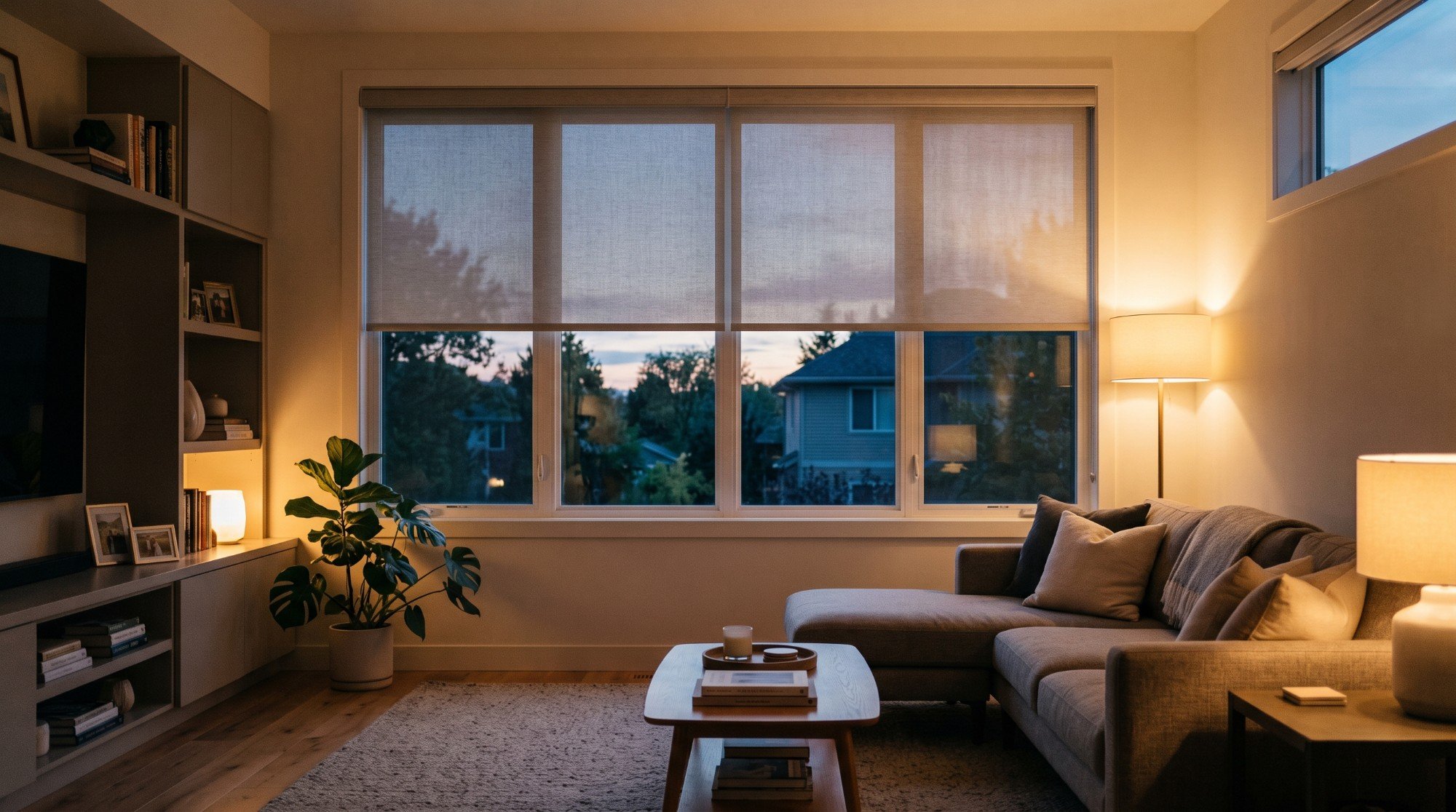
How it works
A Shelly 2PM Gen4 goes behind the blind's existing up and down switch and drives the motor in cover mode. The switch keeps working through the Shelly's two inputs, and the Shelly app gets Open and Close buttons for the same blind.
Want a second switch, by the bed or at the door? A Shelly i4 Gen3 behind a push button sends the blind its commands over your Wi-Fi: a push to open, a long push to close and a double push to stop. There's no cable to run to the blind.
A Shelly 2PM Gen4 goes behind the blind's existing switch and drives the motor in cover mode, so the switch keeps working. Home Assistant adds the blind as a cover through the Shelly integration, ready for your dashboards and automations.
For a second switch, a Shelly i4 Gen3 behind a push button joins Home Assistant too, and an automation for each kind of press opens, closes or stops the blind.
Blinds that are already in Home Assistant, through the blind maker's own hub, need no relay. What they're often missing is a wall switch. A Shelly i4 Gen3 behind a two-button plate gives them one.
The i4 joins Home Assistant through the Shelly integration, and each button runs an automation or a scene: one button opens or closes the blinds, and the other switches the room's light. A push, a double push and a long push can each do something different.
-
01
Your phone
Open, close or stop the blinds from anywhere.
-
02
Your switch
The Shelly behind the wall switch carries each press to the blinds, and the switch keeps working.
-
03
Your blinds
Open in the morning, closed at night, from the wall or your phone.
What it looks like on your phone
-
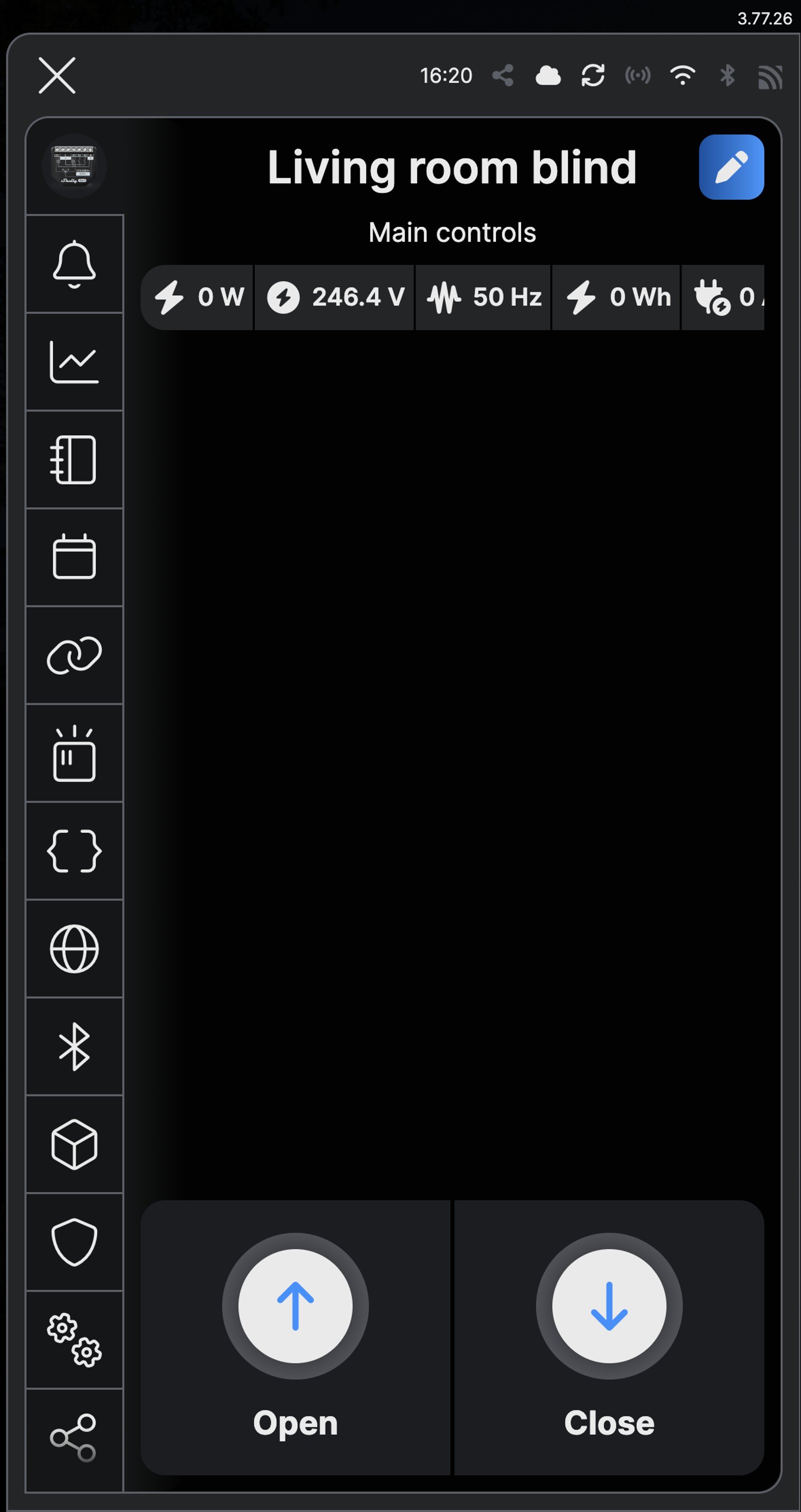
Open and Close. The blind's main screen runs it from anywhere, alongside the wall switch.
-
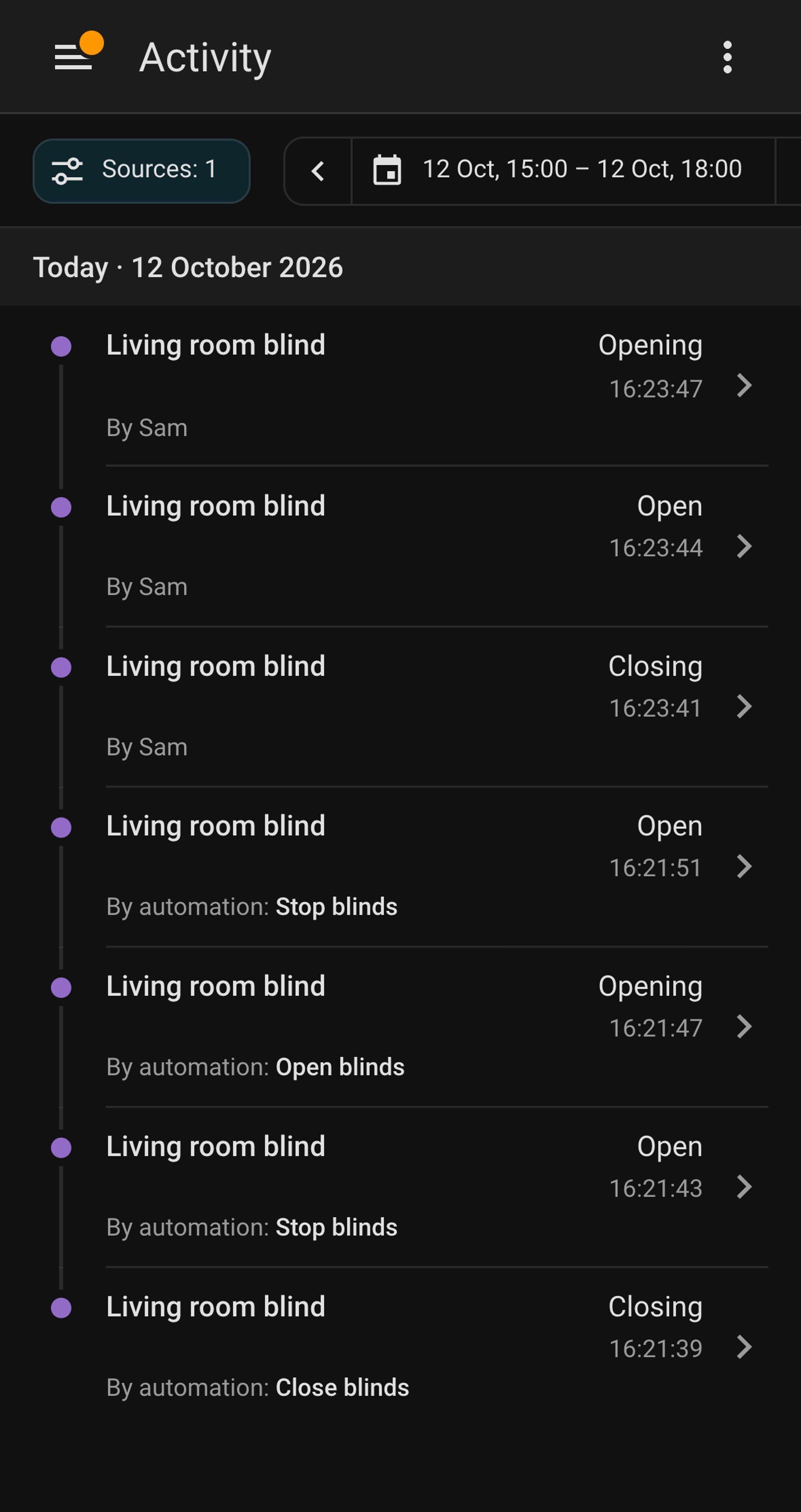
Every move. The activity log lists each time the blind opened, closed or stopped.
-
Every move. Home Assistant's Activity lists each time the blind opened, closed or stopped.
-
The blinds follow. Home Assistant's Activity shows each move and the automation the button ran.
Step by step
How you'll set it up
Add the device to Wi-Fi from your phone, or straight from a browser.



Every Shelly has its own built-in web interface, so there's nothing to install. Once it's on your Wi-Fi, type its IP address into a browser on the same network. Before it joins your Wi-Fi, connect your computer to the Shelly's own hotspot and open `192.168.33.1`.
-
Check the motor's limits
Run the blind, shutter or awning fully open and fully closed with its existing switch or remote and make sure it stops by itself at both ends. The Shelly relies on those limits, so set them before it goes in.
-
Fit the Shelly behind the switch
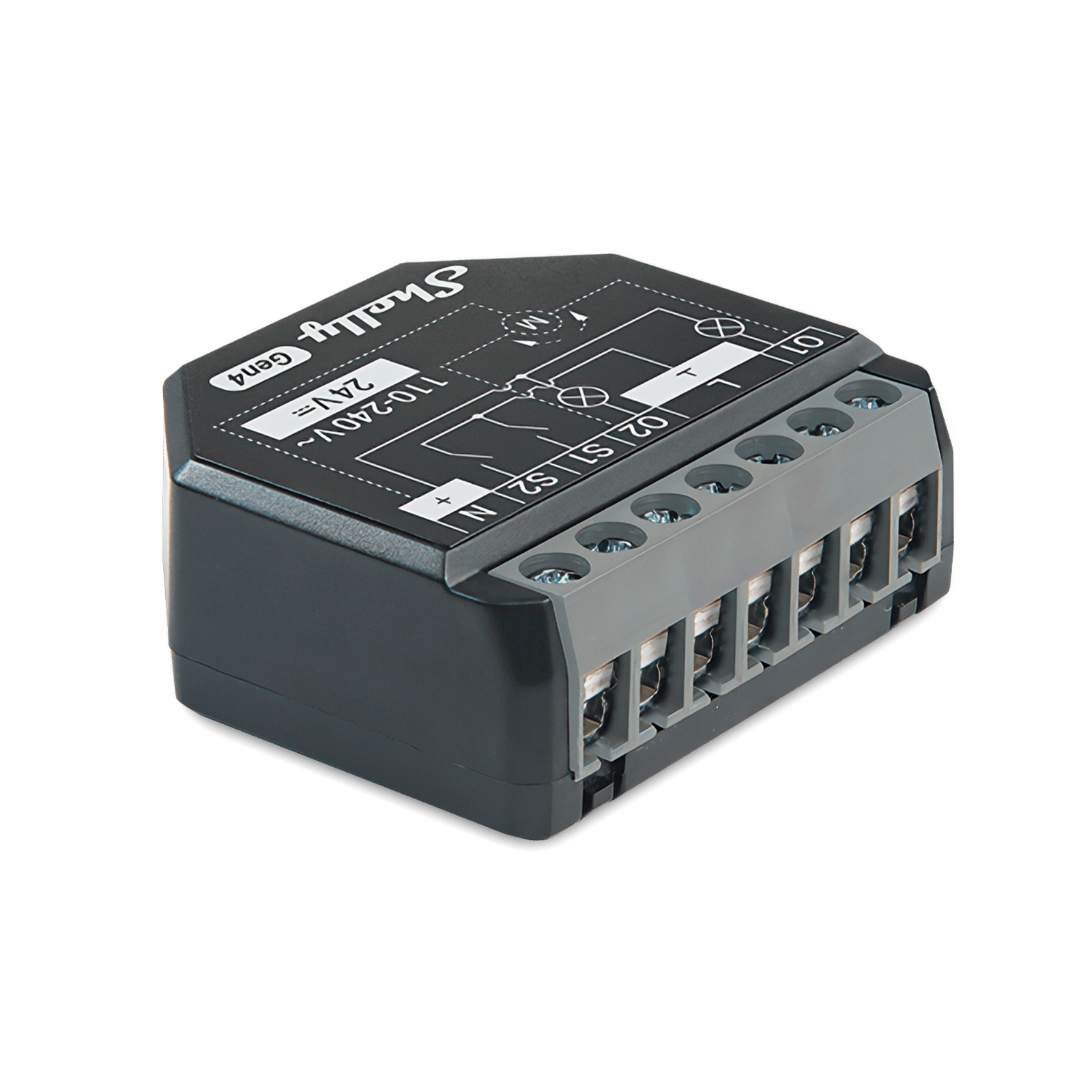
Mains goes to L and N. One motor winding goes to O1, the other to O2, and the motor's common returns to neutral. The up and down buttons connect to S1 and S2.
Wire map 2PM Gen4- Active (supply) L
- Neutral and motor common N
- Motor winding O1
- Other motor winding O2
- Open button (optional) S1
- Close button (optional) S2
Wire map 2PM Gen3- Active (supply) L
- Neutral and motor common N
- Motor winding O1
- Other motor winding O2
- Open button (optional) S1
- Close button (optional) S2
Circuit overview1Motor2Open button3Close buttonActive (supply)Neutral / 0 VSwitched loadSwitch signal / dry contactIn Australia, fixed 230 V wiring is licensed-electrician work. Use these diagrams to plan the job and brief your electrician.
Showing the whole circuitCircuit overview1Motor2Open button3Close buttonActive (supply)Neutral / 0 VSwitched loadSwitch signal / dry contactIn Australia, fixed 230 V wiring is licensed-electrician work. Use these diagrams to plan the job and brief your electrician.
Showing the whole circuitThere's no wiring diagram for the here yet. Its installation guide has the manufacturer's wiring diagram. Wire it from the diagram in its manual.
-
Add the Shelly in the app
Add the relay in the Shelly Smart Control app and name it after the window, such as Living room blind.
-
Switch it to cover mode
Open Device settings, expand Device profile, choose cover and tap Save. The main screen now shows Open and Close buttons, and the Shelly needs calibrating before it can set a position. In the web interface, open Settings, choose Cover under Device profile and click Save settings.
-
Calibrate the motor
Clear anything in the cover's path. In Device settings, expand Calibration and tap Start calibration. The Shelly runs the motor to both ends and learns how long it takes. If it opens when you tap Close, turn on Reverse directions and calibrate again. In the web interface, open the cover's settings and click Start beside Calibration.
-
Check the switch and the app
Press the wall switch's up and down buttons: the blind runs and stops at each end. The main screen's Open and Close buttons do the same, from anywhere.
-
Check the motor's limits
Run the blind, shutter or awning fully open and fully closed with its existing switch or remote and make sure it stops by itself at both ends. The Shelly relies on those limits, so set them before it goes in.
-
Fit the Shelly behind the switch
Mains goes to L and N. One motor winding goes to O1, the other to O2, and the motor's common returns to neutral. The up and down buttons connect to S1 and S2.
Wire map 2PM Gen4- Active (supply) L
- Neutral and motor common N
- Motor winding O1
- Other motor winding O2
- Open button (optional) S1
- Close button (optional) S2
Wire map 2PM Gen3- Active (supply) L
- Neutral and motor common N
- Motor winding O1
- Other motor winding O2
- Open button (optional) S1
- Close button (optional) S2
Circuit overview1Motor2Open button3Close buttonActive (supply)Neutral / 0 VSwitched loadSwitch signal / dry contactIn Australia, fixed 230 V wiring is licensed-electrician work. Use these diagrams to plan the job and brief your electrician.
Showing the whole circuitCircuit overview1Motor2Open button3Close buttonActive (supply)Neutral / 0 VSwitched loadSwitch signal / dry contactIn Australia, fixed 230 V wiring is licensed-electrician work. Use these diagrams to plan the job and brief your electrician.
Showing the whole circuitThere's no wiring diagram for the here yet. Its installation guide has the manufacturer's wiring diagram. Wire it from the diagram in its manual.
-
Switch it to cover mode and calibrate it
Cover mode and calibration are set on the Shelly itself. Add it in the Shelly app, open Device settings, expand Device profile, choose cover and tap Save. Then expand Calibration and tap Start calibration, with nothing in the blind's path.
-
Add it to Home Assistant
In Home Assistant, go to Settings, then Devices & services, select Add integration and choose Shelly. Enter the Shelly's IP address, which your router lists, and select Submit. Name it Living room blind. It arrives as a cover with open, close and stop.
-
Check it's there
Open the blind and close it from Home Assistant, then from the wall switch. Its Activity lists each move.
-
Fit the i4 behind the button plate
Live goes to L and neutral to N. Each push button takes live on one side and connects to its own input on the other: the blinds button to SW1 and the light button to SW2.
Wire map i4 Gen3- Active (supply) L
- Neutral N
- Push button SW1
Circuit overview1Push buttonActive (supply)Neutral / 0 VSwitch signal / dry contactIn Australia, fixed 230 V wiring is licensed-electrician work. Use these diagrams to plan the job and brief your electrician.
Showing the whole circuitThere's no wiring diagram for the here yet. Its installation guide has the manufacturer's wiring diagram. Wire it from the diagram in its manual.
-
Set the inputs to Button
Add the i4 in the Shelly app. For each input you wired, open its Settings, then Input settings, choose Button and tap Save.
-
Add it to Home Assistant
In Home Assistant, go to Settings, then Devices & services, select Add integration and choose Shelly. Enter the i4's IP address, which your router lists, and select Submit. Each kind of press on each button then shows up as a trigger, such as First button single push.
-
Run the blinds from the first button
Create an automation. Select Add trigger, choose Device, pick the i4 and choose First button single push. For the action, run the scene or automation that already opens your blinds, or choose your blinds' cover and Open cover. Select Save. Add a second one on First button long push that closes them.
-
Switch the light from the second button
Create one more automation on Second button single push, with the action Toggle for the room's light. The plate now runs the blinds and the light, and the i4 has two inputs left for more.
-
Check it's there
Automations & scenes now lists the blinds and light automations. Press each button and the blinds and the light respond straight away.
Optional: a second switch for the blinds
A Shelly i4 behind a push button anywhere in the room runs the same blind. It talks to the 2PM over your home Wi-Fi, so it keeps working without the internet, and one action can run up to five blinds.
-
Fit the i4 behind the second button
Live goes to L and neutral to N. The push button takes live on one side and connects to an input such as SW2 on the other.
-
Set the input to Button
Add the i4 in the Shelly app and open the input you wired, such as Blinds button. In its Settings, open Input settings, choose Button and tap Save.
-
Open the blind with a push
Open Actions and tap Add action. Name it Open blinds and tap Next twice. Under When, tap Button is pushed, then Next. Tap Add action from another device, pick the blind and tap Next, then choose Open Cover and tap Save, then Save again.
-
Close it with a long push, stop it with a double push
Add an action named Close blinds on Button is long pushed with Close Cover, and one named Stop blinds on Button is double pushed with Stop Cover.
-
Three actions, one button. A push opens the blind, a long push closes it and a double push stops it.
Optional: a second switch for the blinds
A Shelly i4 behind a push button anywhere in the room joins Home Assistant through the Shelly integration. Each kind of press is a trigger, so a push can open the blind and a long push close it.
-
Fit the i4 behind the second button
Live goes to L and neutral to N. The push button takes live on one side and connects to an input such as SW2 on the other.
-
Add the i4 to Home Assistant
Set the input to Button in the Shelly app (Input settings, Button, Save), then add the i4 through the Shelly integration as you did the blind.
-
Open the blind with a push
Create an automation. Select Add trigger, choose Device, pick the i4 and choose the button's single push, such as Second button single push. Add the action Open cover for Living room blind, select Save and name it Open blinds.
-
Close and stop it
Make two more the same way: Close blinds on the long push with Close cover, and Stop blinds on the double push with Stop cover.
-
Three automations. Open, close and stop, one for each kind of press.
-
The blind follows. Activity shows each move and the automation that made it.
Frequently asked questions
Should I use the Shelly app or Home Assistant?
If you don't run Home Assistant, use the Shelly app: no hub, and a second switch works without the internet. If Home Assistant already runs your home, add the blind there so it sits with your other automations.
Do I need the i4?
Not for a wired motor next to its switch: that switch wires straight into the Shelly 2PM. You need it for a second switch elsewhere, one button for several blinds, or a wall switch for blinds that are already in Home Assistant through their own hub.
Will it work with my blind?
The Shelly 2PM suits a mains-powered blind, shutter or awning motor with separate up and down wires and its own limit switches. If your blinds are battery or radio motors on their own hub, and that hub is in Home Assistant, choose Blinds already in Home Assistant: an i4 gives them a wall switch.
Does the blind's own switch still work?
Yes. It connects to the Shelly's two inputs, so up and down work as before, alongside the app.
Does it work if the internet drops out?
Yes. The switch is wired to the Shelly, and the i4 sends its commands straight to it over your home Wi-Fi. Control from outside the house needs the internet.
Does it work while Home Assistant is down?
No. The buttons run Home Assistant automations, so they wait until it's back. The blinds' own remote or app still works.
Which blinds does this work with?
Any motorised blinds that Home Assistant can already open and close, whatever the brand. Check your blinds' hub works with Home Assistant first: the i4 only sends the button presses.
More Shelly solutions

Open and close blinds and awnings at sunrise and sunset
Motorised blinds, shutters and awnings open at sunrise, close at sunset and drop to a set position for the afternoon heat, from a schedule or your phone. Works with standard 230 V cover motors. Control with any of

Control any group of lights from one wall switch
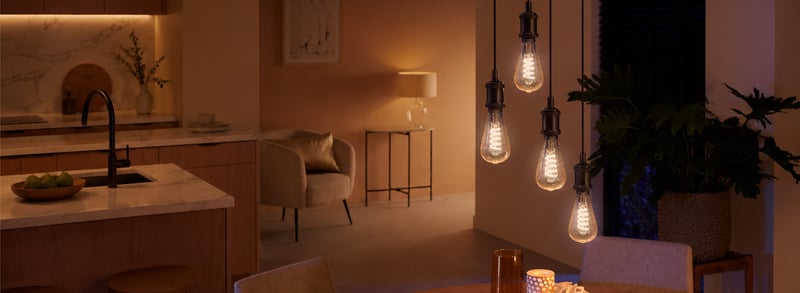
Outdoor lights on, the lounge set for a movie, everything off at bedtime. Behind one switch plate, each press sets the lights the way you choose. Control with any of 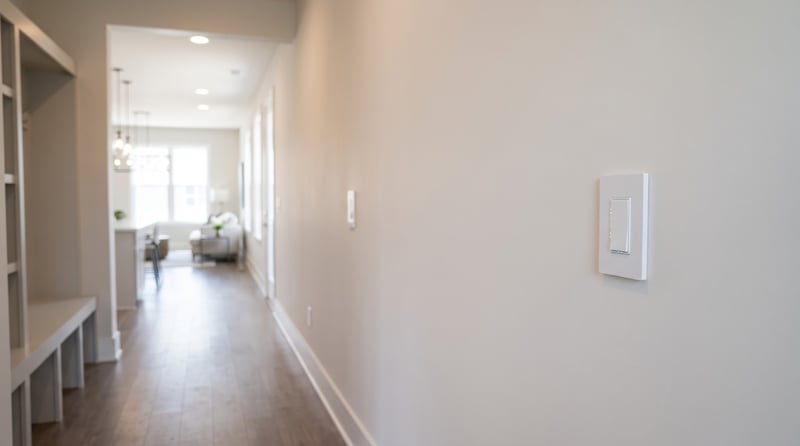
Add a second light switch without running new cable
A Shelly i4 behind a second switch tells the light to change over Wi-Fi, so the far end of the hall or the top of the stairs gets its own switch. Nobody runs cable between the two. Control with any of More Home Assistant solutions
Open and close blinds and awnings at sunrise and sunset
Motorised blinds, shutters and awnings open at sunrise, close at sunset and drop to a set position for the afternoon heat, from a schedule or your phone. Works with standard 230 V cover motors. Control with any of Control any group of lights from one wall switch
Outdoor lights on, the lounge set for a movie, everything off at bedtime. Behind one switch plate, each press sets the lights the way you choose. Control with any of Add a second light switch without running new cable
A Shelly i4 behind a second switch tells the light to change over Wi-Fi, so the far end of the hall or the top of the stairs gets its own switch. Nobody runs cable between the two. Control with any of More Home Assistant solutions
Open and close blinds and awnings at sunrise and sunset
Motorised blinds, shutters and awnings open at sunrise, close at sunset and drop to a set position for the afternoon heat, from a schedule or your phone. Works with standard 230 V cover motors. Control with any of Control any group of lights from one wall switch
Outdoor lights on, the lounge set for a movie, everything off at bedtime. Behind one switch plate, each press sets the lights the way you choose. Control with any of Add a second light switch without running new cable
A Shelly i4 behind a second switch tells the light to change over Wi-Fi, so the far end of the hall or the top of the stairs gets its own switch. Nobody runs cable between the two. Control with any of Still need a hand?
We answer most messages within one business day. If your question is about an existing order, have your order number ready. It speeds things up.
Contact usThe kit
Choose your blind controller
Each of these does the job. The steps on this page are written for the recommended one.