

















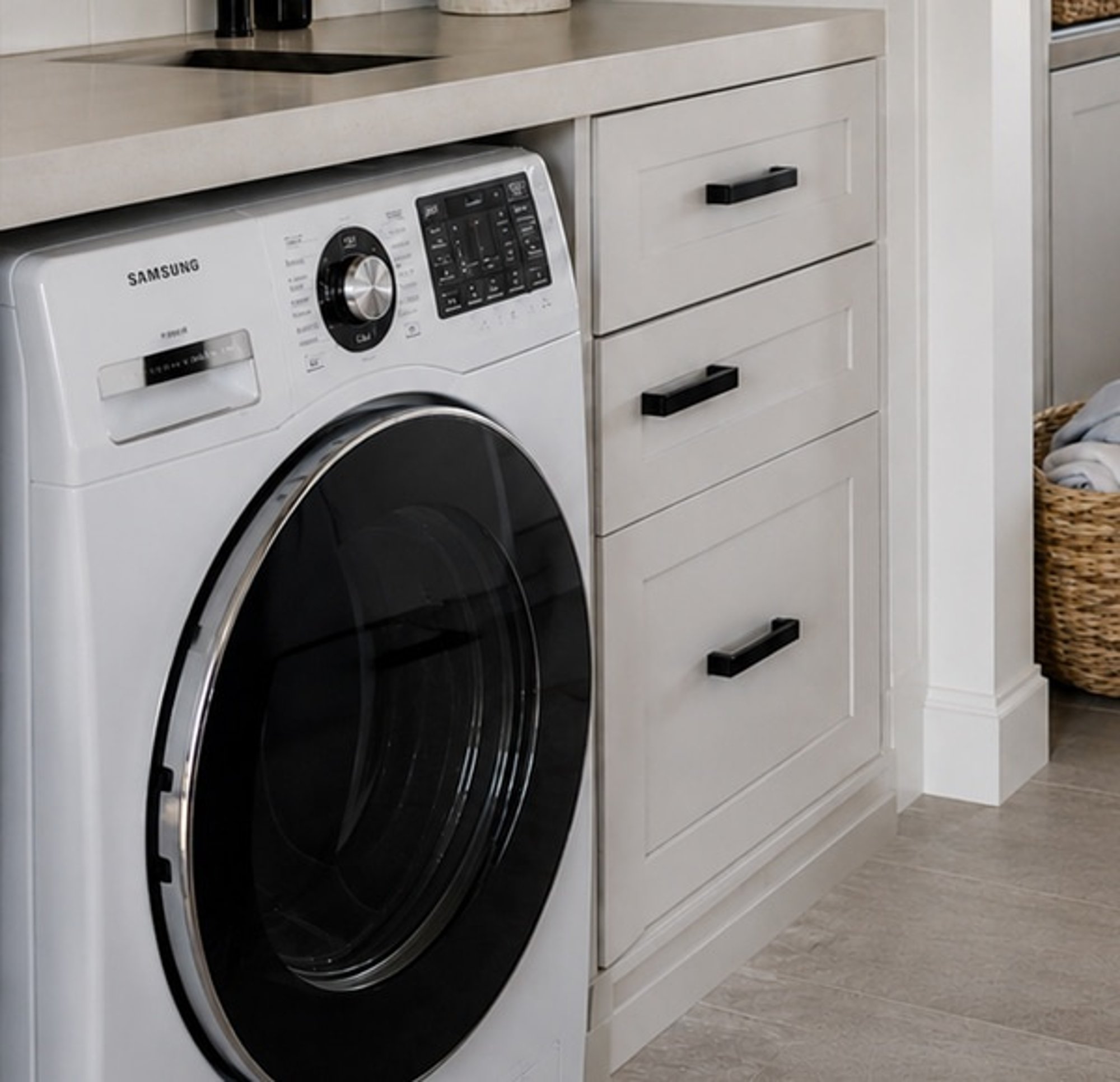
How it works
A Shelly EM Mini Gen4 sits behind the power point the washing machine plugs into and measures what it draws. A wash pulls hundreds of watts while it heats and spins, then falls to a few watts when the cycle ends.
A scene in the Shelly app watches for that drop. When the power stays low for three minutes, it sends a notification to your phone, so a pause to soak mid-cycle doesn't set it off.
A Shelly EM Mini Gen4 sits behind the power point the washing machine plugs into and reports what it draws to Home Assistant over your Wi-Fi. A wash pulls hundreds of watts while it heats and spins, then falls to a few watts when the cycle ends.
An automation waits for the power to stay below that figure for a few minutes, then sends a notification to your phone through the Home Assistant app.
-
01
Your washing machine
Plugs in and runs as it does now.
-
02
Shelly meter
Sees the power drop when the cycle ends.
-
03
Your phone
Gets a notification that the load is done.
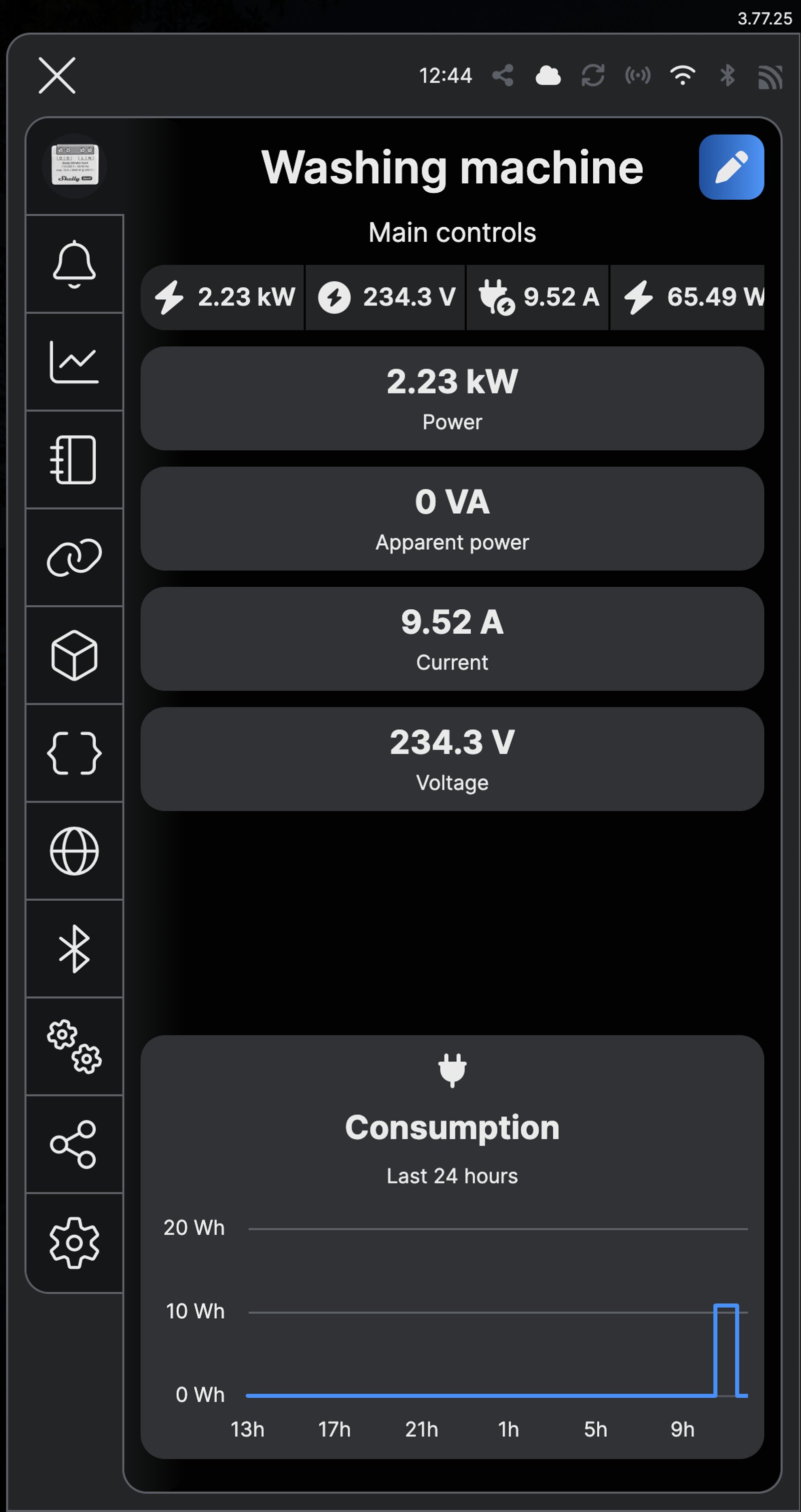
What it looks like on your phone
-
While it runs. The meter shows what the machine is drawing, here 2.23 kW as it heats.
-
The rule. Power below 20 W, held for 3 minutes, starts the scene once per wash.
-
On your phone. A notification arrives three minutes after the cycle ends.
-
The wash in History. Power runs high through the cycle, then drops to a few watts when it's done.
-
The trigger. Power below 20 for three minutes, so a pause mid-cycle doesn't count.
-
The notification. Sent to your phone through the Home Assistant app.
Step by step
-
Fit the meter behind the power point
The meter goes in the wall behind the power point the washing machine plugs into. The supply active goes to L and neutral to N. O feeds the power point's active, and the power point's neutral joins the supply neutral as before.
Wire map EM Mini Gen4- Active (supply) L
- Neutral N
- Power point or appliance O
Wire map 1PM Gen4- Active (supply) L
- Neutral N
- Appliance O
- Wall switch (optional) SW
Circuit overviewActive (supply)Neutral / 0 VSwitched loadIn Australia, fixed 230 V wiring is licensed-electrician work. Use these diagrams to plan the job and brief your electrician.
Showing the whole circuitCircuit overview1Appliance2Wall switchActive (supply)Neutral / 0 VSwitched loadSwitch signal / dry contactIn Australia, fixed 230 V wiring is licensed-electrician work. Use these diagrams to plan the job and brief your electrician.
Showing the whole circuitThere's no wiring diagram for the here yet. Its installation guide has the manufacturer's wiring diagram. Wire it from the diagram in its manual.
-
Add it to the Shelly app and name it Washing machine
In the Shelly Smart Control app, tap the plus sign and add the meter. Name it Washing machine and put it in your Laundry room, so the notification says what it's about.
-
Run one load and watch the reading
Start a normal wash and open Washing machine in the app. Once the cycle has finished and the machine is sitting idle, note the Power reading. That's what the scene will watch for, usually a few watts.
-
Start a scene when the power drops
Open the room, go to Scenes and tap the plus sign. Tap Add condition, then Create condition, choose Device based and pick Washing machine. Choose Power Consumption, tap Less than and enter a figure a little above the idle reading. On our bench that's 20 W. Tap Next.
-
Make it wait for the end of the cycle
Choose Trigger, turn on Trigger custom settings and pick Once. Set Condition is valid to 3 minutes and tap Save. The scene now starts when the power has stayed low for three minutes, and won't start again until the next wash brings it back up.
-
Send a notification to your phone
Tap Next, then Add action, Create action and Notify action. Choose Phone notification and type the message under Notification settings, such as The washing is done. Tap Next, then Save.
-
Save it as Washing done
Tap Next past Active time. Under More options, turn off Execute the scene on save or edit, so you don't get a notification the moment you save, and tap Next. Pick the room, name the scene Washing done and tap Save.
-
Test it
Run a short cycle. Three minutes after it ends, your phone shows The washing is done.
-
Fit the meter behind the power point
The meter goes in the wall behind the power point the washing machine plugs into. The supply active goes to L and neutral to N. O feeds the power point's active, and the power point's neutral joins the supply neutral as before.
Wire map EM Mini Gen4- Active (supply) L
- Neutral N
- Power point or appliance O
Wire map 1PM Gen4- Active (supply) L
- Neutral N
- Appliance O
- Wall switch (optional) SW
Circuit overviewActive (supply)Neutral / 0 VSwitched loadIn Australia, fixed 230 V wiring is licensed-electrician work. Use these diagrams to plan the job and brief your electrician.
Showing the whole circuitCircuit overview1Appliance2Wall switchActive (supply)Neutral / 0 VSwitched loadSwitch signal / dry contactIn Australia, fixed 230 V wiring is licensed-electrician work. Use these diagrams to plan the job and brief your electrician.
Showing the whole circuitThere's no wiring diagram for the here yet. Its installation guide has the manufacturer's wiring diagram. Wire it from the diagram in its manual.
-
Add it to Home Assistant
In Home Assistant, go to Settings, then Devices & services, select Add integration and choose Shelly. Enter the meter's IP address, which your router lists, and select Submit. Home Assistant talks to the meter directly over your home network. Name it Washing machine and put it in your Laundry area.
-
Run one load and watch the reading
Start a normal wash, then open History in Home Assistant and pick the Washing machine Power sensor. The wash shows as a block of high readings. Note what it reads once the cycle has finished, usually a few watts.
-
Trigger an automation when the power drops
Go to Settings, then Automations & scenes, and create a new automation. Tap Add trigger, search for Numeric state and pick it. Choose the Washing machine Power sensor, leave Above empty and set Below to a little above the idle reading. On our bench that's 20. Set For to 3 minutes.
-
Send the notification to your phone
Under Then do, tap Add action and search for your phone: the action is called Send a notification via mobile_app_ followed by the phone's name. Type the message, such as The washing is done, and tick title to add one, such as Washing machine. Check the trigger and the action, select Save and name it Washing done.
-
Check it and test it
Automations & scenes now lists Washing done. Run a short cycle: three minutes after it ends, your phone shows the notification.
Frequently asked questions
Should I use the Shelly app or Home Assistant?
If you don't run Home Assistant, use the Shelly app: it needs no hub and sends the notification itself. If Home Assistant already runs your home, put the meter there, so the notification can also go to a speaker or trigger something else.
Will it work with my washing machine?
It works with any machine that plugs into a power point, old or new, front or top loader. The meter measures up to 16 A, more than a standard 10 A power point carries.
Does it work for a dryer or dishwasher too?
Yes. Anything that draws power while it runs and drops to almost nothing when it's done works the same way. Each appliance needs its own meter, behind its own power point.
Can it turn the washing machine off?
Not the EM Mini Gen4: it only measures, and the machine always has power. If you want to switch it from your phone too, pick the Shelly 1PM Gen4 in the kit instead.
Why does it wait a few minutes before telling me?
Many machines stop drawing power for a while mid-cycle, to soak or to let the drum settle before a spin. Waiting until the power has stayed low for a few minutes means you hear about the end of the wash, not a pause in the middle.
Will it go off every time the machine is idle?
No. The trigger only fires when the power crosses from above the figure to below it, so a machine sitting idle all day stays quiet. It takes a wash to bring the power up first.
More Shelly solutions
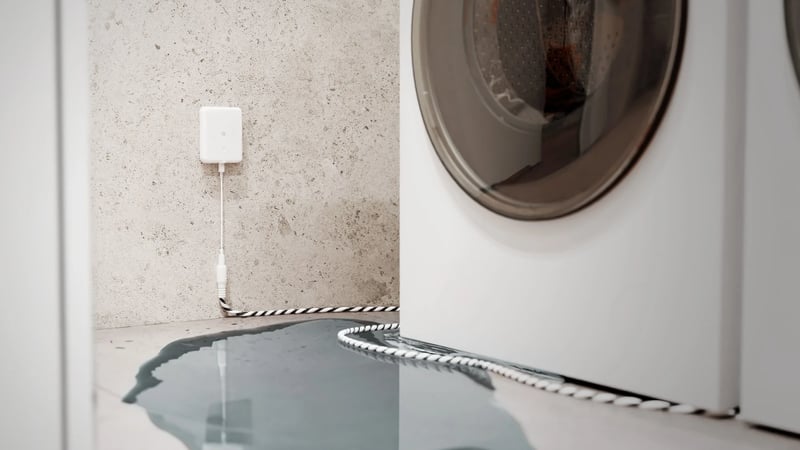
Know the moment there's a water leak
A leak sensor beside the washing machine, the sink or the hot water unit. When water reaches it, the sensor sounds an alarm and so does your phone. Control with any of

Switch off an appliance left running
A metering relay on the heater's supply switches it off after the time you set, and can message you when it has been drawing power too long. The same alert can tell you the washing has finished. Control with any of 
A roof-space fan that runs when the roof gets hot
A temperature probe in the roof space switches the exhaust fan on when the air up there gets hot, and off again once it cools. It runs on the relay itself, so it keeps working without the internet. Control with any of More Home Assistant solutions
Know the moment there's a water leak
A leak sensor beside the washing machine, the sink or the hot water unit. When water reaches it, the sensor sounds an alarm and so does your phone. Control with any of Switch off an appliance left running
A metering relay on the heater's supply switches it off after the time you set, and can message you when it has been drawing power too long. The same alert can tell you the washing has finished. Control with any of A roof-space fan that runs when the roof gets hot
A temperature probe in the roof space switches the exhaust fan on when the air up there gets hot, and off again once it cools. It runs on the relay itself, so it keeps working without the internet. Control with any of Still need a hand?
We answer most messages within one business day. If your question is about an existing order, have your order number ready. It speeds things up.
Contact usThe kit
Choose your meter
Each of these does the job. The steps on this page are written for the recommended one.