

















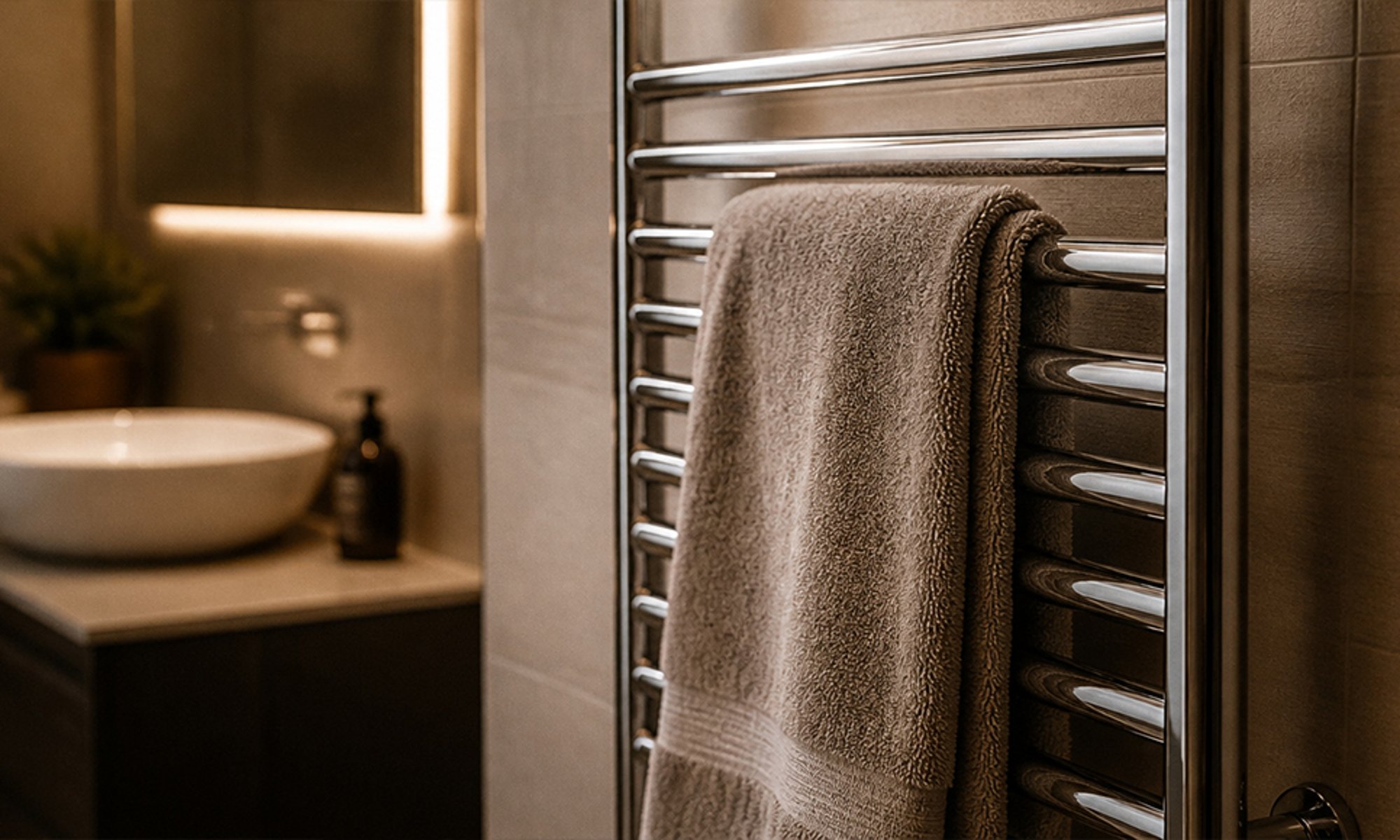
How it works
The Shelly 1PM Gen4 sits in the towel rail's supply and switches it on and off. A schedule stored on the relay does the rest: it switches the rail on at the time you choose, on the days you choose, and the Toggle value after setting switches it off again once the seconds you entered have passed.
The 1PM also measures power. The app shows what the rail is drawing right now and a chart of the last 24 hours, so you can see when it heated and whether it was left on.
The Shelly 1PM Gen4 sits in the towel rail's supply and talks to Home Assistant over your Wi-Fi through its Shelly integration.
An automation switches the rail on at the time you choose on weekdays, waits 90 minutes, then switches it off. Home Assistant also records what the rail draws, so you can see when it heated.
-
01
Your phone
Set the weekday and weekend times once.
-
02
Shelly relay
Switches the rail on in the morning and off before you leave.
-
03
Your towel rail
Warm when you step out of the shower, off for the rest of the day.
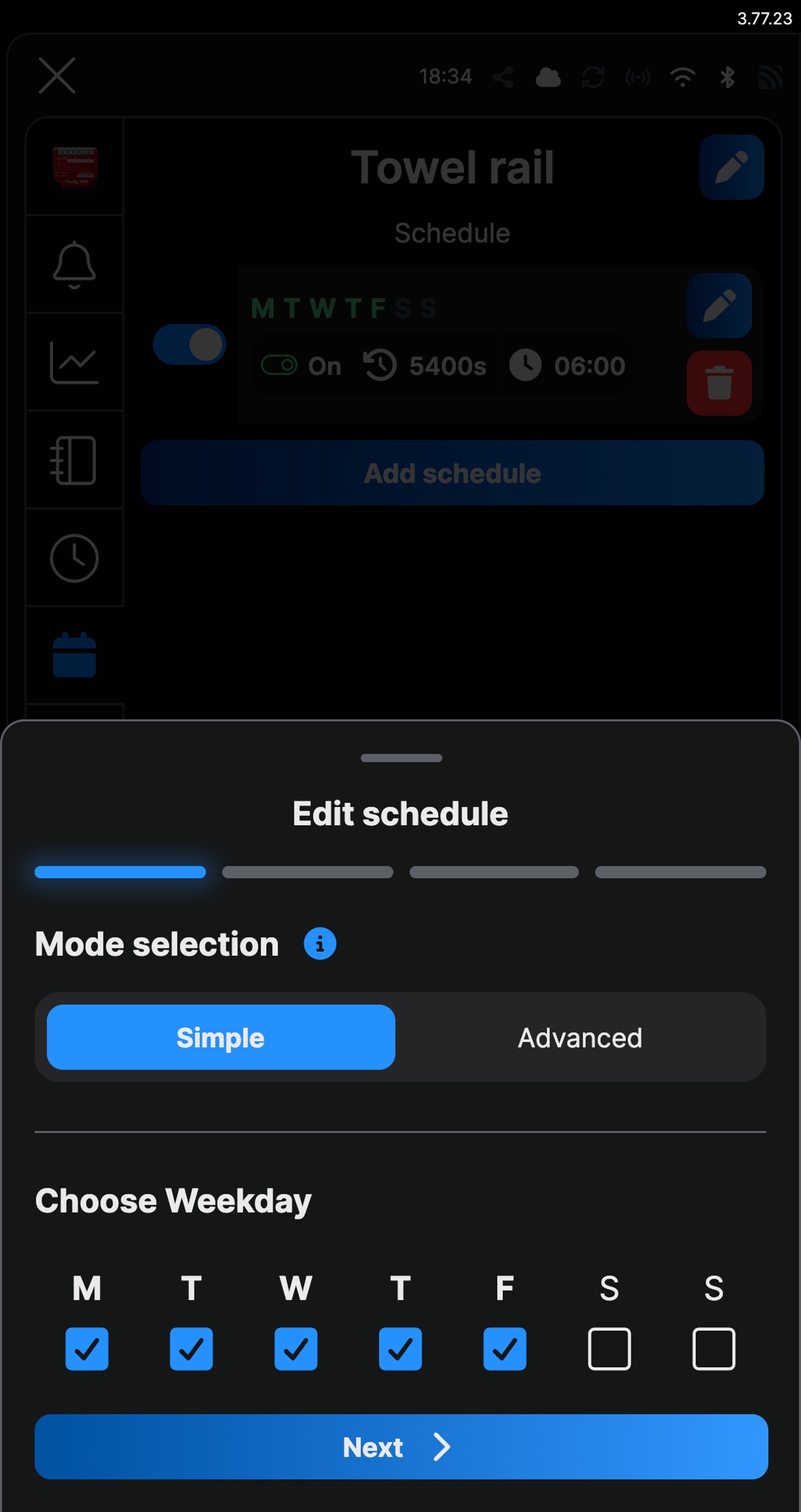
What it looks like on your phone
-
Weekdays. Tick Monday to Friday and leave the weekend alone.
-
The action. On, then toggle back after 5400 seconds, which is 90 minutes.
-
Saved. One schedule switches the rail on at 06:00 and off again 90 minutes later.
-
Every weekday morning. The automation switches the rail on at 06:00 and off again 90 minutes later.
Step by step
How you'll set it up
Add the device to Wi-Fi from your phone, or straight from a browser.



Every Shelly has its own built-in web interface, so there's nothing to install. Once it's on your Wi-Fi, type its IP address into a browser on the same network. Before it joins your Wi-Fi, connect your computer to the Shelly's own hotspot and open `192.168.33.1`.
-
Fit the Shelly to the rail's supply
Mains goes to L and N. The rail connects to O and neutral, and its wall switch, if it has one, goes to SW so it still works as before.
Wire map 1PM Gen4- Active (supply) L
- Neutral N
- Appliance O
- Wall switch (optional) SW
Wire map 1PM Gen3- Active (supply) L
- Neutral N
- Appliance O
- Wall switch (optional) SW
Wire map Pro 1PM- Active (supply) L
- Neutral N
- Active to the relay I
- Appliance O
Wire map Pro 2PM- Active (supply) L
- Neutral N
- Active to relay 1 I1
- Appliance O1
Wire map 1PM Mini Gen4- Active (supply) L
- Neutral N
- Appliance O
- Wall switch (optional) SW
Circuit overview1Appliance2Wall switchActive (supply)Neutral / 0 VSwitched loadSwitch signal / dry contactIn Australia, fixed 230 V wiring is licensed-electrician work. Use these diagrams to plan the job and brief your electrician.
Showing the whole circuitCircuit overview1Appliance2Wall switchActive (supply)Neutral / 0 VSwitched loadSwitch signal / dry contactIn Australia, fixed 230 V wiring is licensed-electrician work. Use these diagrams to plan the job and brief your electrician.
Showing the whole circuitCircuit overview1ApplianceActive (supply)Neutral / 0 VSwitched loadIn Australia, fixed 230 V wiring is licensed-electrician work. Use these diagrams to plan the job and brief your electrician.
Showing the whole circuitCircuit overview1ApplianceActive (supply)Neutral / 0 VSwitched loadIn Australia, fixed 230 V wiring is licensed-electrician work. Use these diagrams to plan the job and brief your electrician.
Showing the whole circuitCircuit overview1Wall switch2ApplianceActive (supply)Neutral / 0 VSwitched loadSwitch signal / dry contactIn Australia, fixed 230 V wiring is licensed-electrician work. Use these diagrams to plan the job and brief your electrician.
Showing the whole circuitThere's no wiring diagram for the here yet. Its installation guide has the manufacturer's wiring diagram. Wire it from the diagram in its manual.
-
Add it to the Shelly app and name the output
Add the relay in the Shelly app, then name the output Towel rail. Switch it on with the power button and the main screen shows what the rail is drawing, in watts. In the web interface, open the output, enter Towel rail under Name and click Save.
-
Add a weekday schedule
Open the Schedule tab and tap Add schedule. With Simple selected, tick Monday to Friday under Choose Weekday, then tap Next. Choose Time, set the time you want the rail heating (an hour before you get up is a good start) and tap Next. In the web interface, open Schedules and click Create schedule, enter the Time and select Monday to Friday.
-
Switch it on, then off again
Tap Add local action and choose Control Output. Set it to On, tick Toggle value after and enter 5400, which is 90 minutes in seconds. Tap Save, then Next, then Save. The rail comes on at your time and switches itself off 90 minutes later. In the web interface, click Add action to execute, choose Control Output, set it to On and Flip value after to 5400, then click Save local action and Save.
-
Add a weekend schedule if you want one
Repeat the last two steps with Saturday and Sunday and a later time, so the rail is warm when you are up rather than when the alarm goes.
-
Check the schedule
Schedule now lists Monday to Friday: On at 06:00 and back off after 5400 seconds, with the weekend line below it if you added one. Schedules in the web interface shows the same list.
-
Add it to your home app over Matter
Matter is on by default on the Gen4, so scan the QR code on the device label with Apple Home, Google Home or SmartThings.
-
Fit the Shelly to the rail's supply
Mains goes to L and N. The rail connects to O and neutral, and its wall switch, if it has one, goes to SW so it still works as before.
Wire map 1PM Gen4- Active (supply) L
- Neutral N
- Appliance O
- Wall switch (optional) SW
Wire map 1PM Gen3- Active (supply) L
- Neutral N
- Appliance O
- Wall switch (optional) SW
Wire map Pro 1PM- Active (supply) L
- Neutral N
- Active to the relay I
- Appliance O
Wire map Pro 2PM- Active (supply) L
- Neutral N
- Active to relay 1 I1
- Appliance O1
Wire map 1PM Mini Gen4- Active (supply) L
- Neutral N
- Appliance O
- Wall switch (optional) SW
Circuit overview1Appliance2Wall switchActive (supply)Neutral / 0 VSwitched loadSwitch signal / dry contactIn Australia, fixed 230 V wiring is licensed-electrician work. Use these diagrams to plan the job and brief your electrician.
Showing the whole circuitCircuit overview1Appliance2Wall switchActive (supply)Neutral / 0 VSwitched loadSwitch signal / dry contactIn Australia, fixed 230 V wiring is licensed-electrician work. Use these diagrams to plan the job and brief your electrician.
Showing the whole circuitCircuit overview1ApplianceActive (supply)Neutral / 0 VSwitched loadIn Australia, fixed 230 V wiring is licensed-electrician work. Use these diagrams to plan the job and brief your electrician.
Showing the whole circuitCircuit overview1ApplianceActive (supply)Neutral / 0 VSwitched loadIn Australia, fixed 230 V wiring is licensed-electrician work. Use these diagrams to plan the job and brief your electrician.
Showing the whole circuitCircuit overview1Wall switch2ApplianceActive (supply)Neutral / 0 VSwitched loadSwitch signal / dry contactIn Australia, fixed 230 V wiring is licensed-electrician work. Use these diagrams to plan the job and brief your electrician.
Showing the whole circuitThere's no wiring diagram for the here yet. Its installation guide has the manufacturer's wiring diagram. Wire it from the diagram in its manual.
-
Add it to Home Assistant
In Home Assistant, go to Settings, then Devices & services, select Add integration and choose Shelly. Enter the relay's IP address, which your router lists, and select Submit. Home Assistant talks to the relay directly over your home network. Name it Towel rail and put it in your Bathroom area.
-
Switch it on weekday mornings
Go to Settings, then Automations & scenes, and select Create automation. Select Add trigger, choose Time and set it to 06:00. Select Add condition, choose Time and tick Monday to Friday. Then add three actions: turn on Towel rail, a Delay of 1:30:00, and turn off Towel rail. Check them, select Save and name it Towel rail on weekday mornings.
-
Add a weekend automation if you want one
Create a second automation the same way with Saturday and Sunday ticked and a later time, so the rail is warm when you are up rather than when the alarm goes.
-
Check it's there
Automations & scenes now lists Towel rail on weekday mornings. It's on as soon as you save it, so the rail comes on at 06:00 next weekday.
Optional: only when the room is cold
The weekday schedule switches the rail on whether or not the bathroom needs it. A Shelly BLU H&T on the bathroom wall measures the room, so the rail can come on only when the temperature drops below a level you choose, and switch off again once it's warm. The relay is a Bluetooth gateway for Shelly BLU sensors, so you don't need a separate hub.
-
Put the sensor in pairing mode
Press the button on the sensor four times quickly. Its light flashes once every two seconds for a minute while it waits to pair. Five presses starts Zigbee pairing instead, which isn't what you want here.
-
Add it in the Shelly app
Add the sensor in the Shelly app, in the same room as the rail, and choose the relay as its Bluetooth gateway. The relay passes the sensor's readings on, so there is no hub to buy.
-
Fit it in the bathroom
Fix the sensor to a wall away from the towel rail, so it reads the room rather than the rail's own heat.
-
Switch the rail on when it's cold
In the Shelly app, open the room's Scenes and add a scene. For When, choose Device based, then the sensor's Temperature, and set it to drop below 20 °C. For Do, choose Device action, Towel rail and turn on. Name it Rail on when cold.
-
Switch it off when it's warm
Add a second scene with the sensor's Temperature rising above 22 °C, and Towel rail turn off as the action. The rail now follows the room, and the weekday schedule still gives it a set morning run. Delete the schedule if you want the temperature alone to decide.
Frequently asked questions
Should I use the Shelly app or Home Assistant?
If you don't run Home Assistant, use the Shelly app: it needs no hub, and the schedule is stored on the relay, so it runs even when your phone and the internet are off. If Home Assistant already runs your home, put the rail there, so it can sit alongside your other automations.
Will the rail's own switch still work?
Yes. The switch connects to the relay's SW input, so it still turns the rail on and off. Only the scheduled run switches itself off; if you turn the rail on by hand, turn it off again when you're done.
Will it work with my towel rail?
Check the rating on the rail's label against the relay: the 1PM Gen4 switches up to 16 A and the 1PM Mini Gen4 up to 8 A. The relay wires into the supply, so it suits a hardwired rail. A rail that plugs into a wall socket needs a plug-in smart plug rated for its load instead.
How long should the rail run for?
Start with 90 minutes and adjust to suit your rail and your morning. Home Assistant's History for the rail's Power sensor shows when it was drawing, which makes it easy to see how long it actually needs.
What if I'm running late or up early?
Switch it on from the Shelly app, your home app or the wall switch. The schedule keeps running on its usual days.
Can the rail come on only when the bathroom is cold?
Yes, with a Shelly BLU H&T on the bathroom wall. The relay can't measure room temperature itself, but it is a Bluetooth gateway for Shelly BLU sensors, so a scene can switch the rail on below a temperature and off above another.
What happens if the internet drops out?
The relay works on your local Wi-Fi and the schedule is stored on the relay itself, so it doesn't rely on Shelly's cloud to run. Control from outside the house does.
Can I see how much power it uses?
Yes. The 1PM measures the rail's power draw, shown live in watts on the main screen with a chart of the last 24 hours, so you can see how much the rail is heating and spot a rail that has been left on.
Does it still run if Home Assistant is off?
No. The automation runs in Home Assistant, so the rail won't come on while Home Assistant is down. The wall switch still works. If you'd rather the timer kept running on its own, set the schedule in the Shelly app instead: it's stored on the relay.
More Shelly solutions
Bathroom fan that clears the steam, then turns itself off
The exhaust fan keeps running after the light goes off, long enough to clear the steam, then shuts itself down. Add a humidity sensor and it only runs when the room needs it. Control with any of


Run the hot water on off-peak or solar
Put the hot water system on a timer, so it heats on overnight off-peak rates or in the middle of the day on your solar. One schedule on one circuit, and you can see what every heat-up uses. Control with any of 
Run the pool pump when it costs less
The pool pump is one of the hungriest circuits in most houses, so schedule its runs into off-peak windows and see what each one uses. Changing the season's run times happens from the couch, not the pump shed. Control with any of More Home Assistant solutions
Bathroom fan that clears the steam, then turns itself off
The exhaust fan keeps running after the light goes off, long enough to clear the steam, then shuts itself down. Add a humidity sensor and it only runs when the room needs it. Control with any of Run the hot water on off-peak or solar
Put the hot water system on a timer, so it heats on overnight off-peak rates or in the middle of the day on your solar. One schedule on one circuit, and you can see what every heat-up uses. Control with any of Run the pool pump when it costs less
The pool pump is one of the hungriest circuits in most houses, so schedule its runs into off-peak windows and see what each one uses. Changing the season's run times happens from the couch, not the pump shed. Control with any of Still need a hand?
We answer most messages within one business day. If your question is about an existing order, have your order number ready. It speeds things up.
Contact usThe kit
Choose your relay
Each of these does the job. The steps on this page are written for the recommended one.